Log files
Each Privilege Secure service writes a log file. Use the Log Files page to read these logs in the console, export them, and download them for support.
To open it, select Auditing & Reporting > Log Files.
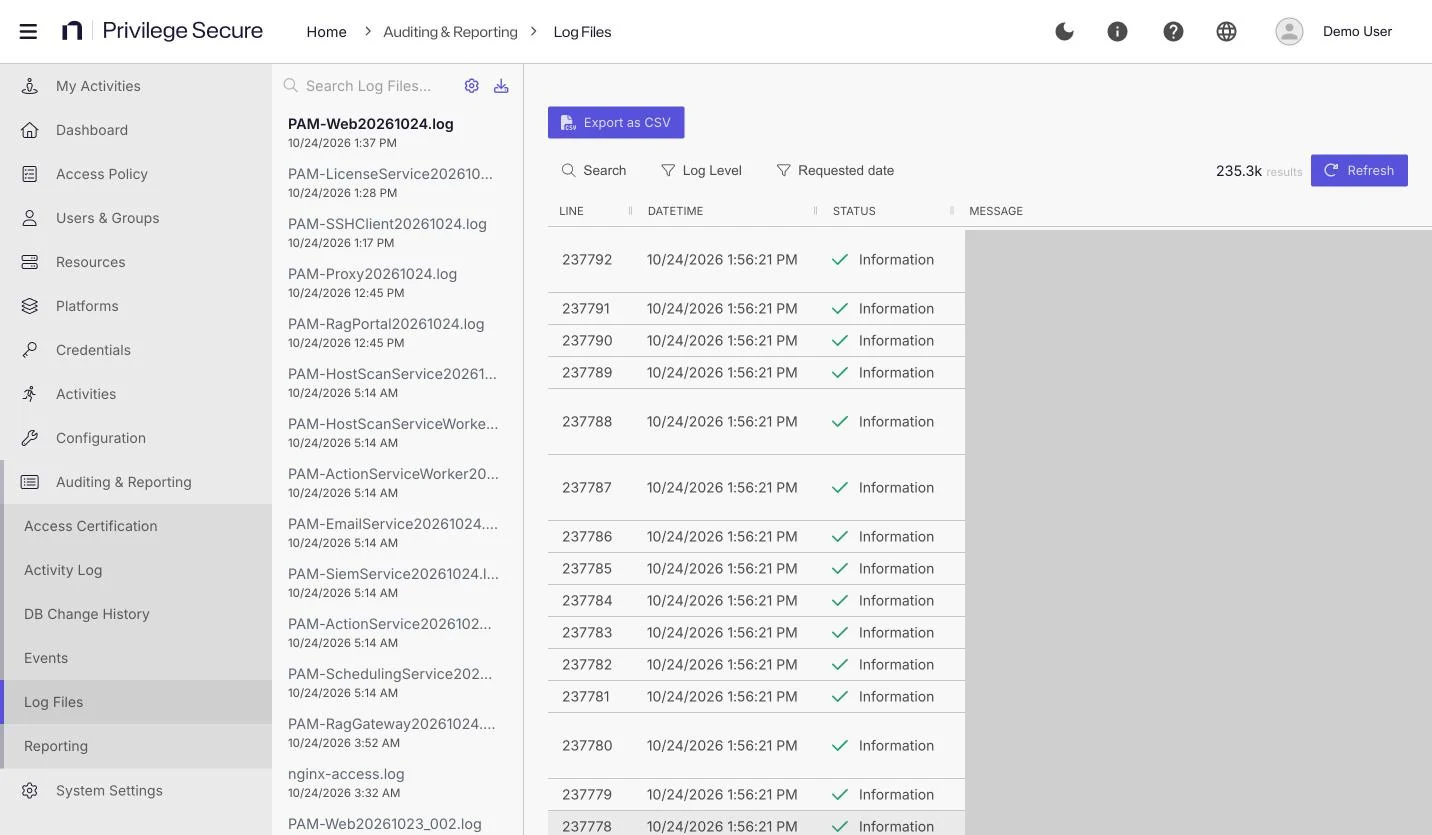
Log file location and names
Log files are in C:\ProgramData\Stealthbits\PAM\Log on the server that runs the service.
Files are named PAM-<Service><yyyymmdd>.log, where <Service> is the service and <yyyymmdd> is the date. For example, PAM-ActionService20191002.log.
The page lists logs for these services:
| Service | Log |
|---|---|
| Web | PAM-Web |
| Proxy | PAM-Proxy |
| SSH client | PAM-SSHClient |
| Host Scan | PAM-HostScanService, PAM-HostScanServiceWorker |
| Action | PAM-ActionService, PAM-ActionServiceWorker |
PAM-EmailService | |
| Security information and event management (SIEM) | PAM-SiemService |
| Scheduler | PAM-SchedulingService |
| License | PAM-LicenseService |
| Installer and maintenance | PAM-InstallCmd, PAM-RotateKey, PAM-DbUpdater |
| PostgreSQL upgrade | NPS-PGUpgrade, NPS-PGUpgradeErr |
Services keep a limited number of files. By default, the Web, Action, Host Scan, Email, Scheduler, SIEM, and Proxy services start a new file each day, keep 10 files, and start another file when one reaches 100 MB. The Options window shows and changes the file count and size limit that a service uses. The Proxy service also deletes log files older than 30 days.
The SSH client service starts a new file when one reaches 100 MB, keeps 10 files, and deletes files older than 30 days. It doesn't start a new file each day. The License service follows the same default as the first group: a new file each day, 10 files, and 100 MB per file.
Remote Access Gateway hosts
The Remote Access Gateway and Portal write to the same folder on their own hosts:
PAM-RagGateway<yyyymmdd>.logon the gateway server. The file is empty until the first request.PAM-RagPortal<yyyymmdd>.logon the portal server.nginx-access.logon the portal server.
The Log Files page lists only the logs on the Privilege Secure server that serves the console. To read the Remote Access Gateway and portal logs, open them on those hosts.
Read a log
- Select Auditing & Reporting > Log Files.
- Enter text in Search Log Files... to filter the list on the left.
- Select a log file.
For example, to find problems in a service, select its log and set Log Level to Warn or Error.
The right pane shows the log lines in four columns: LINE, DATETIME, STATUS, and MESSAGE. It has these controls:
| Control | Description |
|---|---|
| Search | Searches the log. |
| Log Level | Filters lines by level. The values are Debug, Info, Warn, and Error. The default is Debug. |
| Requested date | Filters lines by date. |
| Export as CSV | Saves the displayed log as a CSV file. |
| Refresh | Reloads the log. |
The pane also shows the number of lines.
Download logs
Select Download Logs above the log list to download the logs, for example to send them to support.
- In the Download Logs window, set Start Date and End Date. The start date can't be in the future or after the end date.
- Select Download.
The download is a ZIP file named nps-logs.zip. It contains every log file in the log folder of the server that runs the console whose dates fall in the range, not only the selected log.
Change the log level
The log level controls how much detail a service writes. Set a more detailed level, such as Debug, only when support asks.
- Select a log file.
- Select Options (the gear icon) above the log list. The <Service> Options window opens for the service that wrote that log.
- Select a field to edit it.
- Set Minimum Log Level, Retained File Count Limit (1 to 40), or File Size Limit Bytes (1 to 250,000,000).
- Select Save. Select Cancel to discard your changes.
For example, when support asks for detailed logs, select the Action Service and set Minimum Log Level to Debug. After you collect the logs, set it back to Information.
| Setting | Description |
|---|---|
| Minimum Log Level | The lowest level the service logs. See the following levels. |
| Retained File Count Limit | The number of log files to keep before the oldest are deleted. |
| File Size Limit Bytes | The maximum size of one log file, in bytes. |
The levels, from most to least detailed, are:
- Verbose: The most detailed logging. Privilege Secure writes few Verbose messages, so the difference from Debug is small.
- Debug: Detailed information for analysis. Support may ask you to enable this level to troubleshoot.
- Information: Normal operation. This is the recommended level.
- Warning: An unusual condition that the system can recover from.
- Error: An unrecoverable condition that may indicate data loss.
- Fatal: An error that caused the service to stop.
The Proxy service offers Debug, Information, Warning, Error, Panic, and Fatal. It has no Verbose level.
Options is available when the selected log belongs to the Action, Email, Proxy, Scheduler, SIEM, Web, or Host Scan service. It isn't shown for License service logs, for logs that match none of these services, or to users who aren't Administrators, including Admin View Read Only users.
For help with a specific problem, see Troubleshooting.