Reports and subscriptions
The Reporting page lists predefined reports on sessions, resource syncs, password rotations, and password age. You can run a report, change its filters, save your own version, download it, and subscribe to receive it by email on a schedule.
To open it, select Auditing & Reporting > Reporting.
Administrators can use reports. Auditors can use them when their role includes the Reporting permission.
Prerequisites
To subscribe to a report, you need:
- The Email service configured. See Configure email notifications.
- An email address on your user account. Check it on the Users & Groups page.
Find a report
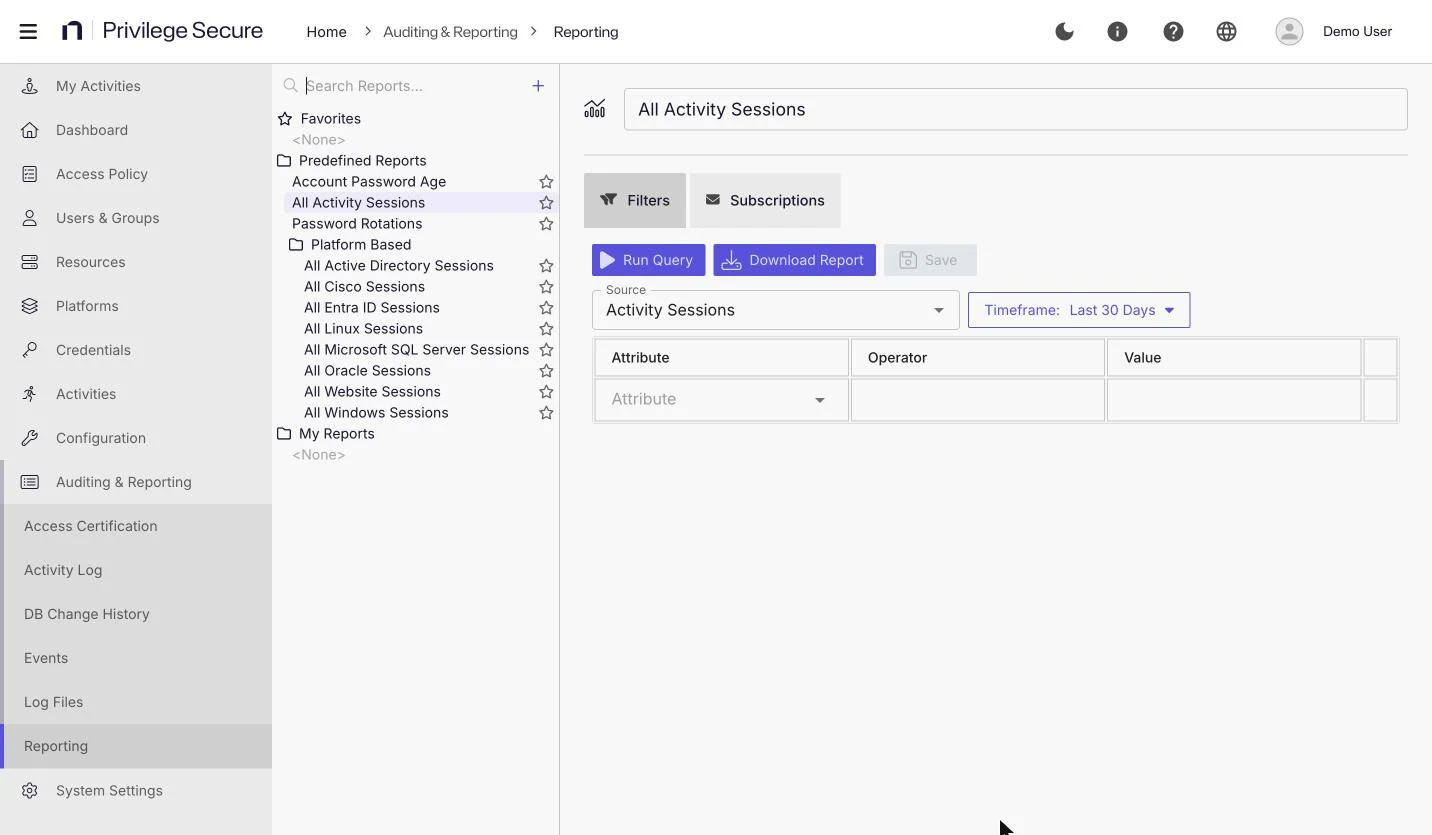
The report tree is on the left. Use Search Reports... to filter the tree by report name. The search covers predefined and custom reports.
The tree has these folders:
| Folder | Contents |
|---|---|
| Favorites | Reports you marked with a star. Select the star beside a report name again to remove it. |
| Predefined Reports | Account Password Age, All Activity Sessions, Password Rotations, and the Platform Based folder. |
| Platform Based | All Active Directory Sessions, All Cisco Sessions, All Entra ID Sessions, All Linux Sessions, All Microsoft SQL Server Sessions, All Oracle Sessions, All Website Sessions, and All Windows Sessions. |
| My Reports | Reports you created, and copies you saved from a predefined report. |
Each report has a Filters tab and a Subscriptions tab.
Run a report
- Select Auditing & Reporting > Reporting.
- Select a report in the tree.
- On the Filters tab, change the Timeframe if needed. Predefined reports default to Last 30 Days.
- Select Run Query.
The results appear under the filters.
Download a report
- Open the report and select Run Query.
- Select Download Report.
- In the Download Report window, select Download PDF or Download CSV.
Both buttons are unavailable while you have unsaved changes to the filters. The downloaded file name includes the report name and the time of the download.
Create a report
- Select + (Add Report) beside Search Reports....
- In Enter Report Name, enter a name, for example
Windows sessions last 7 days. - In Source, select the data to report on.
- Leave Timeframe at Last 7 Days, or select another value.
- Add filters. For each one, select an Attribute, an operator, and a value.
- Select Save.
The report appears in My Reports. The Subscriptions tab stays disabled until you save the report.
For example, to report on Windows sessions only, select the source Activity Sessions and add a filter with the attribute Platform, an operator that means equals, and the value Windows.
Sources
| Source | Reports on |
|---|---|
| Activity Sessions | Sessions that users ran. Filter attributes are Domain, Platform, Activity, Target User, Target Host, and User. |
| Resource Sync | Resources that synced. Filter attributes are Name, Operating System, Version, IP Address, and DnsHostName. |
| Password Rotation | Password rotation events. Filter attributes are User, Target Resource, Change Reason, and Results. |
| Password Age | The age of account passwords. Filter attributes are Name, Password Age, Account Name, Privilege, and Computer. |
The operators are Equals, Not Equals, Contains, Not Contains, Starts With, Ends With, Less Than, and Greater Than. Each attribute offers only the operators that fit it. For example, Domain and Platform offer only Equals and Not Equals, and Password Age offers Equals, Not Equals, Less Than, and Greater Than.
The Activity Sessions source has no Access Policy attribute.
Timeframes
The Timeframe list offers Last Hour, Last 4 Hours, Last 8 Hours, Last 24 Hours, Last 5 Days, Last 7 Days, Last 14 Days, Last 30 Days, and Custom. Custom shows a Start date and an End date picker.
A new report defaults to Last 7 Days. The predefined Account Password Age, All Activity Sessions, and Password Rotations reports default to Last 30 Days. The reports in the Platform Based folder default to Last 7 Days.
The session reports, including All Website Sessions, have a Target column.
Customize a report
Predefined, platform-based, and custom reports work the same way. The Filters tab has these buttons:
| Button | Description |
|---|---|
| Run Query | Runs the report and shows the matching data. |
| Download Report | Downloads the report. |
| Save | Saves your changes. The button stays disabled until you change something. Saving a predefined report creates a copy in My Reports. |
| Delete | Deletes the report. Available for custom reports only. |
Subscribe to a report
A subscription emails the report to you on a schedule.
- Open a report you saved, and select the Subscriptions tab.
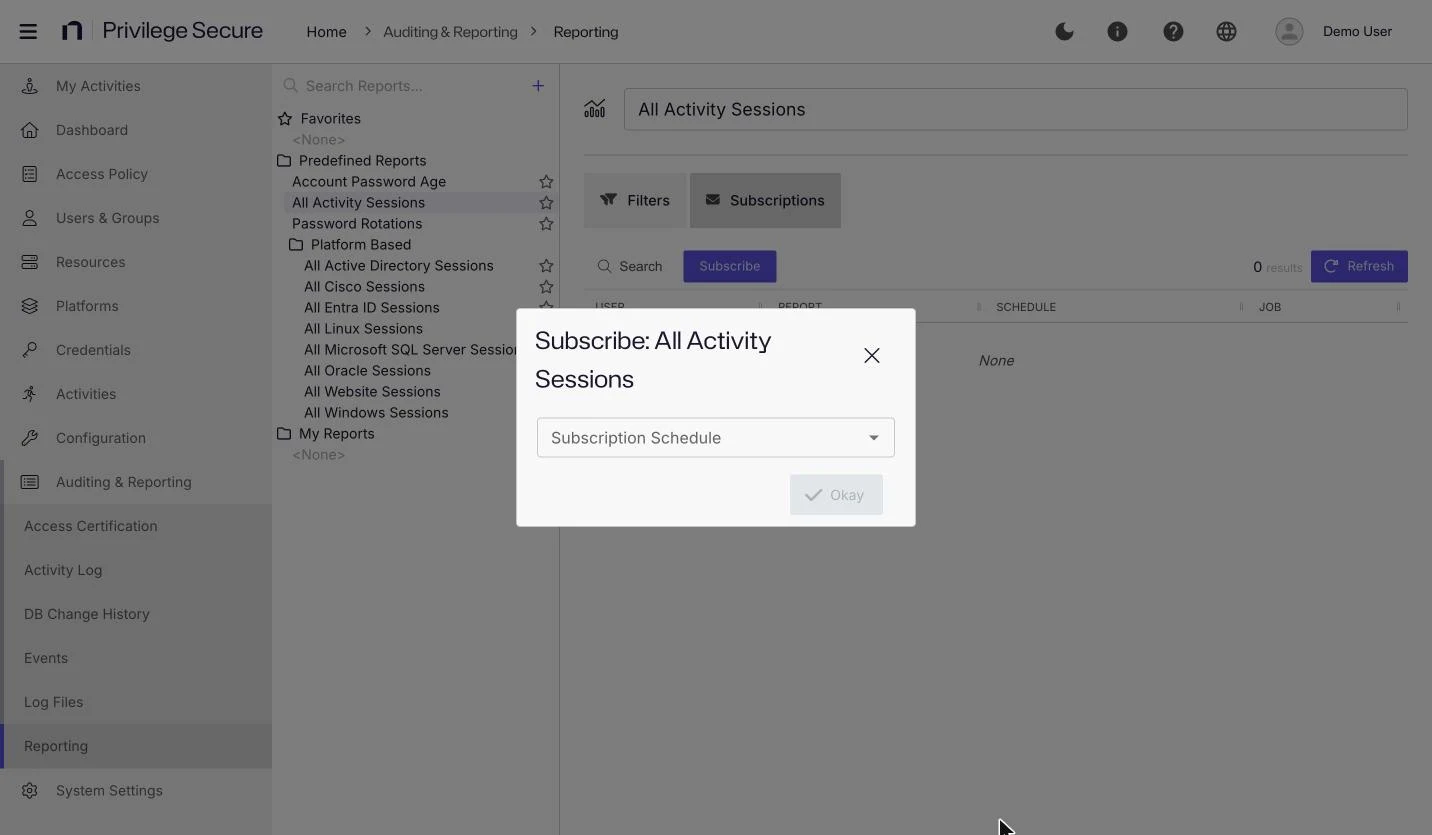
- Select Subscribe.
- In Subscription Schedule, select Every 1 hours, Every 4 hours, Every 8 hours, or Every 24 hours.
- Select Okay.
The Okay button stays disabled until you select a schedule. Privilege Secure sends the report to the email address on your user account.
For example, to receive the Windows sessions last 7 days report once a day, select Every 24 hours.
The Subscription Schedule list shows every schedule policy, sorted by name, including any you create under Platforms > Schedule Policies.
After you subscribe, the Subscriptions tab shows CSV and PDF check boxes and the current schedule. Subscribe becomes Unsubscribe. Both check boxes are selected by default, and the email attaches each selected format. Keep at least one selected. The email has the subject Netwrix Privilege Secure Report.
The Subscriptions tab has these controls:
| Control | Description |
|---|---|
| Search | Filters the subscriptions by user name. |
| Subscribe | Subscribes you to the report. |
| Refresh | Reloads the list. |
The table has these columns:
| Column | Description |
|---|---|
| USER | The subscribed user. |
| REPORT | The report name. |
| SCHEDULE | How often the report is sent. |
| JOB | The scheduled job for the subscription. |