Credential groups
A credential group is a named set of managed credentials. Credential-based access policies use groups to decide which accounts users can check out. See Create a credential-based access policy.
The Credential Groups page is under Credentials in the left navigation. It has two panes. The left pane lists the groups. The right pane shows the selected group.
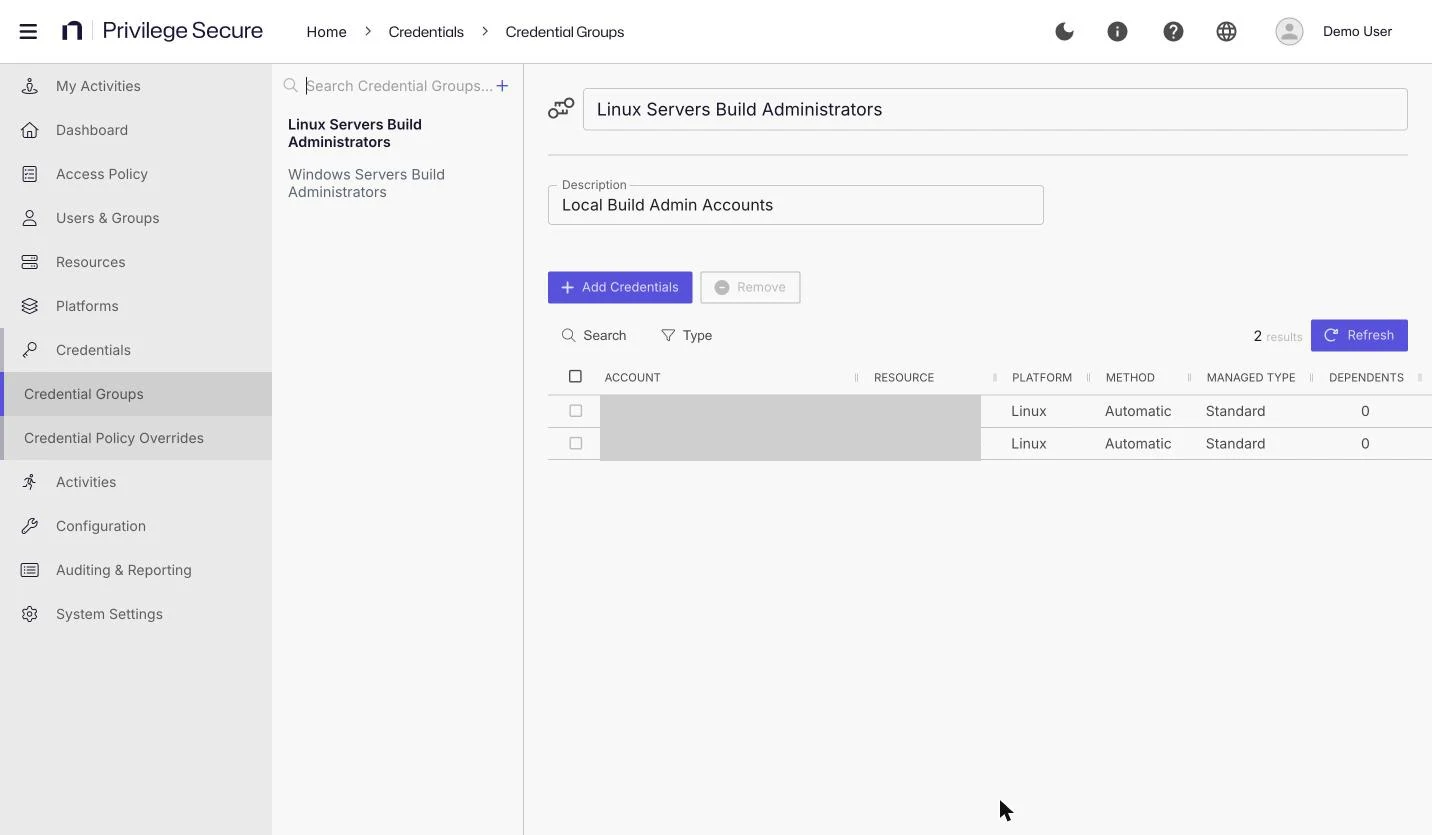
The left pane
- Search Credential Groups...: Filters the list.
- +: Creates a group.
- Trash icon: Appears when you hover over a group. It deletes the group after a confirmation.
The group details
The details pane shows the Name and Description of the group. If you change either, Save and Cancel appear. Select Save to keep the change or Cancel to discard it.
The member table has these controls:
- Search: Filters the members.
- Type: Filters by managed type: All, Internal, Standard, or Service.
- Add Credentials: Opens the Add Credentials dialog.
- Remove: Removes the selected members from the group. It is disabled until you select a row.
- Refresh: Reloads the table.
The table has the columns Account, Resource, Platform, Method, Managed Type, Dependents, Password Changed, Age, Status, Last Checked, and Next Change. Managed accounts show the Copy Password to Clipboard and View Password icons. For the meaning of the columns and status values, see Credentials.
Create a credential group
- In the left navigation, select Credentials > Credential Groups.
- Select +.
- Enter a name in Enter Credential Group Name.
- Enter a Description.
- Select Save.
For example, name a group <build-admin-accounts> with the description <Local build administrator accounts>.
Add credentials to a group
- On the Credential Groups page, select the group.
- Select Add Credentials.
- Use the search box and the type dropdown (All, Internal, Standard, Service) to find accounts.
- Select the checkbox for each account in Available Credentials. The account moves to Credentials to Add.
- Optional: Clear a checkbox in Credentials to Add to move the account back.
- Select Add.
Available Credentials lists the credentials that aren't already in the group. It leaves out deleted credentials and application credentials. The search box matches the account name, and the type dropdown limits the list to one account type.
Remove credentials from a group
- Select the group.
- Select the checkbox for each account to remove.
- Select Remove.