Credentials
The Credentials page lists the accounts that Privilege Secure discovers in your environment. It covers host local accounts, domain accounts, and Privilege Secure application local accounts. It also covers the managed accounts that activity sessions create.
A managed account is an account whose password Privilege Secure stores and rotates. Use the page to bring an account under management, rotate its password, verify its password, and see how old the password is.
The Credentials tile on the Dashboard shows the same table. See Dashboard.
To open the page, select Credentials in the left navigation. The Credentials menu also holds Credential Groups and Credential Policy Overrides.
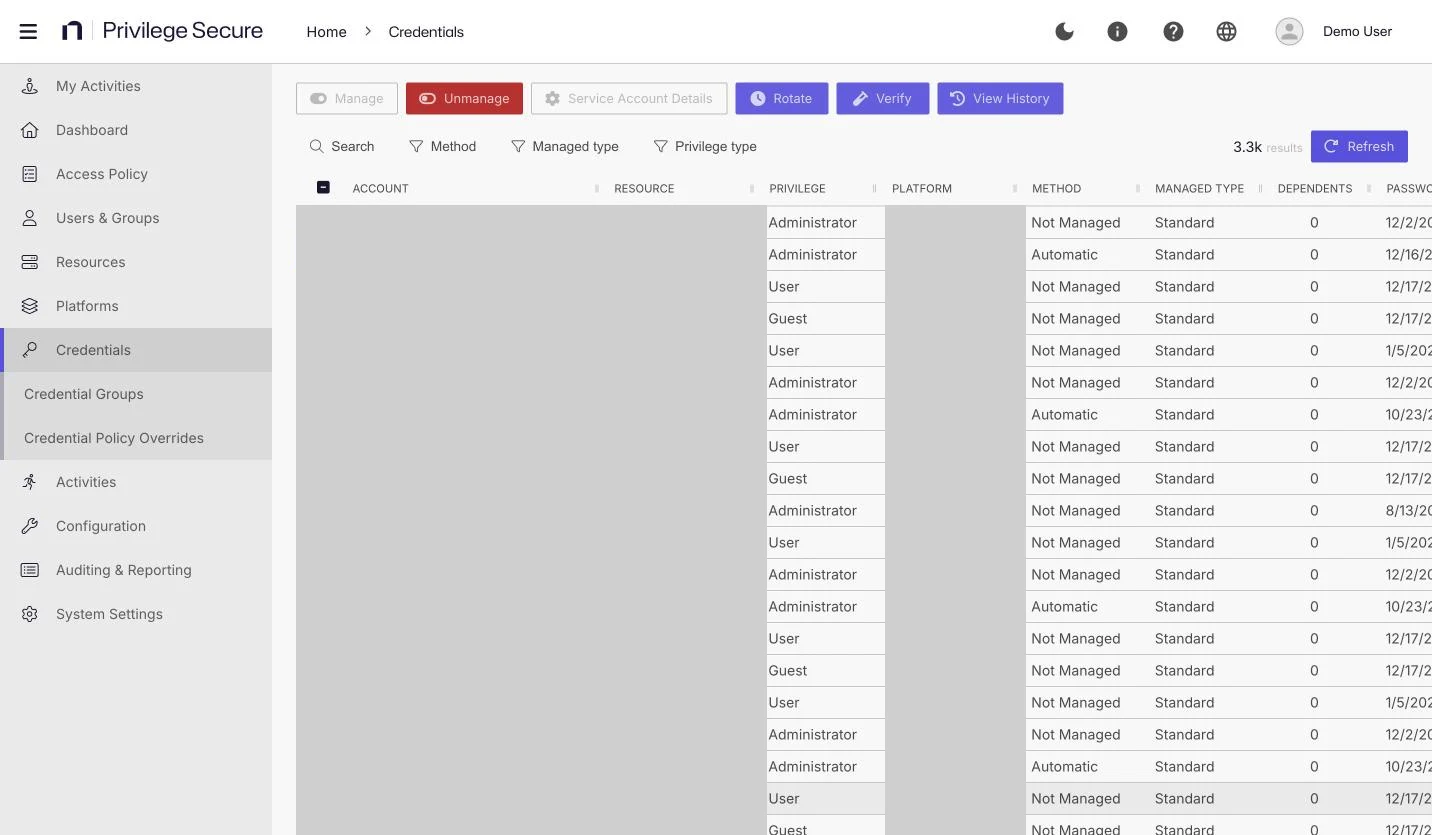
Toolbar
The toolbar buttons are Manage, Unmanage, Service Account Details, Rotate, Verify, and View History. Each button stays disabled until you select a row. Which buttons are enabled depends on the selected row. See Manage, rotate, and verify credentials.
Filters
Select a filter chip to open its "Filter by" popup. An active filter stays on the page as a chip with an X. Select the X to clear it. Use Search to match an account or resource name.
| Filter | Values |
|---|---|
| Method | All, Not Managed, Managed, Automatic, Manual |
| Managed type | All, Internal, Standard, Service |
| Privilege type | Not Set, Administrator, Power User, Guest, User, Superuser, Linux User, Cisco Privilege 0, Cisco Privilege 1, Cisco Privilege 15 |
For example, to find every service account that has dependencies, set Managed type to Service.
The page also shows the number of results and a Refresh button.
Columns
You can sort and resize every column.
| Column | Shows |
|---|---|
| Account | The account name. Managed rows also show the Copy Password to Clipboard and View Password icons. The name isn't a link, because accounts have no detail page. |
| Resource | The resource that holds the account. Select the link to open the resource. |
| Privilege | The privilege type of the account on the resource. |
| Platform | The platform of the resource. |
| Method | How the account is managed: Automatic, Manual, or Not Managed. |
| Managed Type | Standard, Internal, or Service. |
| Dependents | The number of Windows services and scheduled tasks that run as the account. |
| Password Changed | When the password last changed. |
| Age | The number of days since the last rotation, or since the password was first stored. |
| Status | The result of the last verification. |
| Last Checked | When Privilege Secure last verified the account. |
| Next Change | When the next scheduled rotation runs. |
| Last Logon | When the account last authenticated. |
Method
| Value | Meaning |
|---|---|
| Automatic | Privilege Secure rotates the password on the schedule of the platform, or of a credential policy override. |
| Manual | You rotate the password yourself, or you update it on both the resource and in Privilege Secure. |
| Not Managed | Privilege Secure doesn't manage the account and has never stored a password for it. |
The Managed filter value matches both Automatic and Manual accounts.
Managed type
The managed type decides how an account rotates. See Rotation methods.
| Value | Meaning |
|---|---|
| Standard | A local or domain user account, including managed users that activity sessions create. |
| Internal | An account that Privilege Secure itself uses, with no dependencies. See Manage internal service accounts. |
| Service | An account that one or more Windows services or scheduled tasks use. This includes Internal accounts that have dependencies. See Rotate service accounts and their dependencies. |
Status
| Status | Meaning |
|---|---|
| Unspecified | No verification has run. |
| Verified | The password on the resource matches the password that Privilege Secure stores. |
| Mismatch | The verification found that the password on the resource doesn't match the stored password. |
| Changed | Privilege Secure reset the password on the resource to match its stored value. This status appears only when Reset On Mismatch is on. |
| Failed | The reset to the stored value failed. This status appears only when Reset On Mismatch is on. |
Platform settings control Reset On Mismatch, the rotation schedule, and the verification schedule. See Platforms.