Credential policy overrides
By default, a managed credential takes its scheduled change policy and verification schedule from its platform. A credential policy override replaces both for the credentials you add to it.
Use an override when some accounts need a different rotation or verification frequency than the rest of the platform. For example, rotate a sensitive account every hour while other accounts on the platform rotate daily.
The Credential Policy Overrides page is under Credentials in the left navigation. Like Credential Groups, it has a list on the left and the selected override on the right.
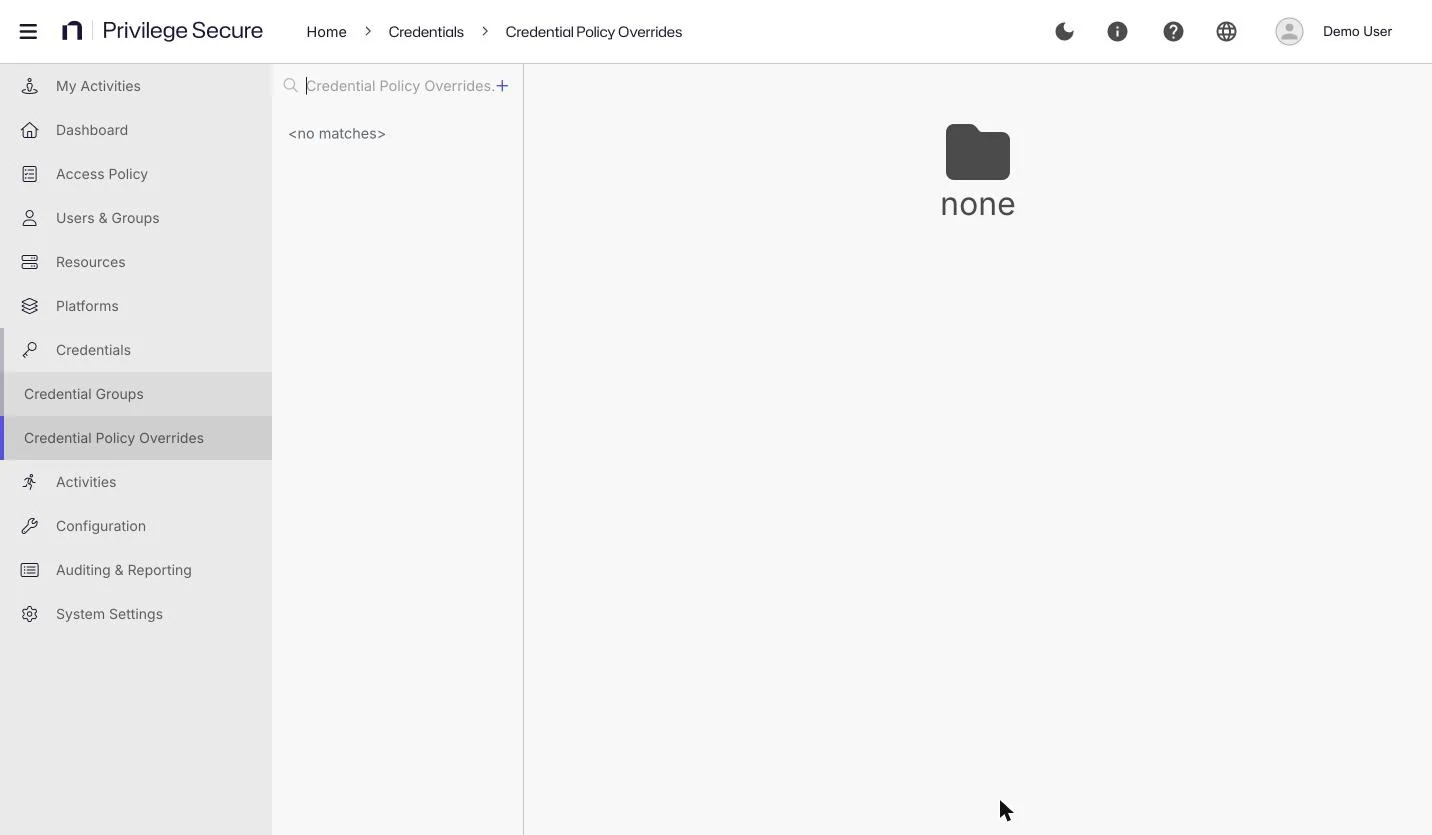
The left pane
- Credential Policy Overrides... search box: Filters the list.
- +: Creates an override.
- Trash icon: Appears when you hover over an override. It deletes the override after a confirmation.
When no override exists, the left pane shows <no matches> and the right pane shows "none".
Override settings
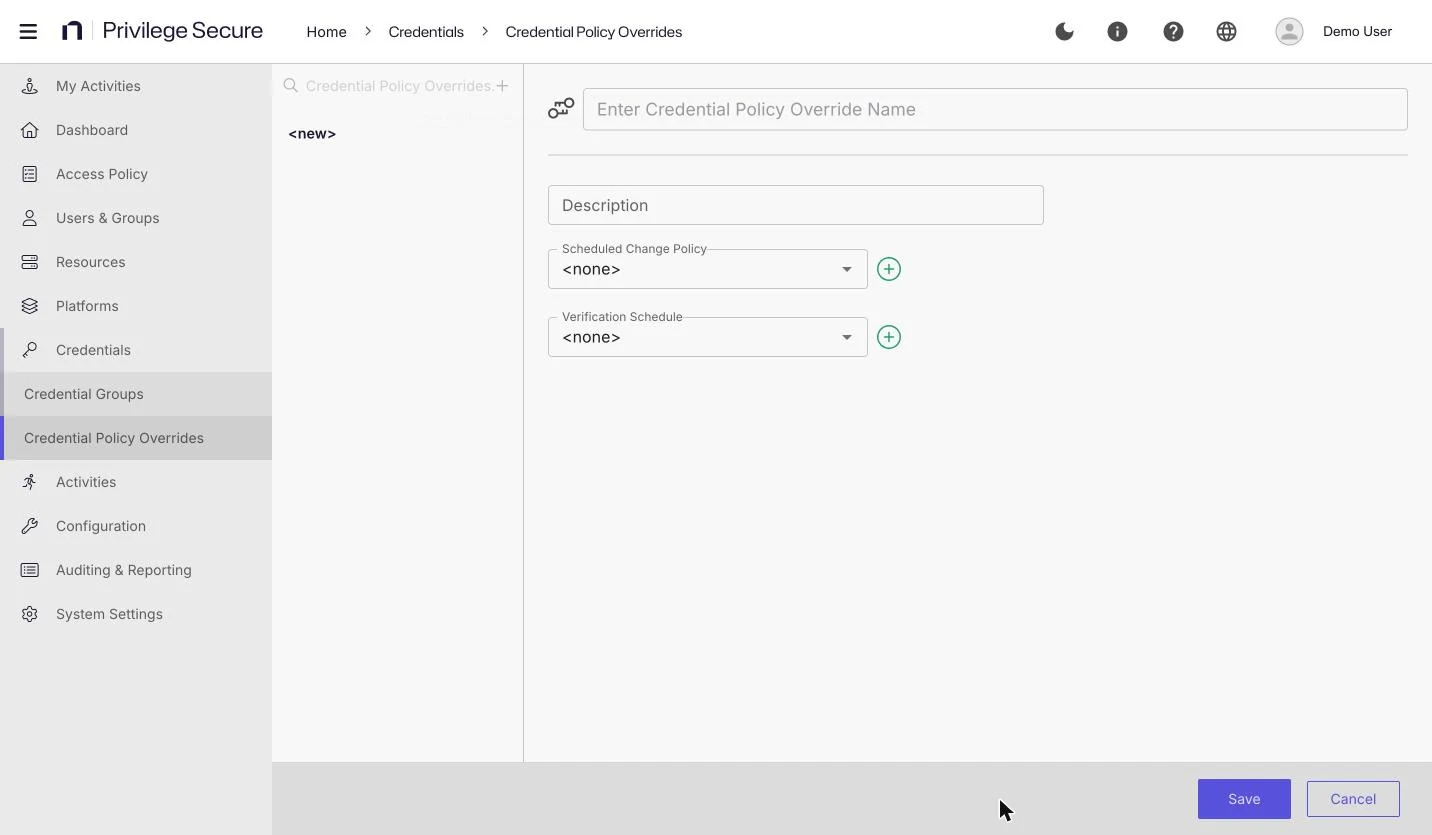
| Setting | Description |
|---|---|
| Name | The name of the override. |
| Description | A description. |
| Scheduled Change Policy | The schedule policy that controls how often the credentials rotate. Select a policy you created earlier. The default is <none>. |
| Verification Schedule | How often Privilege Secure verifies the credentials. The default is <none>. |
Both dropdowns have a + button to add a schedule. For schedule policies, see Schedule policies.
Create an override
- In the left navigation, select Credentials > Credential Policy Overrides.
- Select +.
- Enter a name in Enter Credential Policy Override Name.
- Enter a Description.
- Select a Scheduled Change Policy.
- Select a Verification Schedule.
- Select Save.
For example, create an override named <hourly-rotation> with the Scheduled Change Policy set to a policy that runs every hour.
Add credentials to an override
- Select the override.
- Select Add Credentials.
- Select the checkbox for the account in Available Credentials.
- Optional: Clear the checkbox in Credentials to Add to move the account back.
- Select Add.
For example, add <domain>\<privileged-account> to the <hourly-rotation> override.
Only credentials with the method Automatic appear in the list. You can select several accounts and add them in one step.
The override table has Search, Add Credentials, Remove, and Refresh. Select a row, and then select Remove to take a credential out of the override. It then uses the rotation and verification schedules from its platform again. If the platform has no schedule for rotation or verification, that job is disabled for the account.
The override table shows Account, Resource, Password Changed, Age, Status, Last Checked, and Next Change for each credential.