Assign administrators, reviewers, and auditors
Assign a built-in role to give a user or group the matching access to the console. You can start from the role, or from the account. The result is the same.
Only accounts that are already on the Users & Groups page can receive a role. To add accounts first, see Add domain users and groups. For what each role grants, see Roles and permissions.
When you assign a role to a group or a collection, every member of the group or collection receives it.
Assign a role from Role Management
- In the left navigation, click Users & Groups, then Role Management.
- In the role list, select Administrators, Reviewers, or Auditors.
- Add the accounts.
- For Administrators, click Add User to open the Add Administrators window.
- For Reviewers, click Add User to open the Add Reviewers window.
- For Auditors, click Add Role Users at the bottom of the page to open the Add Role Users window.
- Select each account in the left list (Available Accounts, or Available Role Users for Auditors) to move it to the right list.
- Click Add.
The accounts appear in the member list of the role.
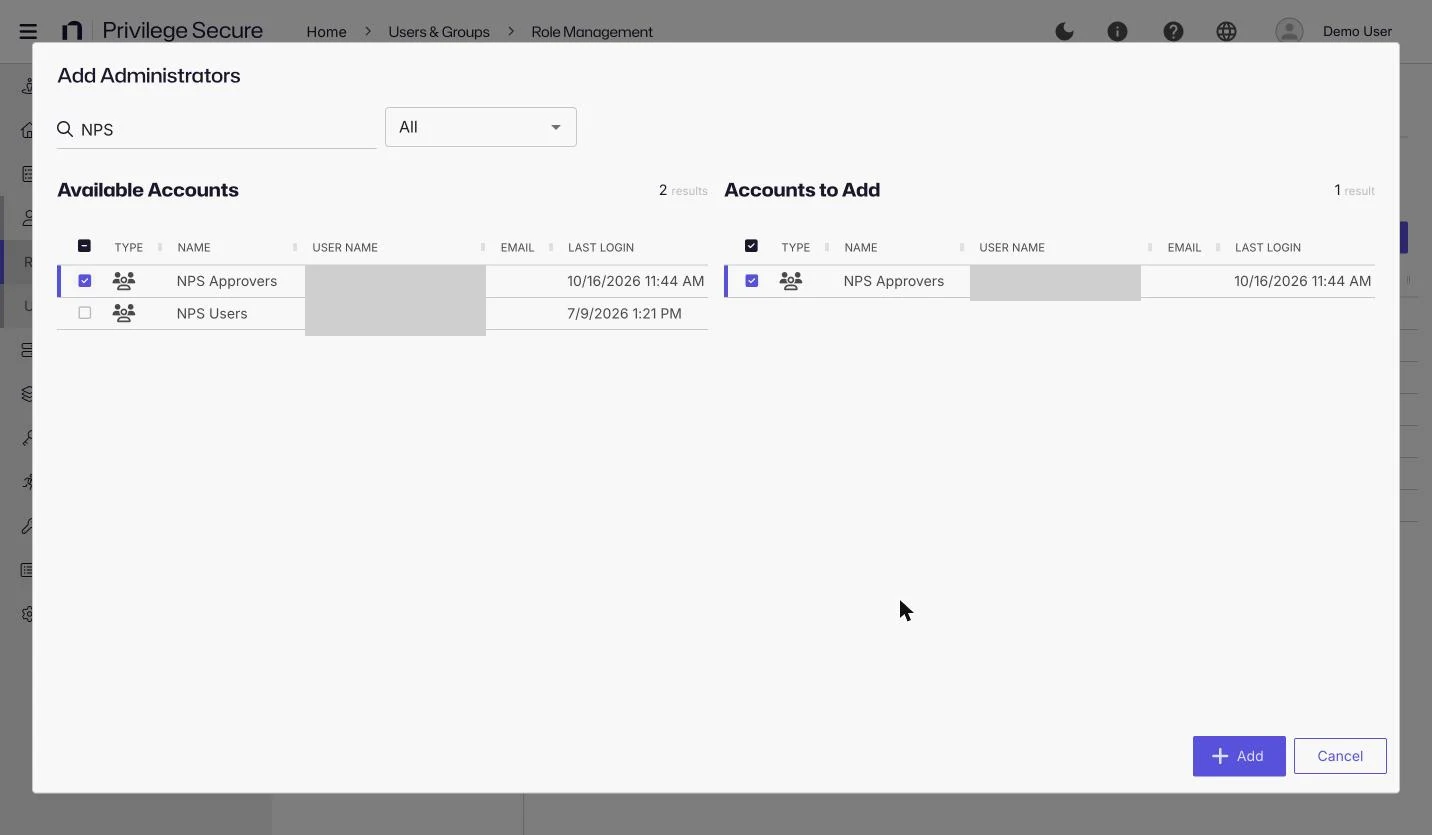
In these windows, Filter limits the list to users, groups, applications, collections, or local users. The columns are the account type, name, user name, email address, and last login.
Example
To make the members of <platform-admins-group> administrators:
- Select Administrators in the role list.
- Click Add User.
- Select
<platform-admins-group>in Available Accounts. - Click Add.
Every member of the group now has the Administrator role, and the group appears in the Administrators list.
For an Auditors role, the members see only the sessions in the role's scope. Set the scope before you add members. See Roles and permissions.
Assign a role from an account
- In the left navigation, click Users & Groups.
- Click the name of the user or group to open its details page.
- Click the User Roles tab for a user, or the Group Roles tab for a group.
- Click Add to open the Add Roles window.
- Select one or more roles. The list shows Administrator, Reviewer, and every custom role, including Auditors, that the account doesn't already hold.
- Click Add.
The role appears on the tab with its ROLE, DESCRIPTION, and CREATED values.
The Users role isn't assignable here.
Example
To make a user a reviewer, open the user's details page, click the User Roles tab, click Add, select Reviewer, and click Add. The user can then review access. See Run an access certification.
Remove a role
- Open the role in Role Management, or open the account's User Roles or Group Roles tab.
- Select the accounts or roles to remove.
- Click Remove.
A confirmation window lists the roles or accounts you selected. Confirm to remove them. The accounts leave the role.
Removing an account from the Administrators or Reviewers role takes effect at the user's next sign-in or token renewal, not at the moment you click Remove. Auditors and custom-role permissions are checked on each request, so removing those roles takes effect at once.
The console doesn't let you remove yourself from the Administrators role. Remove is disabled when your own account, or a group that you belong to, is selected for that role, and its tooltip reads "Admins can't remove themselves from the admin role." or "Admins can't remove groups they're in from the admin role." This applies to the Administrators role only.
Custom roles
Create a custom role and add its members from Role Management. See Create a custom role.