Create a custom role
A custom role delegates part of administration to people who aren't Administrators. Each custom role has one Target that decides which permissions it offers:
| Target | Delegates | Typical use |
|---|---|---|
| Access Policies | Changes to selected parts of selected access policies | A team lead who maintains the policies for one group of servers |
| Credentials | Managing, verifying, and rotating selected credentials | A team that owns a set of service accounts |
| Auditors | Viewing recordings and live sessions for selected users and resources, and running reports | An audit team that reviews one business unit |
A custom role grants only the permissions you assign, and only over the entities you add to it. For the built-in roles and how to assign them, see Roles and permissions and Assign administrators, reviewers, and auditors.
Prerequisites
- You're signed in as an Administrator.
- The users or groups that will receive the role are already on the Users & Groups page. See Add domain users and groups.
Create a custom role
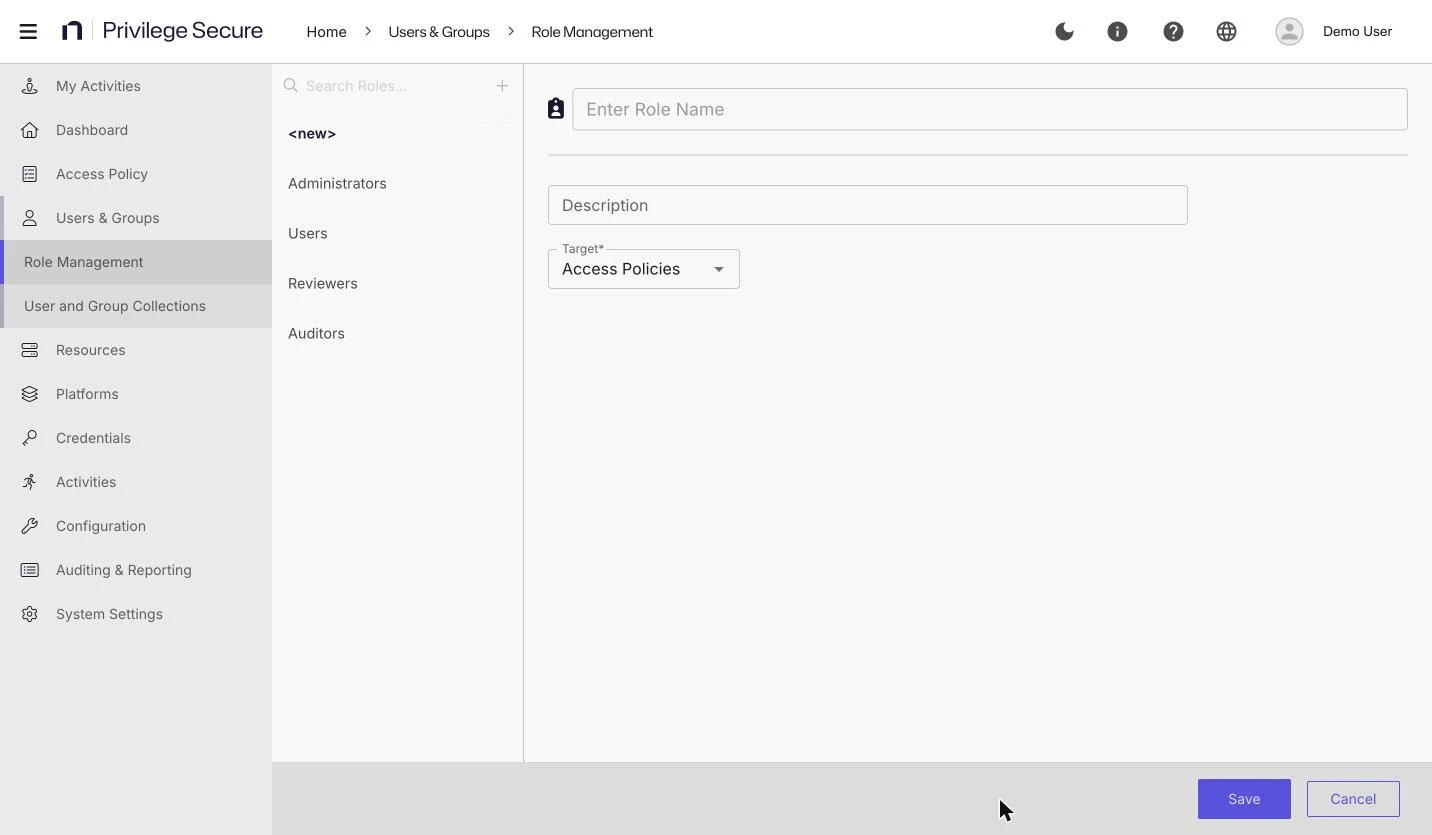
- In the left navigation, select Users & Groups > Role Management.
- Select + (Add Role).
- In Enter Role Name, enter a name, for example
Policy editors. - (Optional) Enter a Description, for example
Maintains the access policies for the finance servers. - In the Target dropdown, select Access Policies, Credentials, or Auditors.
- Click Save.
The new role appears in the role list. Select it to assign permissions, scope it, and add users.
The role list shows copy and delete icons beside each role. They're enabled only for custom roles. The copy icon clones the role with its permissions, scope, and members.
Assign permissions
The Permission Assignment section is a two-column list. Permissions on the left aren't assigned to the role. Permissions on the right are. Select a permission and use the arrows to move it between the columns.
Changes save as soon as you move a permission. There is no Save button.
Access Policies permissions
Each permission lets a role member change one part of a policy.
| Permission | Lets the member |
|---|---|
| Modify Name | Change the policy name |
| Modify Description | Change the policy description |
| Modify Connection Profile | Change the connection profile of the policy |
| Modify Activities | Change the activities in the policy. Turns on the Activities tab. |
| Modify Users | Change the users and groups in the policy. Turns on the Users tab. |
| Modify Resources | Change the resources in the policy. Turns on the Resources tab. |
For how these permissions work in a policy, see Access policies.
Credentials permissions
| Permission | Lets the member |
|---|---|
| Manage | Put an account and its credentials under Privilege Secure control |
| Unmanage | Remove an account and its credentials from Privilege Secure control |
| View Password | See the credential |
| Schedule Rotation | Rotate the credential from the Credentials page with Rotate |
| Verify | Check that the stored credential still works |
| Rotate Services | Open the Account Dependencies dialog of a service account, and rotate, roll back, or cancel a rotation there so the Windows services and scheduled tasks that run as the account receive the new password |
Rotate Services doesn't control the Rotate button on the Credentials page. That button needs Schedule Rotation.
For the credential tasks themselves, see Credentials.
Auditors permissions
| Permission | Lets the member | Depends on |
|---|---|---|
| View Recordings | Review recordings of historical sessions for the assigned users and resources | |
| Live Session Viewer | Watch live sessions for the assigned users and resources | |
| Terminate Session | Stop a live session. The user can start a new session. | Live Session Viewer |
| Lock Session | Lock a live session so the user can't work, and optionally block new sessions | Live Session Viewer |
| Reporting | Create, change, delete, and run reports | |
| Admin View Read Only | See every administration page without changing anything | Reporting (added automatically) |
Terminate Session and Lock Session stay disabled until Live Session Viewer is assigned. For the viewer, see Watch, lock, or terminate a live session. For Admin View Read Only, see Give auditors read-only console access.
Scope the role
A role member can use a permission only on the entities you add to the role.
Access Policies role
Select the Policies tab, then select Add Policies and choose the policies the role can change. The tab has Search, Remove, and Refresh buttons. The table shows Name and Description. Select a name to open the policy.
The Activities, Users, and Resources tabs appear when you assign Modify Activities, Modify Users, or Modify Resources. Use them to limit which activities, users, and resources the member can change in those policies.
On each tab, select Add Users, Add Activities, or Add Resources to open the Add Users And Groups, Add Activities And Groups, or Add Resources And Groups window. Or select All Users, All Activities, or All Resources to cover every entity of that type. While that checkbox is selected, the add and Remove buttons are disabled.
Credentials role
Select the Credentials tab to add the credentials the role manages. The tab has Search, Type, Remove, and Refresh controls. The table shows Type, Name, and Resource. The Resource column shows the resource the credential belongs to, if any.
Auditors role
An Auditors role has two scope tabs, Users and Resources. The tab description reads "Select access to live sessions and historical recordings."
- On Users, select Add Users to choose the users whose sessions the auditor can see, or select the All Users checkbox.
- On Resources, select Add Resources to choose the resources, or groups of resources, whose sessions the auditor can see, or select the All Resources checkbox. The table shows Type, Name, and Operating System.
A session is in scope only when both its user and its resource are covered, either by an entry you added or by the All Users or All Resources checkbox. For example, a role with one user added and All Resources selected covers every session of that user, on any resource. When a member holds more than one Auditors role, the scopes add together. Members always see their own sessions.
Add users to the role
The Role Users table at the bottom of the role page lists the accounts that hold the role.
- Select Add Role Users. The Add Users and Groups window opens.
- Search for or filter to the accounts you want, and select them.
- Click Add.
The toolbar has Search, a Type filter, Remove, and Refresh. Type filters by User, Group, Application, Collection, and Local User. The table columns are Type, Name, User Name, User Principal Name, Email, and Last Login. You can resize and sort the columns.
To remove a person from the role, select the row and select Remove.
You can also assign a custom role from a user's details page. See Assign administrators, reviewers, and auditors.
Example: an audit team for one business unit
Create a role that lets the finance audit team watch live sessions and replay recordings for the finance servers.
- Create a role named
Finance auditorswith Target set to Auditors. - Assign View Recordings and Live Session Viewer.
- On Resources, add the resource group that holds the finance servers.
- On Users, select All Users.
- Select Add Role Users and add the audit team group.
Members of the group can watch and replay sessions on the finance servers.