Monitor service nodes
A service node is a server that runs Privilege Secure services. The Service Nodes page shows each node, the services on it, and whether they are healthy. Use it to find a stopped service and to read what each service is doing.
To open it, select Configuration > Service Nodes. The page is under Configuration in the console menu.
The page is for monitoring and reading logs. The only settings you change here are the Email service settings. To run services on more servers, see Install services on additional servers.
Read the page
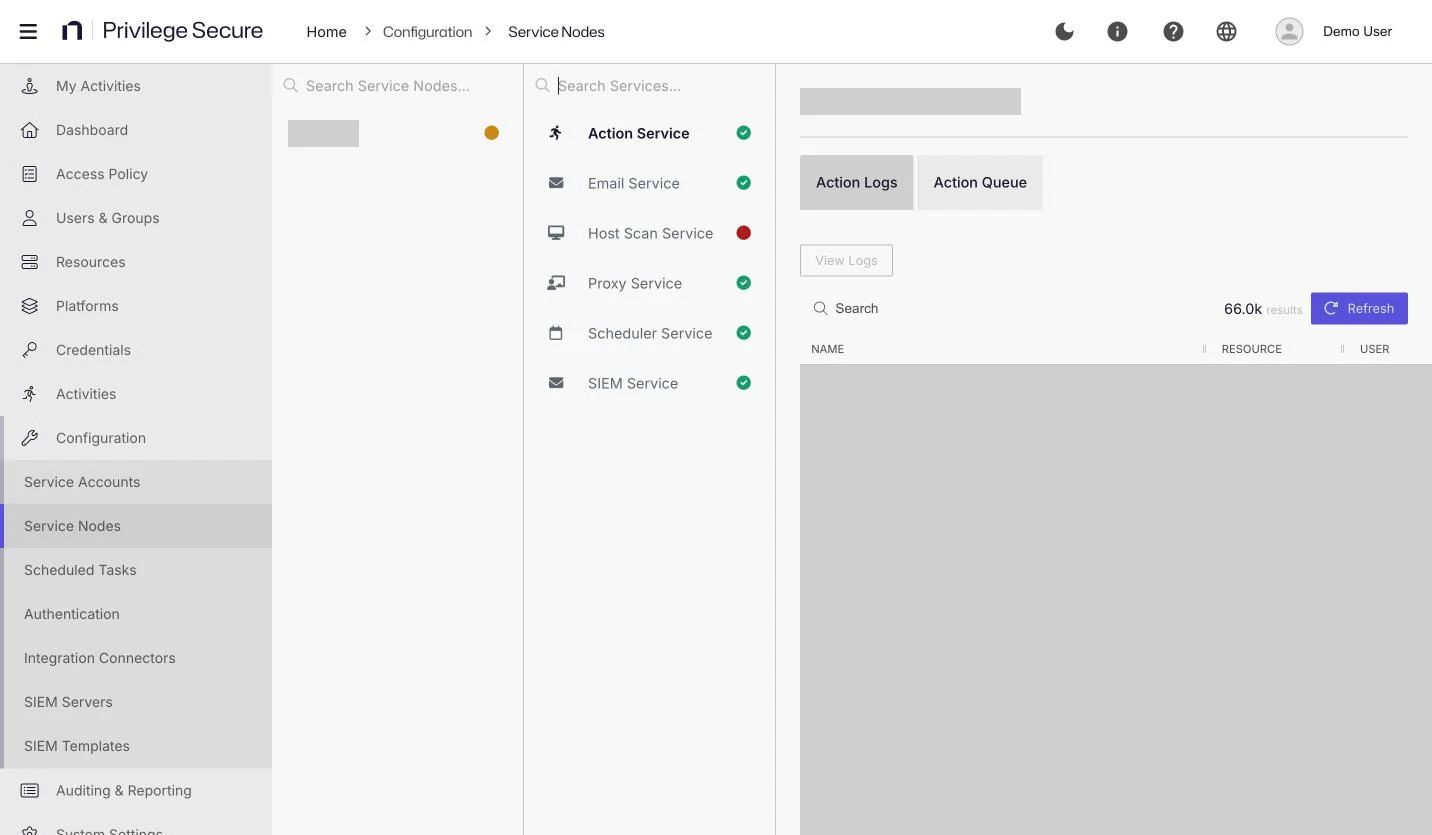
The page has three panes:
- The node list, with Search Service Nodes....
- The service list for the selected node, with Search Services....
- The details of the selected service.
On the main server, the node lists six services: Action, Email, Host Scan, Proxy, Scheduler, and security information and event management (SIEM). A node lists only the services registered on that server. For example, a server that runs only the Proxy Service lists Proxy, and a server where you installed the Action Service lists Action and Proxy.
Understand the status icons
Each node and each service has a status icon. Hover over an icon to see its status.
| Icon | Status | Meaning |
|---|---|---|
| Green | Online | The service is online. On a node, all services are online. |
| Amber | Partial | A node status. Some of the node's services are offline. |
| Red | Offline | The service is offline. |
The status of a node comes from the services registered under its name. The node is Online when every one of those services is online, Offline when none is, and Partial when some are online and some aren't. A service is online while it keeps its connection to the console open. The tooltip on the icon shows the status name: Online, Partial, or Offline. The console refreshes the statuses every 15 seconds.
Fix a Host Scan service that shows Offline
A red Host Scan service reflects the service's heartbeat to the web service. It doesn't show whether the Windows service is running. A Host Scan service can show Offline while the SbPAMHostScan Windows service runs.
- On the service node, open the Host Scan log from the Log Files page. See Log files. The file is
PAM-HostScanService<yyyymmdd>.log. - Look for repeated lines that start with "Heartbeat unable to connect". They show that the heartbeat fails.
- Search all
PAM-HostScanService*.logfiles forRemoteCertificate. The repeated warning hides the inner exception, which is logged only occasionally. A certificate name mismatch on the console port means the certificate doesn't cover the name the heartbeat uses. - Fix the cause, and then, on the service node, open Services and restart the
SbPAMHostScanWindows service.
The Register Services action might not restart the Host Scan service, so restart SbPAMHostScan yourself.
"Heartbeat unable to connect" means that the service's web request to the console failed. The text after the colon is the underlying error. The service tries again every 5 seconds, and the status returns to online when a request succeeds. To fix it, ensure the console address that the service uses is correct and reachable from the node, and that the certificate on that address covers the name in the address. See Set the NPS REST URL and register services.
To reissue the certificate, see Certificates. After you bind the certificate and register the services with the new DNS name, the node returns to online when the heartbeat succeeds.
Show a secondary node in a high availability deployment
After an upgrade, a secondary node in a high availability deployment might not appear in the primary console. Sign in to the console on the secondary server and register the services there. See Set the NPS REST URL and register services and High availability options.
Action Service
The Action Service runs the actions that other features queue, such as password rotation and Active Directory sync. It has two tabs:
| Tab | Description |
|---|---|
| Action Logs | The actions the service processed. |
| Action Queue | The actions waiting to run. |
Both tables have Search, View Logs, and Refresh. View Logs is disabled until you select a row. The columns are NAME, RESOURCE, USER, STATUS, START TIME, and END TIME. STATUS shows Complete or Failed.
Email Service
The Email Service sends notifications. It has an Email Settings tab and an Email Queue tab. For the settings, see Configure email notifications.
The Email Queue tab shows the outgoing messages. Search matches the To Address and Subject columns.
Host Scan Service
The Host Scan Service collects information from resources. It has these tabs:
| Tab | Description |
|---|---|
| Scan Logs | The scans that ran, with their status. |
| Scan Queue | The scans waiting to run. |
The columns match the Action Service tables. Select a row and click View Logs to read the detailed log for that scan.
Proxy Service
The Proxy Service page has no tabs. It shows a Name and Value table of properties for the proxy on the node. The properties are GoMaxProcs, HasInternetAccess, ComputerName, FullyQualifiedDomainName, NodeID, RegionID, OperatingSystem, GoVersion, RunAsAccount, ProxyServiceVersion, RegionHash, and NumCPU.
Scheduler Service
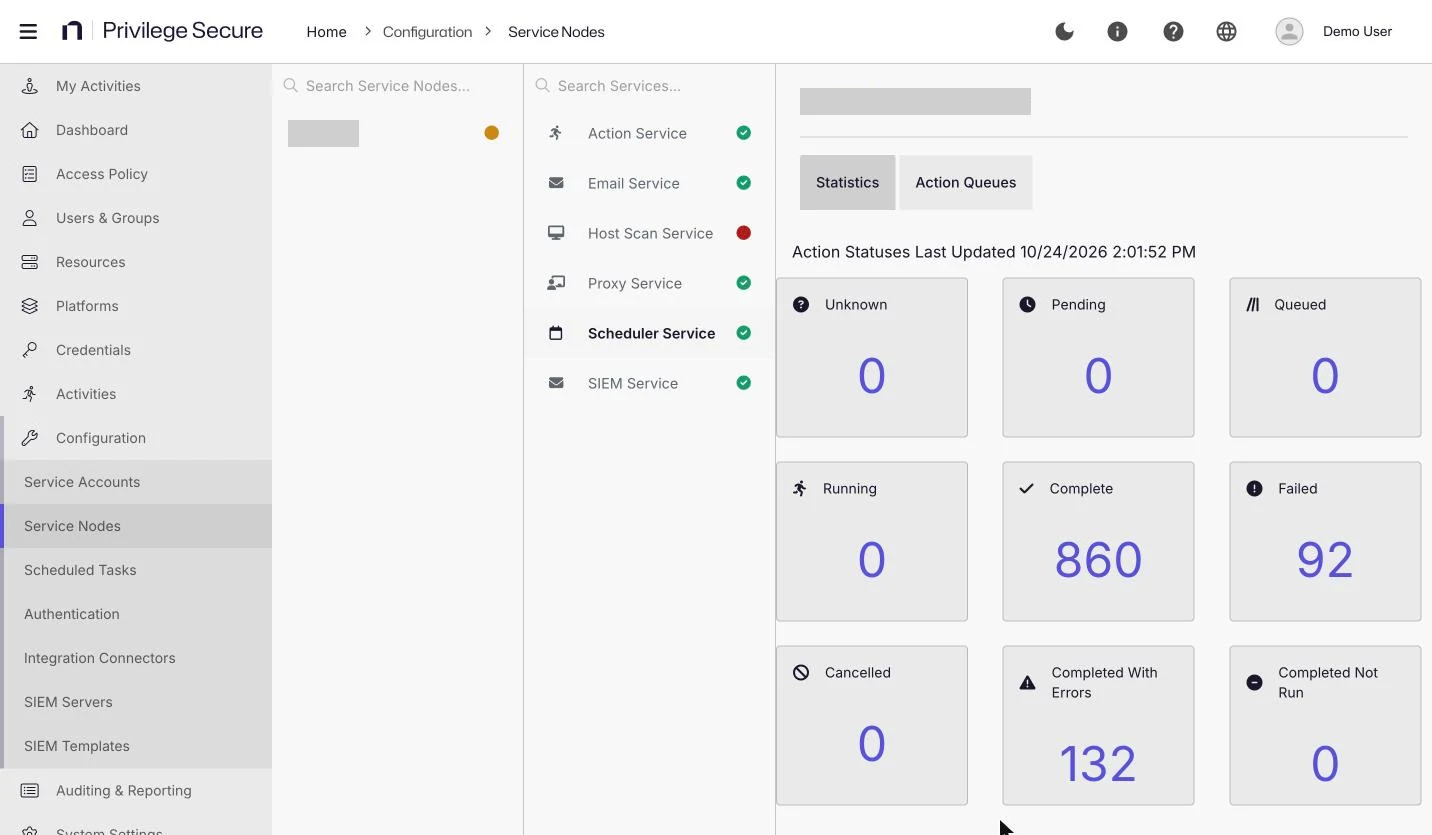
The Scheduler Service starts the scheduled jobs. It has these tabs:
| Tab | Description |
|---|---|
| Statistics | The number of actions in each status. |
| Action Queues | The scheduled jobs and their queue status. |
The Statistics tab shows the heading "Action Statuses Last Updated" with a time, and one tile for each status: Unknown, Pending, Queued, Running, Complete, Failed, Cancelled, Completed With Errors, and Completed Not Run.
The counts cover the actions that changed in the past 24 hours.
The Action Queues tab has Search and Refresh. The columns are START TIME, END TIME, JOB NAME, AQ STATUS, AQ STATUS DESCRIPTION, and ACTIVITY STATUS.
For the list of scheduled jobs, see Scheduled tasks.
SIEM Service
The SIEM Service page has no tabs. It lists the events queued for your SIEM servers. It has Search on the message, a Status filter, and Refresh. The Status filter offers All, Sent, and Not Sent.
| Column | Description |
|---|---|
| SENT TIME | When the service processed the event. |
| SENT | Whether the service sent the message. |
| MESSAGE | The SIEM event. |
| SIEM HOST | The SIEM server the event goes to. |
| RESOURCE | The related resource, if any. |
| ACCOUNT | The related account, if any. |
| ACTIVITY | The related activity, if any. |
| USER NAME | The related user name, if any. |