Replay a recorded session
The Replay Viewer plays back a recorded session. Use it to review what a user did after the session ended.
Before you begin
A session has a recording only when the connection profile on its access policy has Record Proxy Session selected. See Session recording for what is recorded and for how long recordings are kept.
These people can replay sessions:
- Administrators.
- Users whose role includes the View Recordings permission, which is available in the Auditors permission list. The Users and Resources scope tabs of an Auditors role limit which recordings the user can see.
Users of the Remote Access Gateway portal can't replay recordings. View recordings in the console.
Open a replay
- Open the Historical tile. See Review historical sessions.
- Find the session. To find text that was typed in a session, enter it in the Recording data search box. Matching rows expand on their own and list each match.
- Select the expand icon on the row, then select the entry with the play icon, for example
RDP Session completed at <time>.Select a search match to start playback at that point. If the entry has no play icon, the session wasn't recorded or you don't have permission to view the recording.
A session can have several recordings. Select the one you want.
For example, to review what an administrator typed on <server-name> yesterday, filter Recording data for the command text, expand the row, and select the recording. Playback jumps to the first match.
Viewer types
| Viewer | Sessions |
|---|---|
| RDP | RDP sessions |
| SSH | SSH sessions |
| Website | Website sessions |
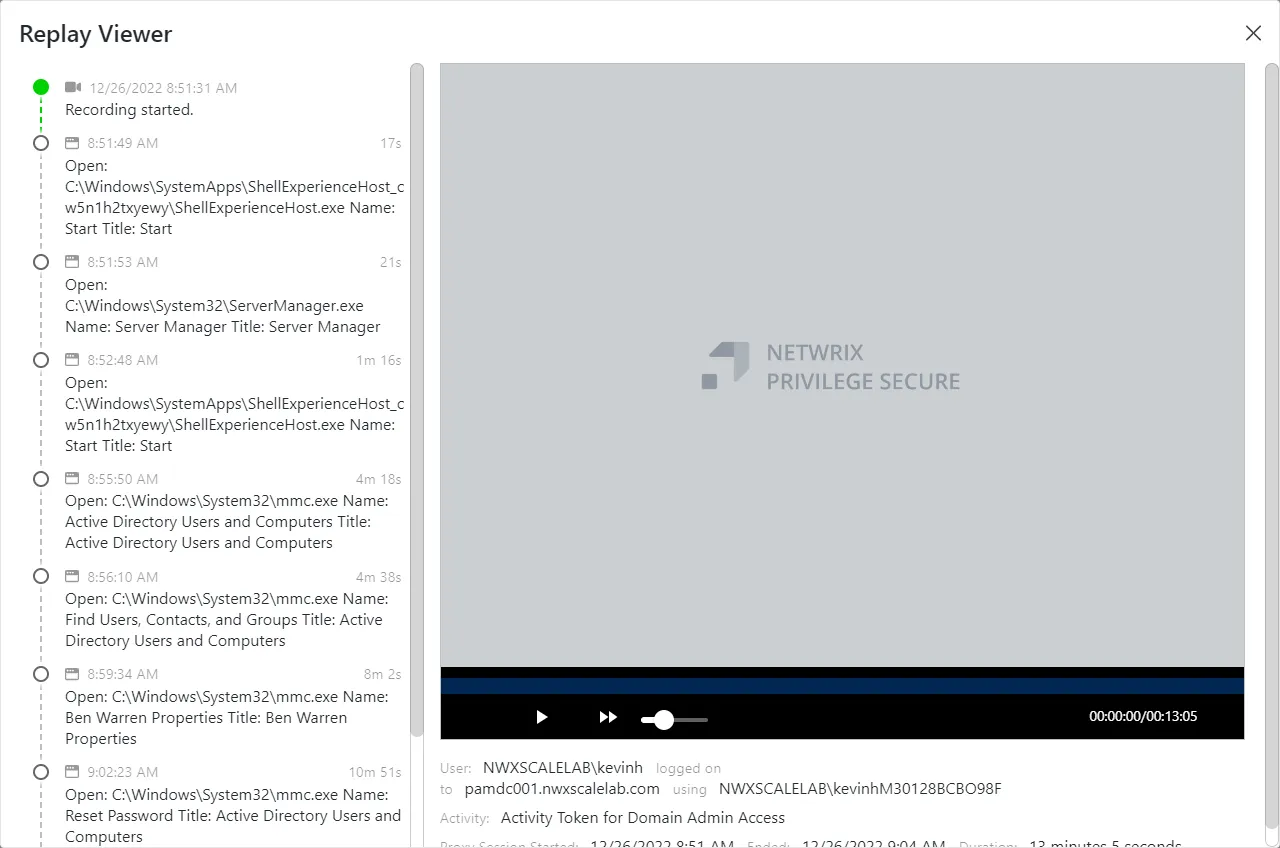
Controls for RDP and SSH replays
| Control | Use |
|---|---|
| Play, Pause, Rewind, Forward, Replay | Start, stop, or move through the recording |
| Playback | Select a point on the bar to jump to that place in the recording |
| Speed | Change the playback speed |
Controls for website replays
Website recordings play in the video player that is built into your web browser, so the controls are your browser's own. Most browsers show play and pause, a playback bar to jump to a point, volume, and full screen. Some also have a menu for playback speed. The exact controls and their layout depend on the browser. The replay has no timeline panel.
Recording details
| Detail | Meaning |
|---|---|
| User | The account used to sign in to the resource |
| logged on to | The resource |
| using | The computer the session connected from |
| Activity | The name of the activity |
| Proxy Session Started | When the activity's actions began. This isn't when the user signed in to the resource. |
| Ended | When the activity ended |
| Duration | How long the activity ran, until it reached its scheduled end or a user or administrator canceled it |
RDP and SSH replays also show a timeline of recorded events in the pane to the left of the player. The timeline starts with "Recording started." and includes keystrokes. When the Remote Desktop Monitor service runs on the target host, the RDP timeline also lists Windows events. See Install the Remote Desktop Monitor.
When a user types at a password prompt during an SSH session, the replay hides the keystrokes.