Add domain users and groups
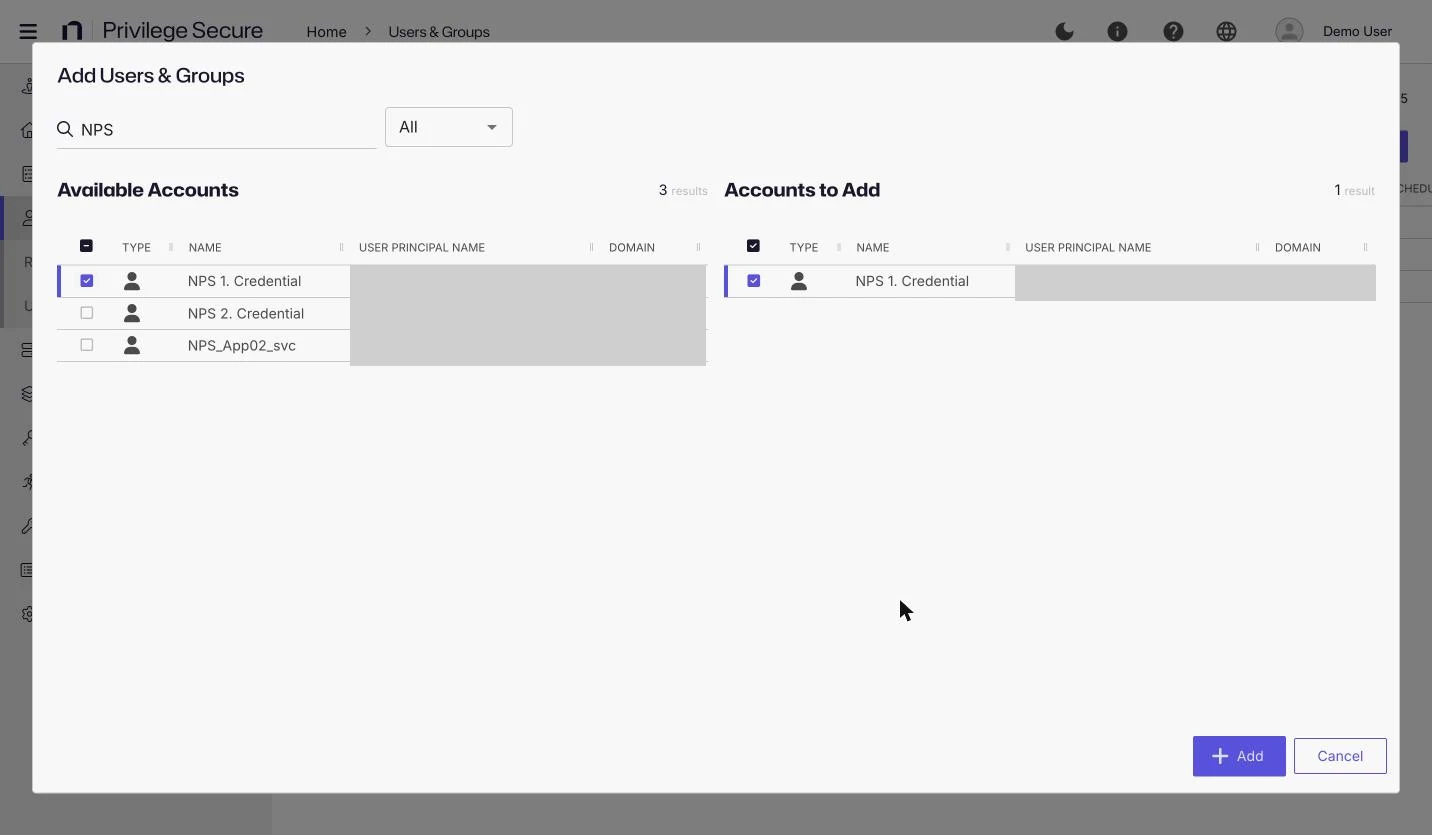
Onboard an Active Directory (AD) user or group to give it access to the console. The Add Users & Groups window lists the accounts that the AD sync found. Members of an onboarded group sign in with their own accounts.
The Members tab of an onboarded group lists the members of the group. See User and group details.
Prerequisites
- You have the Administrator role.
- The Active Directory domain is onboarded, and an AD sync has completed. The Add Users & Groups window lists only accounts that the sync found. See Active Directory domains and How Active Directory synchronization works.
Add users and groups
- Select Users & Groups in the left navigation.
- Click Add and select New Domain User. The Add Users & Groups window opens.
- Optionally, select User or Group in the type list to narrow the Available Accounts table, or enter text in Search Accounts....
- Select the checkbox for each account to add. The selected accounts move to the Accounts to Add table.
- Click Add. The button stays disabled until you select an account.
The accounts now appear on the Users & Groups page. For example, to give the AD group Server-Admins console access, search for Server-Admins, select its checkbox, and click Add.
Window reference
The window has two tables. Available Accounts lists the accounts that the AD sync found. Accounts to Add lists your selection and starts empty.
| Column | Shows |
|---|---|
| TYPE | An icon for a user or a group. |
| NAME | The account name. |
| USER PRINCIPAL NAME | The user principal name. |
| DOMAIN | The domain that holds the account. |
Other pages, such as access policies and roles, open their own add window with the same two-table layout. There, you pick accounts that are already onboarded. Their type list offers All, User, Group, Application, Collection, and Local User. The window for adding members to a collection offers the same values except Collection. The columns depend on the page.
Next steps
- Assign a role. See Assign administrators, reviewers, and auditors.
- Review the account. See User and group details.
- Grant session access. See Access policies.