Add application users
An application user is an account for an external tool that calls the Privilege Secure REST API. An application user has the same capabilities as a standard user, except that it can't sign in to the console. Each application user has a unique name that identifies the calling tool. The tool authenticates with a client certificate serial number and an API key.
Prerequisites
- You have the Administrator role.
- You have a client certificate for the tool, signed by a certificate authority (CA).
- The Privilege Secure server trusts that CA. Add the CA root certificate to the Trusted Root Certification Authorities store on the server.
Add an application user
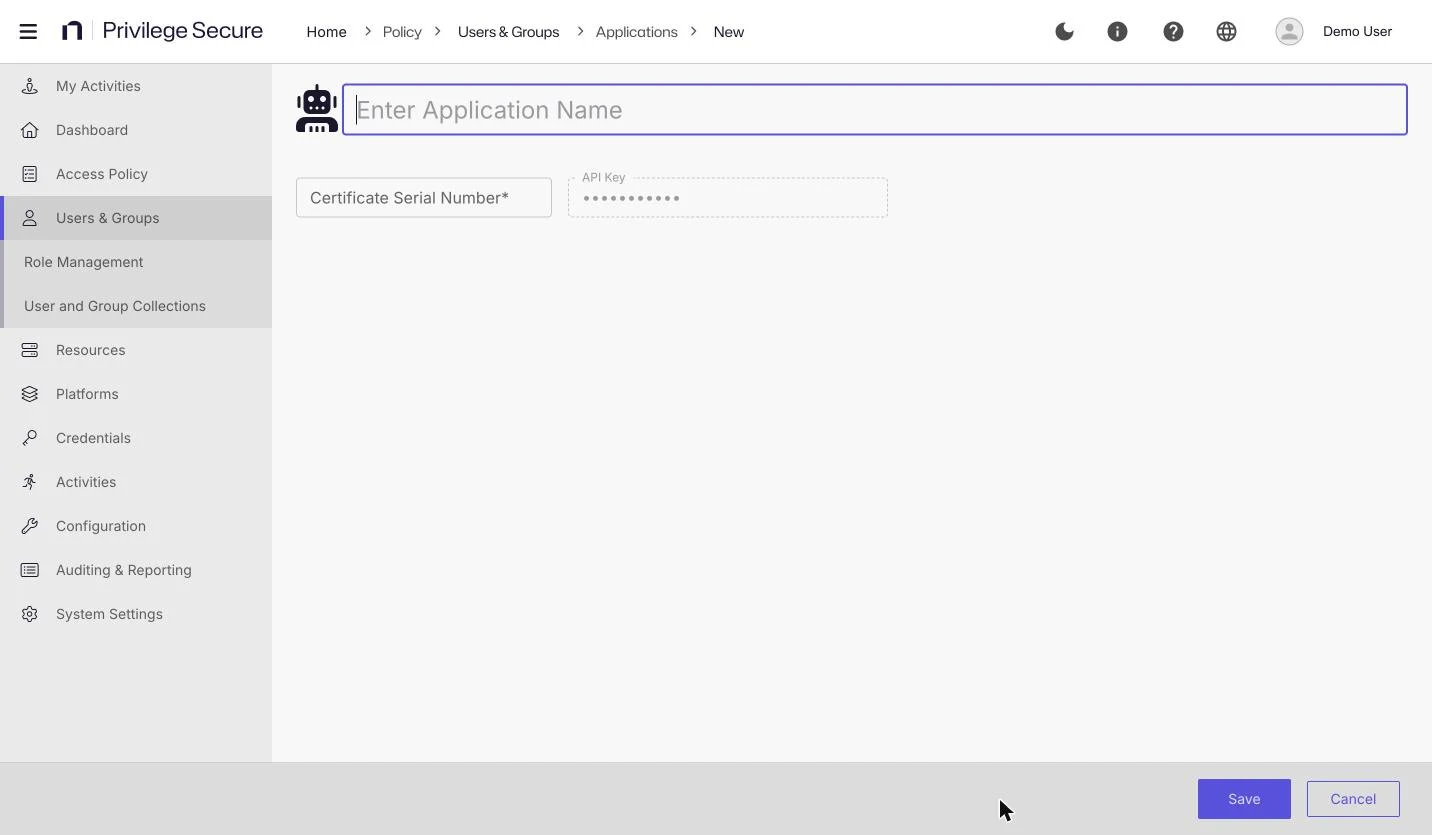
- Select Users & Groups in the left navigation.
- Click Add and select New Application User.
- In Enter Application Name, enter the name that identifies the tool, for example
backup-automation. - In Certificate Serial Number, enter the serial number of the client certificate. This field is required.
- Leave API Key as it is. The field is read-only, and Privilege Secure generates the key when you save.
- Click Save.
The application user appears on the Users & Groups page with the type Application. See Users and groups.
View or regenerate the API key
Open the application user and select the Authentication tab. The API Key field is masked. Use the buttons beside it:
| Button | Use |
|---|---|
| Reveal | Show the key. The button changes to Hide. |
| Copy | Copy the key to the clipboard. |
| Regenerate | Replace the key with a new one. The previous key stops working, so update the tool that uses it. |
Request an API token
To get a token for the tool, see Get a token as an application user.
Next steps
- Include the application user in an access policy. See Access policies.
- Remove the application user when the tool is retired. See Users and groups.