Add and manage local users
A local user exists in the Privilege Secure database. A local user doesn't depend on Active Directory (AD) to sign in. You can assign a local user to roles and access policies the same way you assign a domain user.
Prerequisites
You have the Administrator role.
Add a local user
- Select Users & Groups in the left navigation.
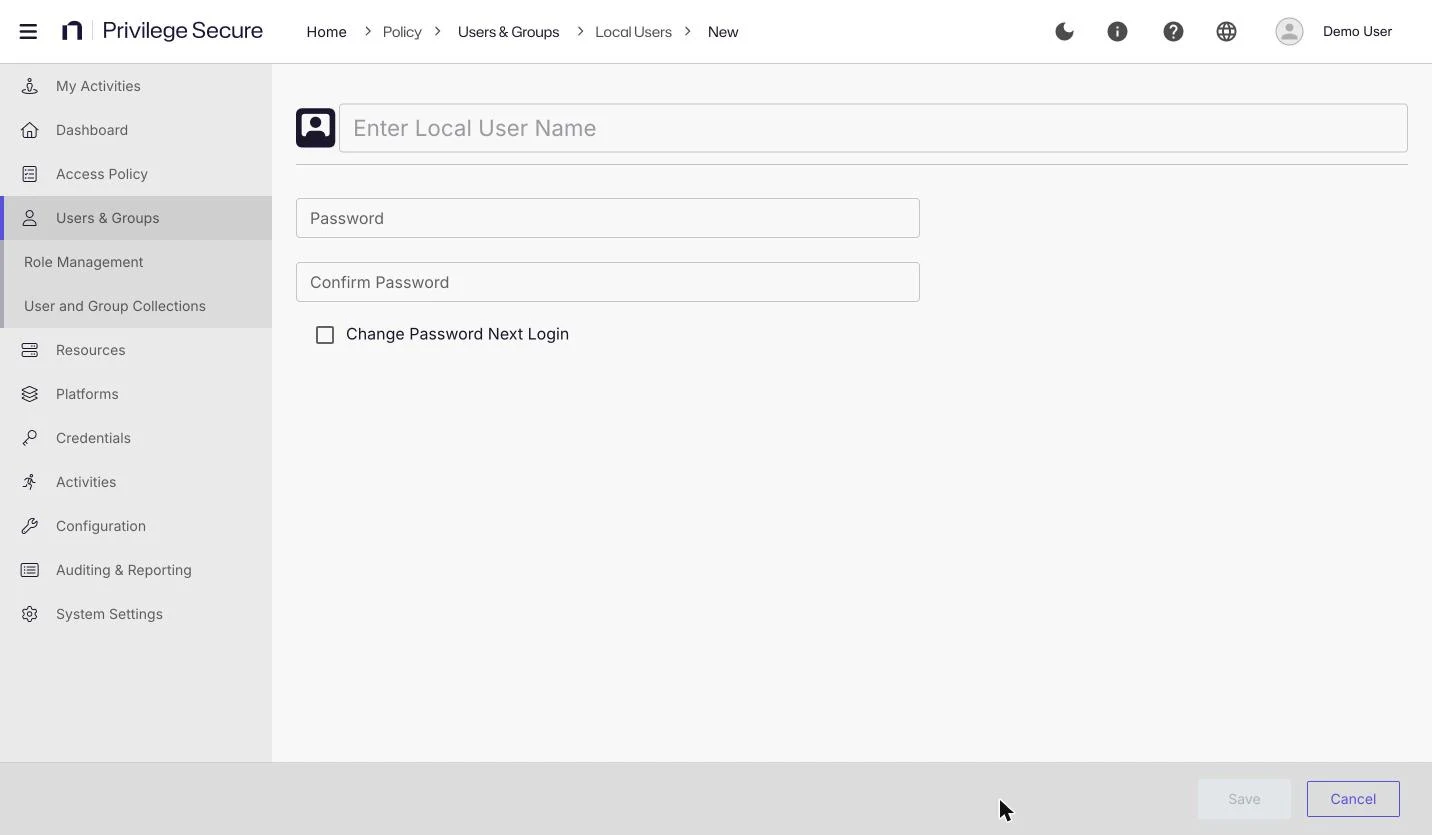
- Click Add and select New Local User.
- In Enter Local User Name, enter the name for the account, for example
contractor01. - Enter a password in Password and again in Confirm Password.
- To make the user choose a new password at the first sign-in, select Change Password Next Login. The checkbox is cleared by default, which keeps the password you entered.
- Click Save. The button stays disabled until the entries are valid.
The account appears on the Users & Groups page with the type Local User. See Users and groups.
Password rules
The password you enter must meet the local user password policy. Administrators change the policy in System Settings > Local User Password. The default policy requires:
- At least 8 characters. The length can be set from 8 to 1024.
- At least 1 unique character. This can be set from 1 to 12.
- At least one lowercase letter, one uppercase letter, one digit, and one non-alphanumeric character. Each requirement has its own setting.
Local user passwords also expire. The default is 90 days, and Expiration (Days) accepts 10 to 365. A user whose password has expired can't continue after signing in until the user sets a new password on the sign-in page. A password that you create with Change Password Next Login selected expires immediately, so the user sets a new password at the first sign-in. See System settings reference.
Manage a local user
Select the user's name on the Users & Groups page to open the details page. A local user has these tabs: Sessions, Policies, History, Authentication Connector, Properties, and User Roles.
The header has these buttons:
- Reset Password: Sets a new password for the user. This button appears on local users only.
- Lock Account: Locks the account so the user can't sign in. It also locks the user's active, scheduled, and awaiting-approval sessions. When the account is locked, the button changes to Unlock Account.
- Unlock Account: Unlocks the account and the sessions that the lock affected. It also clears a sign-in lockout that came from repeated failed sign-ins.
- Reset MFA: Resets the user's multi-factor authentication (MFA) registration. A confirmation window titled Reset MFA for user? opens. When you confirm, Privilege Secure generates a new TOTP secret, and the user registers an authenticator again. The button appears only when no external MFA connector is set for the user.
The Properties tab holds Display Name, SamAccountName, Department, User Principal Name, and Email. For details on each tab and on lockout, see User and group details.
Change your own password
Local users change their own passwords from User Options > Settings > Change Password. Enter Old Password, Password, and Confirm Password, then click Save. After a successful change, the console signs the user out and shows the sign-in page.