Restrict SSH commands
A command restriction is a named set of rules. When a user enters a command that matches a rule, the console takes the action that you chose for that rule. You apply a command restriction to a connection profile.
Command restrictions apply to SSH sessions that go through the Privilege Secure proxy. They don't apply to RDP or website sessions.
If the Command Restriction page or list doesn't appear, contact Netwrix support.
Create a command restriction
- Select Access Policy > Command Restriction.
- Click the plus (+) button above the list.
- In Name, enter a name for the set of rules.
- (Optional) In Email Recipient, enter the address that receives notifications.
- In the Settings section, fill in the first rule row. See Command restriction fields.
- To add another rule, click the plus icon at the end of the row.
- Click Save.
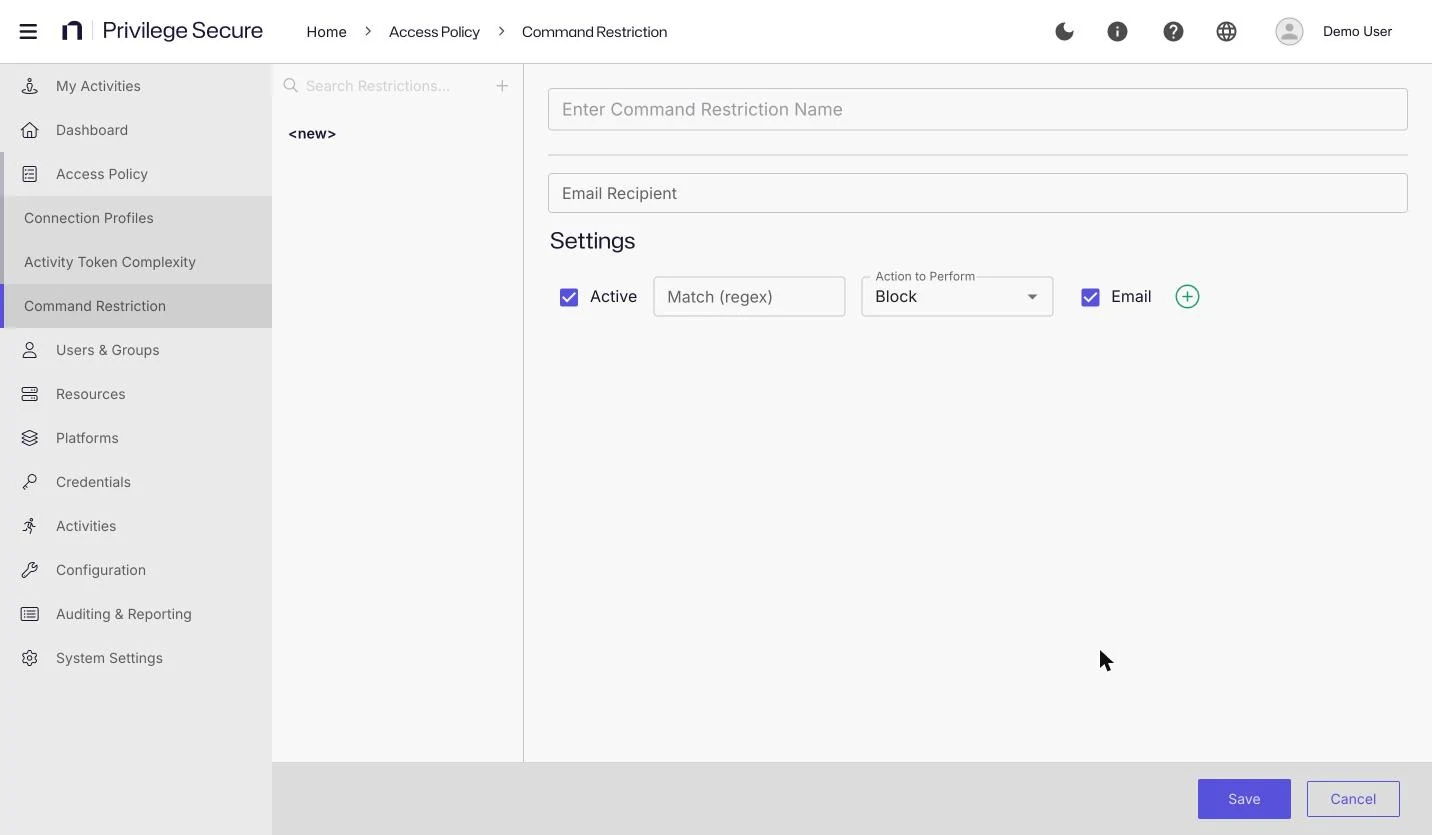
Example
This restriction blocks a command and sends an email:
- Name: Block shutdown
- Email Recipient: the address of a security mailbox
- Rule: Active selected, Match (regex) set to
shutdown, Action to Perform set to Block, and Email selected
Match (regex) takes a regular expression in Go (RE2) syntax. The proxy tests the command line that the user typed when the user presses Enter. The expression matches if it matches any part of the line, so shutdown matches sudo shutdown -h now. To match the whole line, anchor the expression with ^ and $. If more than one rule matches, only the first match that the proxy finds applies, and that isn't necessarily the first matching rule in the console list. Avoid rules whose expressions overlap.
The proxy skips a rule whose expression isn't valid.
Command restriction fields
| Field | Description |
|---|---|
| Name | The name of the command restriction. |
| Email Recipient | The email address that receives a message when a rule with Email selected matches. |
| Active | Turns the rule on or off. New rules are active. |
| Match (regex) | The text that identifies the commands to act on. |
| Action to Perform | What the console does when a command matches. The default is Block. |
| Sends an email to the email recipient when the rule matches, regardless of the action. New rules have it selected. | |
| Custom Lock Message | The message shown to the user when the session is locked. It appears only when the action is Block And Lock. |
Actions
| Action | Result |
|---|---|
| Log Only | The console records the command. The command runs. |
| Block | The console doesn't run the command. |
| Block And Lock | The console doesn't run the command and locks the session. The user sees the custom lock message. |
| Terminate | The console ends the session. |
The Custom Lock Message field is empty and shows Locked by NPS Command Restrictions Rule as placeholder text. If you leave it empty, the user sees that text.
Apply a command restriction
- Select Access Policy > Connection Profiles.
- Select the connection profile.
- In the Proxy section, select the restriction in the Command Restriction list. The default is
<none>. - Click Save.
See Connection profiles.
Delete a command restriction
Point to a restriction in the list, click the trash icon, and confirm.