Access policies
An access policy grants users just-in-time access. It defines who can run which activities on which resources, or who can check out which credentials and files, and under which session rules. Users can't start a session unless an access policy allows it.
Each access policy combines four things:
- Who: users, groups, collections, application users, and local users.
- What: activities and activity groups. See Activities.
- Where: resources and resource groups for a resource-based policy, or credentials and files for a credential-based policy.
- How: one connection profile, which sets the session rules. See Connection profiles.
Policy types
Every access policy has one of two types.
| Type | Use it to | Page |
|---|---|---|
| Resource Based | Let users run activities on remote devices such as computers, databases, and network equipment. | Create a resource-based access policy |
| Credential Based | Let users check out managed credentials, and credentials and files that are stored in a secret vault. | Create a credential-based access policy |
Access Policy menu
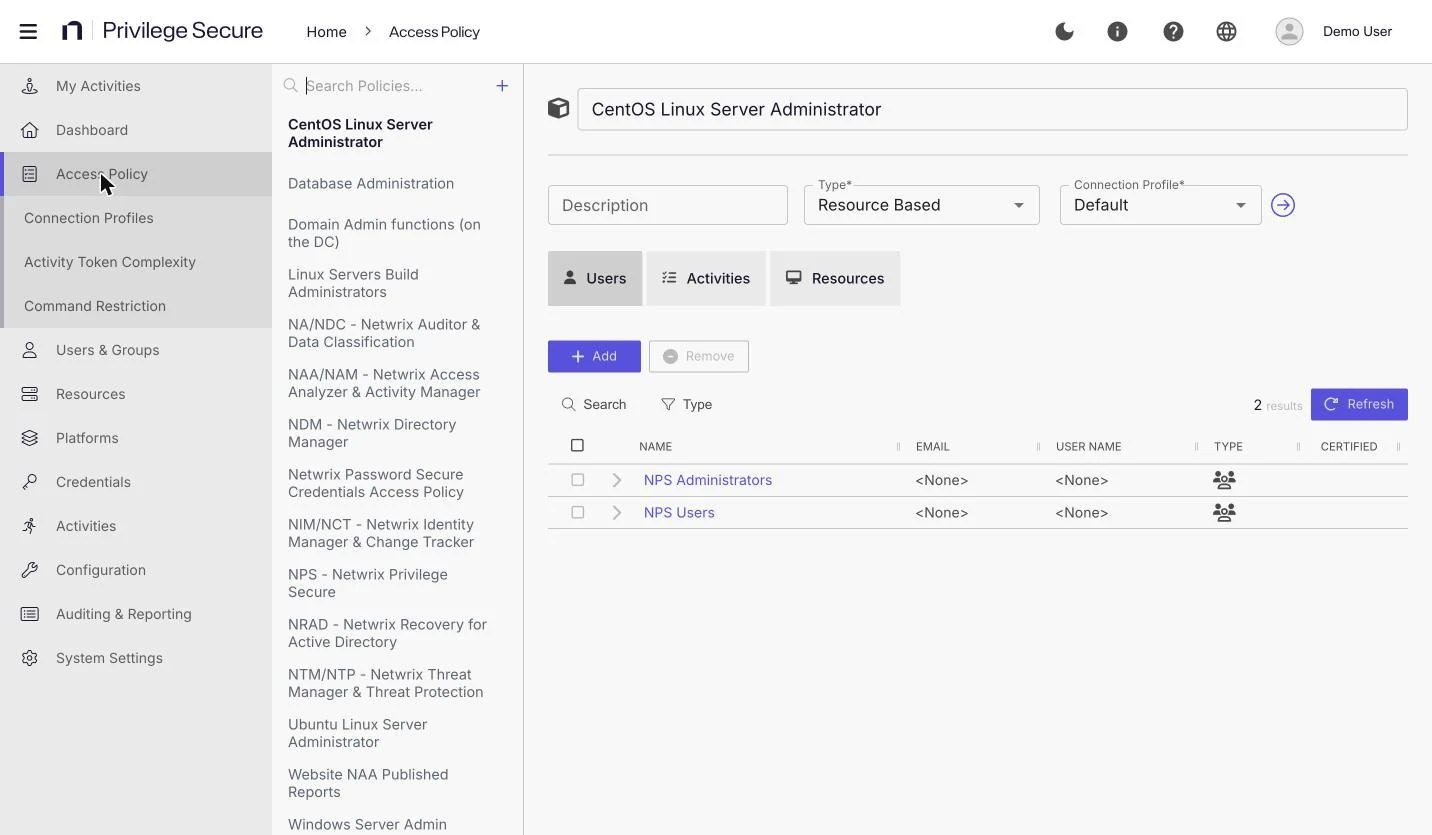
In the console, the left navigation has an Access Policy item. It expands to these pages:
- Connection Profiles. See Connection profiles.
- Activity Token Complexity. See Activity token complexity.
- Command Restriction. See Restrict SSH commands.
Select Access Policy to open the policy list.
Policy list
The page uses a list on the left and the selected policy on the right. The list has these controls:
- Search Policies... filters the list by name.
- The plus (+) button creates a policy.
- The copy icon clones a policy. It appears when you point to a row.
- The trash icon deletes a policy after you confirm. It appears when you point to a row.
The console selects the first policy in the list when you open the page.
The selected policy shows its Name, Description, Type, and Connection Profile. The Connection Profile field is required. The round arrow next to it opens the selected connection profile. Save and Cancel appear when you change a field.
The tabs under the fields hold the users, activities, resources, and credentials that belong to the policy. The tabs depend on the policy type.
Policy selection for a session
When a user requests a session, the console picks one access policy:
- If the request names an access policy, the console uses that policy.
- Otherwise, the console uses the first matching policy when the matching policies are sorted by name in alphabetical order. A policy matches when it includes the requested activity and applies to the user and to the resource or credential.
A policy has no priority setting. The console has no priority field, and the policy name decides which matching policy wins.
Because the first match by name wins, two policies that both match the same request can give different connection profiles. Give overlapping policies names that sort in the order you want them applied, or avoid overlap.
For example, the policies Server admins and Server admins - Ticketed both include the same activity, and both apply to the same group and resource. Server admins sorts first, so a request that doesn't name a policy uses it and its connection profile. To make the ticketed policy apply, rename it so that it sorts before the other policy, or remove the overlap.
If no policy matches, Privilege Secure rejects the request with this message: Unable to find policy for activity: <activity>, with resource: <resource>. Contact the NPS Administrator to request access. For a credential request, the message reads with credential: <credential> instead.
Privilege Secure includes a policy named Default that uses the Default connection profile. It contains four activities: Activity Token for Local Admin Access, Add Requester to Local Administrators, Activity Token for wheel Group, and Activity Token for Domain Admin Access.
Delegated policy management
Custom roles can delegate parts of policy management. The permissions are Modify Name, Modify Description, Modify Connection Profile, Modify Activities, Modify Users, and Modify Resources. Each permission lets a role member change only that part of a policy. See Create a custom role.
Set up access policies
- Create or review the connection profile that the policy uses.
- Create the activities that users need, and optionally activity groups.
- Create a resource-based policy or a credential-based policy.
- Add users, activities, and resources or credentials to the policy.