Configure and sign RDP files
When a user starts a Remote Desktop Protocol (RDP) session from Privilege Secure, the console downloads an RDP file. The RDP Options panel sets the display options in that file and the certificate that signs it.
Select System Settings > RDP Options to open the panel.
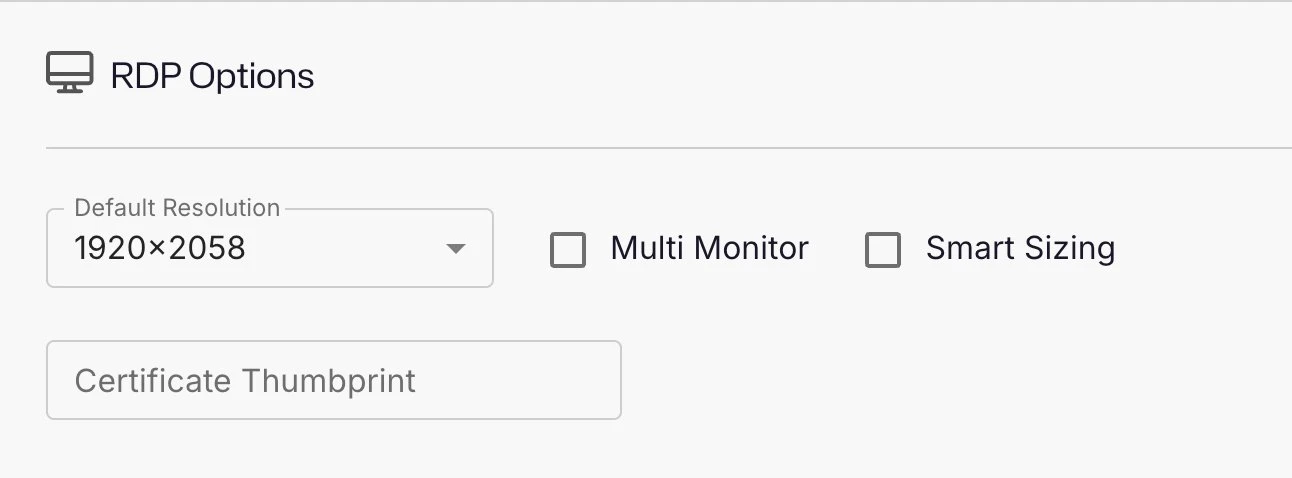
RDP options
| Option | Description | Default |
|---|---|---|
| Default Resolution | The resolution the session uses when it first connects. | 1440x900 |
| Multi Monitor | Select to let the session span multiple monitors. | Cleared |
| Smart Sizing | Select to scale the remote desktop to fit the client window. | Selected |
| Certificate Thumbprint | The thumbprint of the certificate that signs RDP files. | Empty |
Default Resolution offers these values: 640x480, 800x600, 1024x768, 1280x800, 1280x1024, 1366x768, 1440x900, 1440x1050, 1680x1050, 1920x1080, 1920x1200, 1920x2058, 2560x1440, and Full Screen. With Full Screen, RDP tries to detect the client screen resolution and match it.
To change an option, edit it and click Save.
Privilege Secure writes the selected resolution into every RDP file that it generates, whether Certificate Thumbprint has a value or not. The signing step runs after the resolution is set.
Sign RDP files
RDP files that you download from Privilege Secure show as coming from an unknown publisher. To remove the warning, sign the files with a certificate and tell Windows to trust it.
Prerequisites
- A certificate in the local computer certificate store on the Privilege Secure server. It can be the certificate that you use for the console.
- Permission to edit Group Policy for the client computers.
- The
IIS_IUSRSaccount has read permission on the certificate's private key. Set the permission incertlm.msc. Without this permission, the web service log shows "Could not sign RDP file with certificate for RDP Session" with the error "Keyset does not exist", and the file isn't signed.
Add the thumbprint to Privilege Secure
- On the Privilege Secure server, open
certlm.msc. - Open the certificate that signs RDP files.
- Click the Details tab.
- Copy the hexadecimal Thumbprint value.
- In the console, select System Settings > RDP Options.
- Paste the value in Certificate Thumbprint.
- Click Save.
Trust the certificate on client computers
The client computers need the SHA1 thumbprint in Group Policy, or the warning continues.
- Open the Local Group Policy Editor, or the Group Policy Management Editor for a domain policy.
- Go to Computer Configuration > Administrative Templates > Windows Components > Remote Desktop Services > Remote Desktop Connection Client. Don't expand the folder.
- Double-click Specify SHA1 thumbprints of certificates representing trusted .rdp publishers.
- Select Enabled.
- In Comma-separated list of SHA1 trusted certificate thumbprints, paste the thumbprint. For example:
A1B2C3D4E5F60718293A4B5C6D7E8F9012345678. - Click Apply, then OK.
Windows computers that receive the policy then trust the RDP file.