Set the NPS REST URL and register services
The Privilege Secure services run separately from the web service. They include the Action, Email, Host Scan, Proxy, Scheduler, and SIEM services. Each service calls the web service at the address in NPS Rest URL. If the address is wrong, the services show as offline on the Service Nodes page.
Change the address when you install a certificate for the console website, or when you change the name that clients use to reach the console.
Prerequisites
- The Administrator role.
- The certificate for the console website is installed and bound in Internet Information Services (IIS). See Replace the web console certificate.
- The IIS binding host name, the certificate subject, and the host name in the new URL match.
Set the NPS REST URL
- Select System Settings > Services.
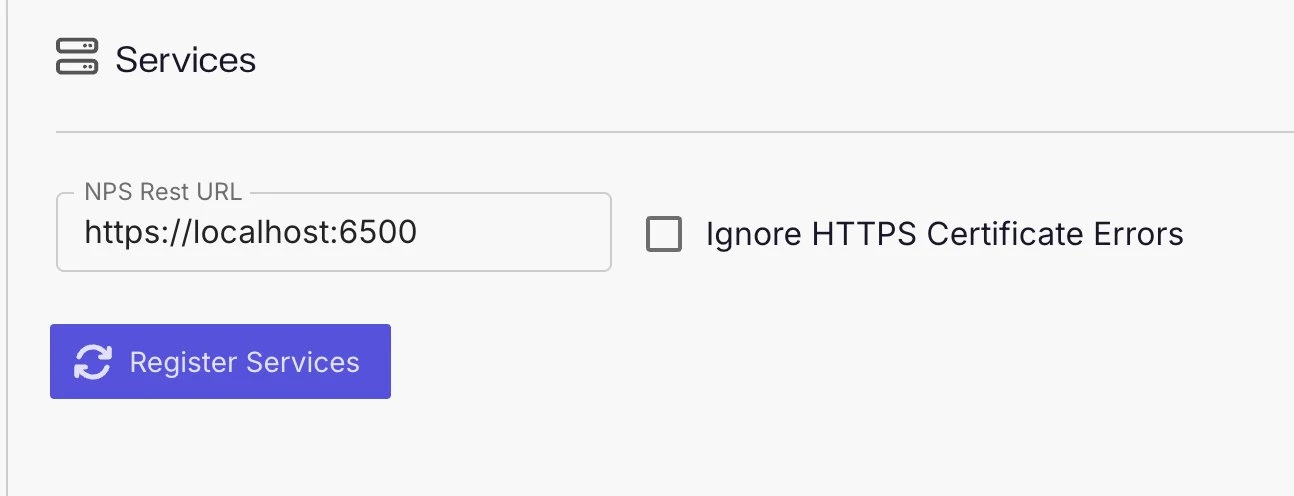
- In NPS Rest URL, enter the address of the web service. Use the form
https://<nps-server>:6500, where<nps-server>is the name in the certificate. For example:https://<nps-server-fqdn>:6500. - Leave Ignore HTTPS Certificate Errors unchecked.
- Click Save.
- Click Register Services.
When registration finishes, a short "Services registered" notification appears. If a service can't be registered, the notification reads "Failed to register".
Don't end the URL with a slash. Before Privilege Secure 26.07.3, a URL such as https://<nps-server-fqdn>:6500/ made Register Services report success while every service then returned HTTP 500. From 26.07.3, the product removes the trailing slash. Enter the URL without one in every version.
Fields
| Field | Description |
|---|---|
| NPS Rest URL | The address the services use to call the web service. It must start with http:// or https://. The default is https://localhost:6500. |
| Ignore HTTPS Certificate Errors | When checked, services accept certificate errors from the web service. Leave it unchecked. |
| Register Services | Writes the URL to each service and restarts the services. |
Register Services writes the URL to the Action, Email, Proxy, Scheduler, SIEM, and Host Scan services. The Action Service Worker, the Remote Access Gateway, and the web service itself don't use it.
Register services from the User Options menu
A second Register Services button is under User Options > Settings. It shows the text "Re-register services that are running on the Netwrix Privilege Secure Web Service server. Doing this will regenerate the settings and restart the services." Use it when the services are running but the console still warns that a service isn't registered.
The Settings item is shown to users who have the Administrator role in Privilege Secure and to local users. Other users don't see it.
Check that the services are running
After you register the services, select Configuration > Service Nodes and confirm each service shows as online. Register Services stops and starts each service that runs on the web service server, including the Host Scan service, and waits up to 60 seconds for each change. If a service doesn't stop or start in that time, the console doesn't show an error. If Host Scan stays offline, restart the Host Scan service in Windows Services on the server.