Key concepts
Privilege Secure grants access through an access policy. A policy links the people who request access, the work they do, and the systems or secrets they reach. This page defines each part. It doesn't describe settings or steps.
Access policies
An access policy connects users to resources and runs activities to make that connection possible. Every policy is one of two types.
| Policy type | What it grants | What it contains |
|---|---|---|
| Resource-based | Access to remote systems such as servers, databases, and websites. | Users and groups, activities, resources, and a connection profile. |
| Credential-based | Access to credentials and files stored in a vault. | Users and groups, credentials, or files, and a connection profile. The activities are fixed. |
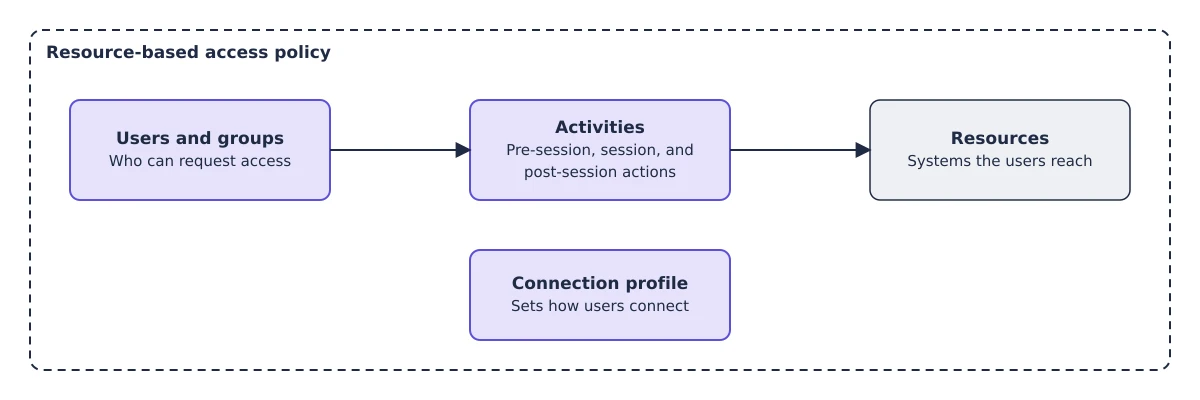
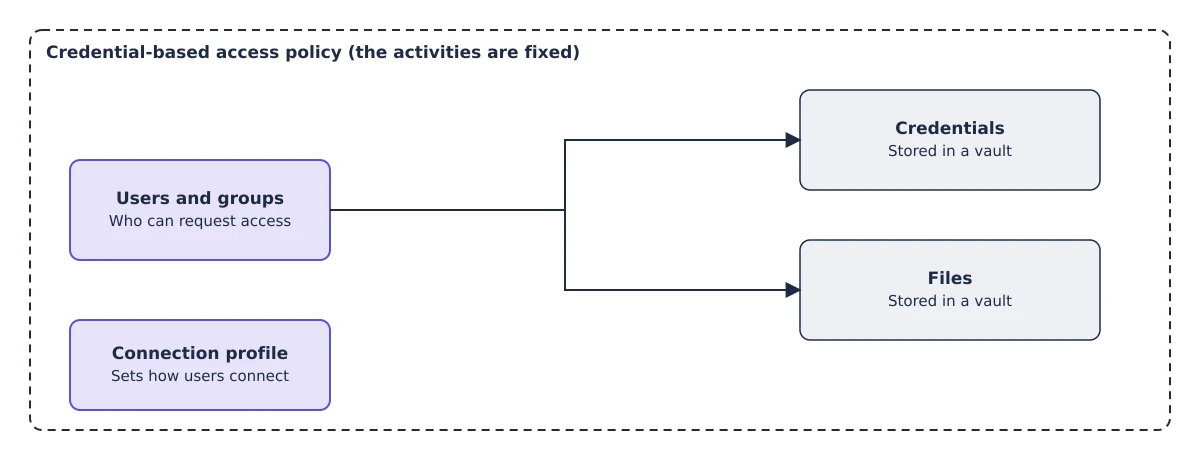
A user must belong to an access policy to create a session. When a request names a policy, Privilege Secure uses that policy. Otherwise, it uses the first matching policy in alphabetical order by name.
See Access policies.
Activities
An activity is the work that Privilege Secure performs before, during, and after a session. Each activity has three action groups:
- Pre-Session (Grant) actions prepare access. For example, an action enables RDP or SSH, creates the login account, or adds it to the Domain Admins group.
- Session (Connect) actions run while the session is active.
- Post-Session (Remove) actions undo the grant. For example, an action removes the login account from the group and rotates the password.
The Activity Type field offers three values:
| Activity type | Use |
|---|---|
| Interactive | The user connects to the resource with RDP, SSH, or a browser. |
| Interactive App Launch | The user launches an application on the resource. |
| Task Automation | Privilege Secure runs the actions without an interactive connection. |
Credential Release and File Release are the activities that give users a credential or a file from a vault. They belong to credential-based policies and secret vaults, and the console doesn't offer them in the Activity Type list.
See Activities.
Login accounts
The user who signs in to Privilege Secure isn't always the account that signs in to the remote system. The account used on the remote system is the login account. Each activity sets the Login Account to one of these values:
| Login account | Description |
|---|---|
| Requester | The user's own account is also the login account. |
| Managed | An account that Privilege Secure manages and controls. |
| Activity Token | An ephemeral account that Privilege Secure creates for the session. The Delete After Use option removes it when the session ends. |
| Resource | The resource's own account. The console shows this option disabled. |
| Vault | A managed account from a vault connector, such as CyberArk, HashiCorp, LAPS, Password Secure, or the Bring Your Own Vault (BYOV) connector. |
An activity token is the basis of just-in-time access. When the activity has Create Account and Delete After Use selected, the account is created for the session and removed when it ends, so no standing privileged account remains between sessions. See Vault connectors for BYOV.
Resources
A resource is a system that users reach through Privilege Secure. Resource types are:
- Host, which is a server or network device. The Add menu on the Resources page calls it New Server.
- Domain, which is an Active Directory domain.
- Website
- Entra ID tenant
- Secret vault
- Database
Each resource has a platform that sets its password complexity and schedules. Privilege Secure connects to a resource with a service account. You can add resources by hand or import them from Active Directory or a CSV file. See Resources.
Connection profiles
A connection profile sets how users connect. It controls the session length, whether users can extend a session, command restrictions, how Privilege Secure handles credentials, and the approval workflow. Each access policy uses one connection profile. See Connection profiles.
Sessions
A session is a time-limited grant of access. It is the unit of work for users. A session moves through these stages:
| Stage | Console label | Meaning of the session state |
|---|---|---|
| Approval required | Waiting for approval | The connection profile requires approval, and no approver has answered. |
| Pending | Pending, or Provisioning in the active sessions list | The session is scheduled and has not started. |
| Active | Available or Logged In | The pre-session actions finished and the user can connect. Logged In appears when the user's sign-in falls within the session window. Otherwise the session shows Available. |
| Completed | Completed | The session ended and the post-session actions ran. |
| Failed | Failed | The session ended with errors. |
| Cancelled | Cancelled | The session was cancelled. |
| Approval denied or approval failed | Approval denied, Approval failed | An approver denied the request, or the approval couldn't finish. |
| Locked | Locked | An auditor or a command restriction locked the session. |
| Cancelling | Deprovisioning | The session is ending and the post-session actions are running. |
The Dashboard page shows sessions as Active, Scheduled, Approvals, and Historical. See Dashboard.
Resource-based and credential-release sessions
The two session types treat the login account differently.
Resource-based sessions that use a managed login account enable the account when the session starts and disable it when the session ends. If other sessions still use the same account, it stays enabled until the last of them ends. No setting changes this behavior.
Credential-release sessions give the user a credential from a vault or a managed account. The password rotates when the user checks it out, when the user releases it, or both. Whether the account stays enabled after release is set for each account by Keep Enabled (Credential Release only) in Password Reset Options on the resource's Users tab. The setting belongs to the account on the resource. There is no option to set it for each user.
See Manage credentials.
Roles
Privilege Secure has four built-in roles:
| Role | Purpose |
|---|---|
| Administrators | Configure and manage the product. The built-in Admin account is always an administrator. Anyone granted console access is also an administrator. |
| Users | Request and run sessions. This is the licensed-user role. |
| Reviewers | Review access in access certifications. |
| Auditors | View historical sessions of other users. Permissions add live session viewing, session termination and locking, reporting, and read-only access to the admin pages. |
You can also create custom roles. A custom role has a target of Access Policies, Credentials, or Auditors, and it applies only to the entities you assign. See Roles.
Approver isn't a role. The approvers for a session are the users and groups that a tier of the approval workflow names. See Configure approval workflows.