Install the application server
The Netwrix Setup Launcher (NPS_Setup.exe) checks prerequisites, installs the bundled PostgreSQL 16 database, and installs or upgrades Netwrix Privilege Secure for Access Management (Privilege Secure) on the application server. Use it for a first installation on one server and for upgrades.
Before you begin
- Review the application server requirements and the database requirements.
- Sign in to the server with an account that has local administrator rights. The Setup Launcher stops with the message "Netwrix Setup Launcher must be run as Administrator" otherwise.
- Disable antivirus software on the server during the installation. The launcher recommends this.
- Extract the downloaded
privilegesecure-accessmanagement-<version>.zipfile. KeepNPS_Setup.exewith theExtrasfolder. - Install PowerShell 7.6 or later.
Install PowerShell 7.6 or later before you start the Setup Launcher. The launcher doesn't check for it. Its Pre-requisites Setup grid checks only for PowerShell 5.1 or later, so it can show every prerequisite as installed while the application installer still stops. Download PowerShell from aka.ms/powershell.
If PowerShell 7.6 or later isn't installed when the launcher starts NPS.exe, the installer stops and shows the message "PowerShell 7.6 or later is required. Please install it from https://aka.ms/powershell". Install PowerShell, and then run the installer again.
Install the application server with PostgreSQL
The launcher shows the steps for your situation on screen. For a first installation with PostgreSQL, the steps are:
- Install any missing prerequisites.
- Install the PostgreSQL database software.
- Install Netwrix Privilege Secure.
- Open a browser and run the setup wizard.
Check the prerequisites
- Right-click
NPS_Setup.exeand select Run as administrator. - Click Pre-requisites Setup.
- Review the grid. It lists .NET Framework 4.7.2 and PowerShell 5.1 or later, with a link to download each missing item.
- Install anything that is missing, and then confirm that PowerShell 7.6 or later is installed.
Install the PostgreSQL database
- In the launcher, click PostgreSQL Setup. If the button reads Install PostgreSQL16, click that instead.
- In the setup wizard, click Install.
- Accept the license agreement and click Next.
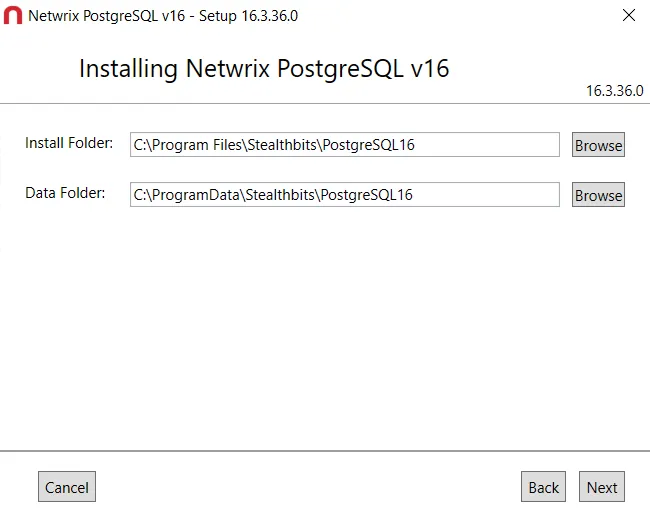
- Review the install folder and the data folder. To change a location, click Browse. Click Next.
- When the installation finishes, click Exit.
The installer puts PostgreSQL 16 in C:\Program Files\Stealthbits\PostgreSQL16 and the data in C:\ProgramData\Stealthbits\PostgreSQL16. The Windows service is named postgresql-x64-16 and is listed as PostgreSQL Server 16.

If PostgreSQL 16 is already on the server, the launcher shows a green checkmark next to the database button. If you start a new PostgreSQL installation anyway, the launcher warns you that PostgreSQL is already installed at a given location and asks you to confirm.
If you continue to the application without PostgreSQL, the launcher shows "PostgreSQL has not been detected on this host. In order to run Netwrix Privilege Secure PostgreSQL is required, are you sure you wish to continue the installation?"
Install the database before you install the application.
Install the application
- In the launcher, click Netwrix Privilege Secure Setup.
- In the setup wizard, select the license agreement checkbox ("I agree to the license terms and conditions"). Click Options.
- In Install Folder, keep the default
C:\Program Files\Stealthbits\PAMor click Browse to change it. Click OK. - Click Install. The installation takes a few minutes.
- When the installation finishes, click Close.
- When the launcher shows "Reboot Server Now", click OK to restart the server.
The installer creates the "SbPAM Web Service" site in IIS on HTTPS port 6500 and a Windows Firewall exception for that port. It also adds a desktop shortcut named Netwrix Privilege Secure that opens https://localhost:6500.
To continue, see Run the setup wizard.
Install the application without the launcher
Run NPS.exe from the Extras folder as an administrator and follow the steps in Install the application, starting at step 2. Install PostgreSQL first with NetwrixPostgreSQL16.exe from the same folder, or point Privilege Secure at an existing database with the Database Configuration Tool.
To install without the wizard, see Install silently.
Upgrade an existing installation
When the launcher detects an existing installation, the application button reads Netwrix Privilege Secure Upgrade. When the installed version matches the installer, it reads Uninstall/Repair Netwrix Privilege Secure. Before you upgrade, read Upgrade Privilege Secure.
If the launcher finds an existing installation, it asks you to click OK to apply an upgrade. It then stops the Privilege Secure services and IIS, uninstalls the old version, and installs the new one. You don't uninstall the previous version first.
Migrate PostgreSQL 12 to PostgreSQL 16
If the server runs PostgreSQL 12, the launcher shows two database steps. See Upgrade PostgreSQL from 12 to 16.
Switch to SQL Server
The launcher can switch Privilege Secure from PostgreSQL to a Microsoft SQL Server database that you provide. The launcher doesn't install SQL Server.
SQL Server is an advanced configuration that requires additional support from Netwrix. Contact Netwrix Support before you switch.
- In the launcher, select the Advanced checkbox, and then click Switch to SQL Server.
- In the Switch Database dialog, read the message "Switching the database will switch your active database configuration. Are you sure you wish to continue?" Click Yes.
- If you need SQL Server software, click Download SQL Server (if needed). This opens the Microsoft download page.
- Install SQL Server, install Privilege Secure, and then point it at the SQL Server database with the Database Configuration Tool, which can also create the database.
The Advanced checkbox appears only when the launcher detects an installed Privilege Secure version 4.1 or later. It's hidden on a server without Privilege Secure, and when the installed version matches the installer, so the switch applies to an existing installation. To go back, click Switch to PostgreSQL.
To point an installed Privilege Secure at a local or remote database, use the Netwrix Privilege Secure Database Configuration Tool. The NPS.DbCfg.msi file in the Extras folder installs it. The tool lets you choose the active database and enter the type, host, port, name, user, and password. It also lets you test the connection and save.
By default, the database settings point to the local server: PostgreSQL on port 5432 or SQL Server on port 1433, with the database name PAM.
On a server that was upgraded from PostgreSQL 12 to 16, PostgreSQL 16 listens on port 5437. The installer records the port in the Port value under HKEY_LOCAL_MACHINE\SOFTWARE\Stealthbits Technologies\PostgreSQL16.
If the installer can't reach the database
When the installer can't reach the database, for example a remote database, it still completes. It writes the error to ImportActivities.log in the Logs folder under C:\ProgramData\Stealthbits\PAM.
If the database wasn't reachable during installation, check the log and fix the connection. The installer doesn't import the activities again when you re-run or repair the same version, so run the database updater yourself after the connection works. Open an elevated command prompt in the DatabaseTools folder of the install folder, which is C:\Program Files\Stealthbits\PAM by default, and run these commands in order:
SbPAM.DbUpdater.exe
SbPAM.DbUpdater.exe import Data
The first command applies the database migrations. The second imports the default activities and other seed data. Contact Netwrix Support if the default activities are still missing.