Netwrix Access Analyzer integration
Netwrix Access Analyzer can send information about administrator accounts to Privilege Secure. You create an access role in Access Analyzer, add two service accounts in Privilege Secure, add an integration connector, and then import the data.
The connector template for this integration is named StealthAUDIT. This is the former product name, and it is the template that Netwrix Access Analyzer uses. StealthAUDIT is also the default template for a new connector.
Prerequisites
Run these Access Analyzer job groups successfully before you import. Privilege Secure can't import data that the jobs haven't collected.
- Active Directory Inventory job group
- Windows > Privileged Accounts > Local Administrators job group
For the jobs themselves, see the following Access Analyzer pages:
Create the access role in Access Analyzer
The access role gives Privilege Secure a Client ID and a Client secret that it uses to read data from Access Analyzer. For the full wizard, see Assign application access.
-
In Access Analyzer, go to the Access node and select Add Access in the upper-right corner. The Access Role wizard opens.
-
Select An application accessing data remotely through Web Service, and then click Next.
-
On the Application Access page, select Tables and click Add. The Select Database Objects window opens.
-
Select these objects. Use Filter objects by name to find them.
Type Objects Tables SA_ADInventory_Domains,SA_SG_LocalAdmins_DetailsViews SA_ADInventory_ComputersView,SA_ADInventory_UsersView -
Click OK, review the tables and views, and click Next.
-
On the Application Details page, enter
Privilege Secureas the application name. -
Set Access Expiration. Select Access expires within (the default is 72 hours) or Access expires on specified date.
-
Select Generate, and copy the Client ID and the Client secret.
-
Click Finish, and then click Save on the Access view.
The client secret stops working when the access expiration passes. Set an expiration that suits how long you want the integration to run, and create a new access role before the old one expires.
Add the service accounts in Privilege Secure
The connector uses two service accounts. For the add form and its fields, see Service accounts.
| Service account | Name (example) | Username | Password | Platform |
|---|---|---|---|---|
| API access | Access Analyzer API | The Client ID from the access role | The Client secret from the access role | Windows |
| Administrator | Access Analyzer Admin | A local administrator account on the Access Analyzer server | The password of that account | Windows |
For the administrator account, set Domain to the domain that the Access Analyzer server is in. For the API account, leave Domain empty.
Add the connector
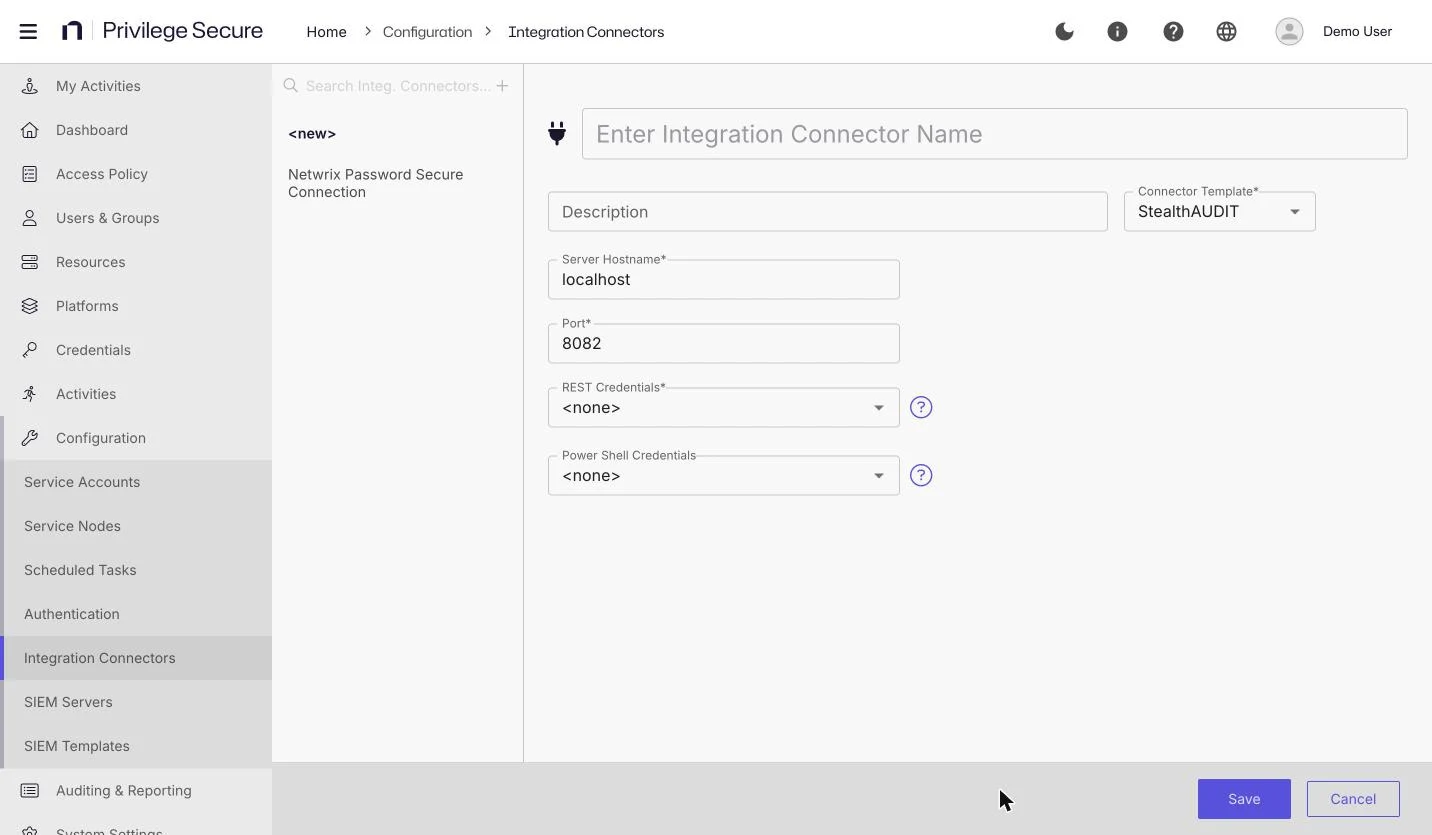
- Select Configuration > Integration Connectors.
- Click + above the list.
- Enter a name for the connector and an optional description.
- In Connector Template, select StealthAUDIT.
- Fill in the fields in the table.
- Click Save.
| Field | Description |
|---|---|
| Server Hostname* | The host name of the server that Access Analyzer is installed on. The default is localhost. |
| Port* | The port of the Access Analyzer web service. The default is 8082. |
| REST Credentials* | The service account that holds the Client ID and Client secret. Select Access Analyzer API from the example. |
| Power Shell Credentials | Optional. The service account for the Access Analyzer server administrator. Select Access Analyzer Admin from the example. |
An asterisk (*) marks a required field. Both credential fields list the service accounts that you added.
Import the data
- Select Configuration > Integration Connectors.
- Select the connector that you created.
- Click Sync StealthAUDIT below the connector settings. The button is unavailable while an import runs, and the log of the last run appears under it. The import can take some time.
To follow the progress, open the Action Service on the Service Nodes page. See Monitor service nodes.