Bring Your Own Vault connector
The Bring Your Own Vault (BYOV) connector lets activities use credentials from any vault. You provide PowerShell scripts that check credentials out and in. You can also point the connector at Privilege Secure itself, to use manually managed accounts or accounts in a secret vault in an activity.
For an overview of vault connectors, see Third-party vault connectors.
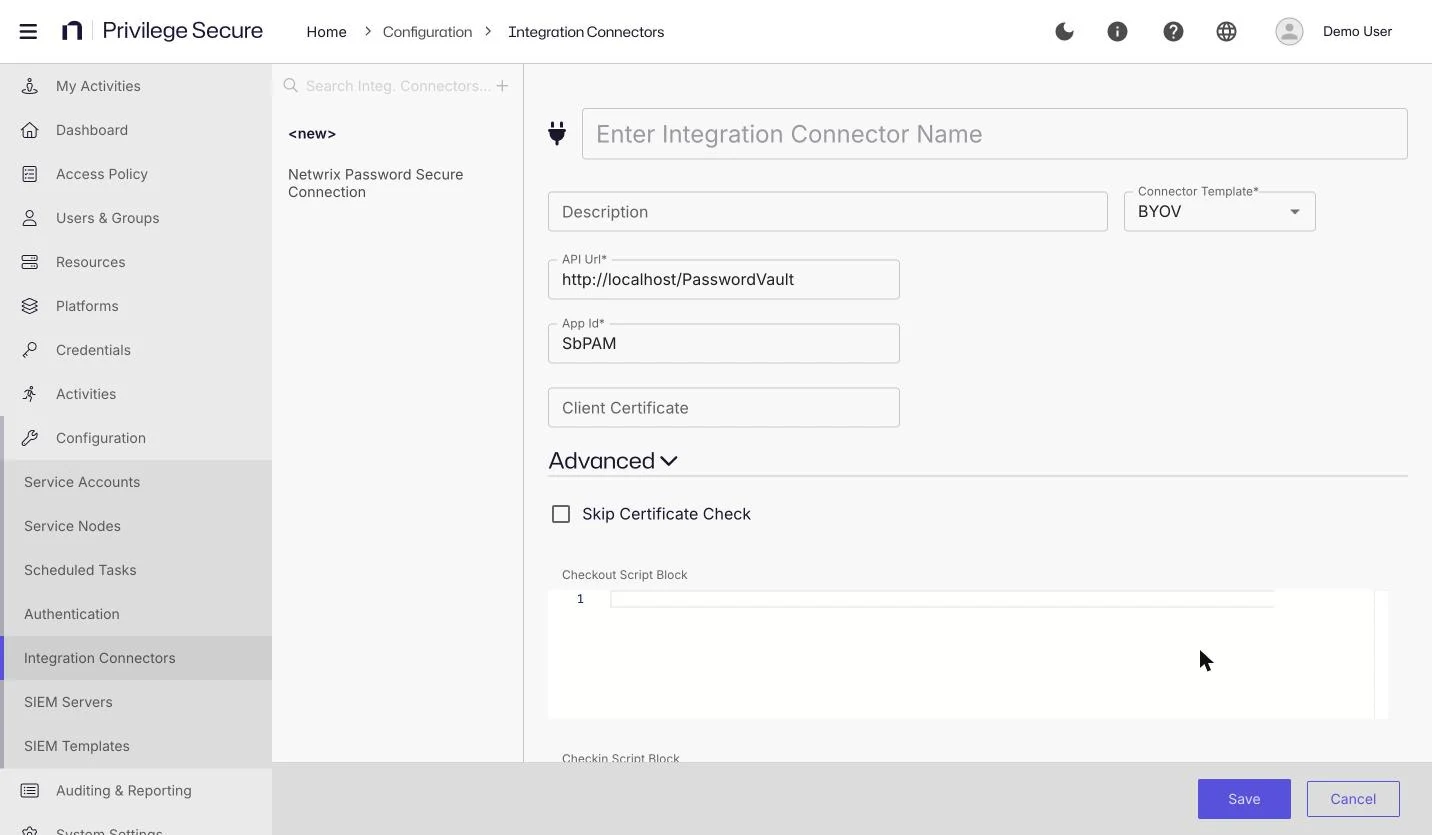
Create a BYOV connector
- Select Configuration > Integration Connectors.
- Click + above the list.
- Enter a name and a description.
- In Connector Template, select BYOV.
- Complete the fields in the following table.
- Click Save.
| Field | Description |
|---|---|
| API Url* | The base address of the API of the vault. The default is http://localhost/PasswordVault. |
| App Id* | The application ID for the vault. The default is SbPAM. |
| Client Certificate | A value that Privilege Secure passes to your scripts as $Options.Connector.Options.ClientCertificate. Privilege Secure doesn't use it itself. |
| Skip Certificate Check | Under Advanced. When selected, Privilege Secure doesn't validate the certificate of the vault. It's cleared by default. |
| Checkout Script Block | Under Advanced. Required for a BYOV connector. A PowerShell script that returns the credential. Without it, the connector supplies no credential. |
| Checkin Script Block | Under Advanced. A PowerShell script that runs when the session ends. If you leave it empty, the built-in check-in deletes the credential record that is linked to the connector, when the last session that uses it ends. |
An asterisk (*) marks a required field.
Script parameters
Both scripts receive the following parameters:
$Optionsholds the connector settings and the session details:Connectorholds theName, theId, and anOptionstable with the connector settings by name, for example$Options.Connector.Options.AppId. The script blocks aren't included.RestApiUriandRestApiTokenhold the address of the Privilege Secure API and a token for it.ActivitySessionholds the details of the session, includingSessionId,LoginAccountName,LoginAccountNameFormat,UserId,TargetUserId, andTargetId.TargetHostholds the host object of the session target, when the session has one.TargetDomain,TargetWebSite, andTargetAzureADTenantare always empty in 26.07.- In the check-in script,
UsernameandDomainhold the user name and domain of the credential.
$Credentialholds the credential to fill. The check-out script setsUsername,Domain, andPassword, and returns the object. Privilege Secure also passes the domain credential as a third argument, which a script can read with a thirdparamentry,$DomainCredentials.
The scripts run in the Action Service session, so they can use its Privilege Secure commands, such as Invoke-SbPAMRest to call the API and Add-SbPAMActionLog to write to the action log.
Use Privilege Secure as the vault
You can use Privilege Secure as the BYOV vault. This setup suits one account that several resources share, when the account must still go through Privilege Secure.
The account can be a manually managed account, or an account that a secret vault holds. Privilege Secure supplies its stored password for the activity. This setup skips the default Enable Account and Disable Account actions before and after the session.
Prerequisites
- The account is managed by Privilege Secure, or it's in a secret vault in Privilege Secure. See Secret vaults.
- For a managed account, rotate the password at least once after you start managing the account. Until then, Privilege Secure has no stored password for the account.
Create the connector
-
Create a BYOV connector as described earlier on this page.
-
Enter these values:
Field Value Connector Template BYOV API Url* https://localhost:6500App Id* SbPAMClient Certificate Empty Skip Certificate Check Leave as the default noteThis script doesn't use API Url or Skip Certificate Check. It sends its requests to the Privilege Secure address that the Action Service uses, and those requests follow the certificate setting of the Action Service, not the connector. The form still requires an API Url value.
-
In Checkout Script Block, paste the following script. Leave Checkin Script Block empty. If you leave it empty, the built-in check-in deletes the credential record that is linked to the connector, when the last session that uses it ends.
param ($Options,$Credential)$Token = $Options.RestApiToken$Uri = $Options.RestApiUrifunction Get-CredentialMatch {[CmdletBinding()]param ($CredentialAccount,$CredentialResource,$Token,$Uri)$credentials = @()$skip = 0$take = 100$result = $nullif ($null -ne $CredentialAccount) {$FilterText = "$($CredentialAccount)"$Message = "FILTERTEXT: $FilterText"Add-SbPAMActionLog -Type Info -Message "BYOV: $Message"do {$Params = @{RestApiToken = $Token;Uri = "$($Uri.TrimEnd("/"))/api/v1/Credential/Search?skip=$skip&take=$take&filterText=$FilterText&credentialType=1";}$result = Invoke-SbPAMRest @Params$result.Data | ForEach-Object { $credentials += $_ }$skip += $take} until ($credentials.Count -ge $result.RecordsTotal)$credentials | Foreach-Object {$Message = "FOUND: $($_.Id) UserName: $($_.UserName)"Write-Host "$(ConvertTo-Json $_)"Add-SbPAMActionLog -Type Info -Message "BYOV: $Message"}$Message = "Find UserName -eq $CredentialAccount"Add-SbPAMActionLog -Type Info -Message "BYOV: $Message"$result = $credentials | Where-Object -Property UserName -eq $CredentialAccountif ($null -eq $result) {$Test = "$($Options.TargetHost.DnsHostName)\$CredentialAccount"if ($null -ne $Options.TargetHost.NetBiosName) {$Test = "$($Options.TargetHost.NetBiosName)\$CredentialAccount"}$Message = "Find UserName -eq $Test"Add-SbPAMActionLog -Type Info -Message "BYOV: $Message"$result = $credentials | Where-Object -Property UserName -eq $Test}if ($null -eq $result) {$result = $credentials | Where-Object { $_.Username -match $CredentialAccount -and $_.Domain -eq $CredentialResource }}}return $result}### If this is an activity then use the LoginAccountName$CredentialAccount = $null$CredentialResource = $nullif ($null -ne $Options.ActivitySession) {$CredentialAccount = $Options.ActivitySession.LoginAccountName}$Message = "CredentialAccount: $CredentialAccount"Add-SbPAMActionLog -Type Info -Message "BYOV: $Message"### This is a service account, so the info should be in the Credentialif ($null -eq $CredentialAccount) {$CredentialAccount = $Credential.Username}$Message = "CredentialAccount: $CredentialAccount"Add-SbPAMActionLog -Type Info -Message "BYOV: $Message"$result = Get-CredentialMatch -CredentialAccount $CredentialAccount -Token $Token -Uri $Uriif ($null -eq $result) {if ($CredentialAccount -match ".*@.*") {$Parts = $CredentialAccount.Split("@")$CredentialAccount = $Parts[0]$CredentialResource = $Parts[1]}$result = Get-CredentialMatch -CredentialAccount $CredentialAccount -CredentialResource $CredentialResource -Token $Token -Uri $Uri}if ($null -ne $result) {$Params = @{RestApiToken = $Token;Uri = "$($Uri.TrimEnd("/"))/api/v1/Credential/$($result[0].CredentialId)?showPassword=true";}$result = Invoke-SbPAMRest @Params# To support domain users in secret vaultsif ($result.Username -match ".*\.*") {$Parts = $result.Username.split("\")$Credential.Username = $Parts[1]$Credential.Domain = $Parts[0]$Credential.Password = $result.Password}$Credential.Username = $result.Username$Credential.Domain = $result.Domain$Credential.Password = $result.Passwordreturn $Credential}else {$Message = "Unable to find credential for $CredentialAccount $CredentialResource"Add-SbPAMActionLog -Type Error -Message "BYOV: $Message"} -
Click Save.
The if ($result.Username -match ".*\.*") block in the script has no effect on the result. The pattern matches every name, and the three assignments after the block overwrite the values that the block sets.
Manage the account manually
- Select Dashboard in the left navigation, then select the Credentials tab.
- Find the account and select its checkbox. Ensure the account isn't already managed.
- Click Manage above the list, then select Manual.
- In the Set Password for Credential window, enter the account's password in Password, then click Save. Enter the password that the account already has on the resource, because Privilege Secure doesn't change the password on the resource for a manually managed account. To set the password again later, select the Set Password icon beside the account name. See Passwords of manually managed accounts.
Create the activity
- Create an activity. See Create an activity.
- Set Login Account to Vault.
- Set Activity Type to Interactive.
- In Vault Connector, select the BYOV connector that you created.
- Ensure the Login Account Template uses the format
DOMAIN\samAccountName, for exampleEXAMPLE\jsmith. - Click Save.
Create the access policy
- Create an access policy of type Resource Based. See Create a resource-based access policy.
- Select a connection profile. Default is enough for most setups.
- Add the users, the activity, and the resources.
- Click Save.
Users in the policy can now start the activity on the resources in the policy with the manually managed account.
Record SSH to a device that accepts only a local account
Some appliances accept SSH only with a local account, for example the root account on a hypervisor host. Privilege Secure can't manage such an account, but you can store it in a secret vault and use the BYOV connector to supply it to a recorded session.
This procedure is a workaround that Netwrix staff have shared on the Community, not a built-in feature. The account password isn't rotated automatically. Change it manually, or write rotation logic in the Checkin Script Block.
- Add the device as a Linux resource by its IP address. See Add servers manually. Select a service account in the Service Account dropdown, but don't configure service account management for the resource.
- Store the local account in a secret vault. See Secret vaults.
- Create a BYOV connector that points to Privilege Secure, as described in Use Privilege Secure as the vault.
- Create an activity with Login Account set to Vault and the BYOV connector selected.
- Add a pre-session script that removes the domain or resource prefix from the user name.
- Create an access policy that grants the activity and records the session.
If the resource doesn't appear in the access policy, check the following:
- The resource has a service account. A dummy service account is enough.
- The resource has a platform selected.
For example, the check-out script can return the stored user name with the resource prefix, such as ESXI01\root. The prefix removal is meant to make the session sign in as root.