HashiCorp Vault integration
The HashiCorp connector lets Netwrix Privilege Secure check out account credentials from a HashiCorp Vault server. Use it for the following:
- Service accounts, such as the account that synchronizes Active Directory.
- Activities that use the Vault login account to sign in to a resource.
The connector uses the HashiCorp Vault Active Directory secrets engine. The engine groups usernames and passwords into libraries. When Privilege Secure checks out an account from a library, the engine chooses which account in the library it returns, so the account can differ from one check-out to the next. For how vault connectors work in general, see Third-party vault connectors.
Prerequisites
- A HashiCorp Vault server that Privilege Secure can reach.
- The Active Directory secrets engine enabled in Vault, with at least one library. See the HashiCorp documentation for the Active Directory secrets engine.
- A Vault access token that can check accounts out of, and in to, the library.
- Library accounts named in
<user>@<domain>form. Privilege Secure splits the account name at the@to get the user name and the domain.
Add a HashiCorp connector
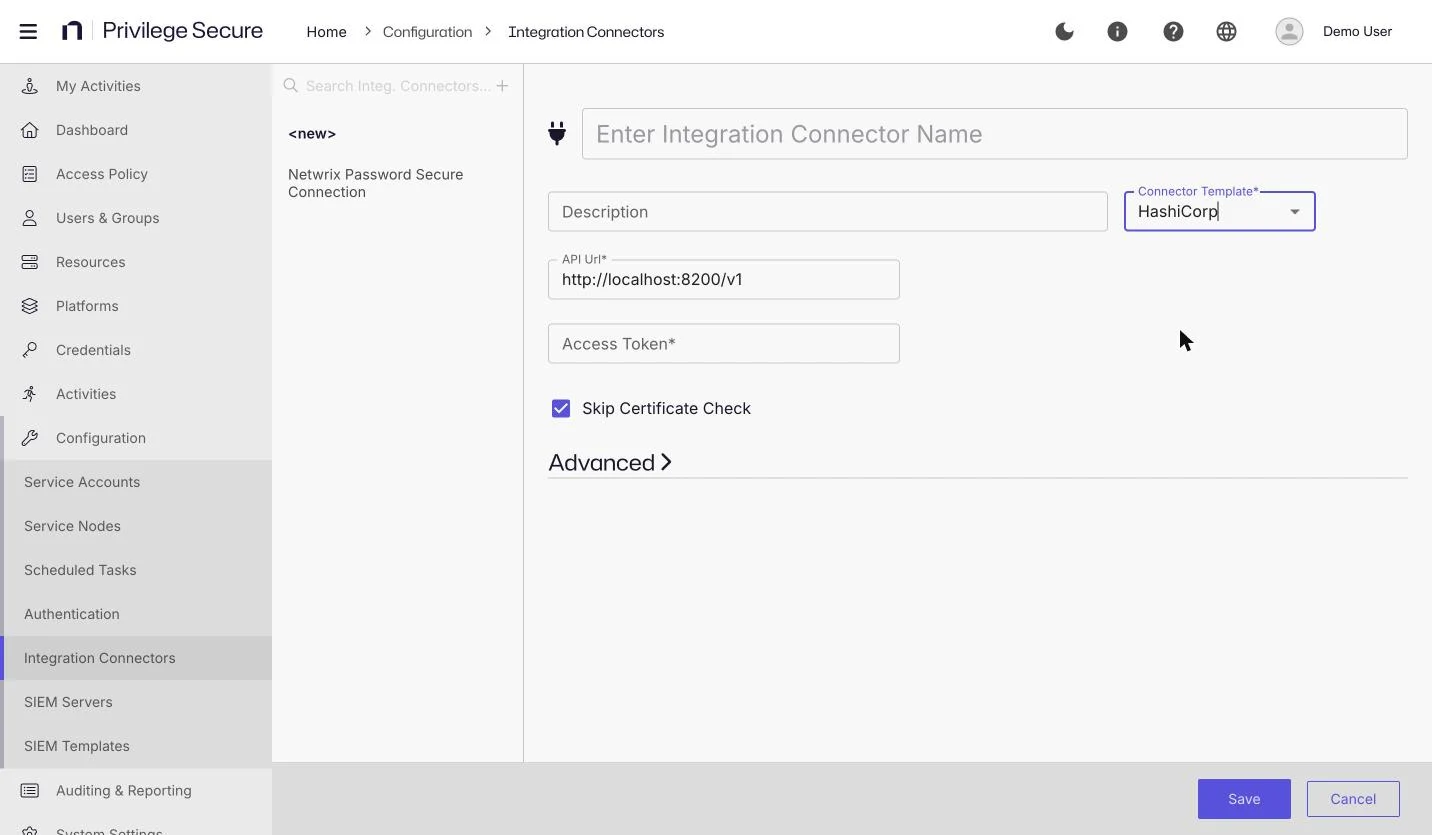
- Select Configuration > Integration Connectors.
- Click + above the list.
- Enter a name and an optional description.
- For Connector Template, select HashiCorp.
- Complete the fields in the following table.
- Click Save.
| Field | Description |
|---|---|
| API Url* | The base URL of the Vault API, including the version. The default is http://localhost:8200/v1. |
| Access Token* | The Vault token that Privilege Secure sends with each request. The field masks the value. |
| Skip Certificate Check | When selected, Privilege Secure doesn't validate the Vault server certificate. This option is selected by default and isn't under Advanced. |
An asterisk (*) marks a required field.
Skip Certificate Check is selected by default. Clear it for production use and connect to Vault over HTTPS with a certificate that the Privilege Secure server trusts. With the check skipped, Privilege Secure accepts any certificate, which exposes the access token to interception.
Example: To connect to a Vault server at https://vault.example.com:8200:
| Field | Value |
|---|---|
| API Url | https://vault.example.com:8200/v1 |
| Access Token | <vault-token> |
| Skip Certificate Check | Cleared |
Identify the library
Privilege Secure builds the check-out request by joining the API Url and the library value with no separator. Start the library value with a forward slash. For the library my-set in an engine mounted at ad, enter /ad/library/my-set. Privilege Secure then sends the check-out request to <API Url>/ad/library/my-set/check-out.
Enter the library in the following places:
- In a service account, in the Library field that appears when you select the HashiCorp connector. See Service accounts.
- In an activity that uses the Vault login account and the HashiCorp connector. See Create an activity.
On the activity form, the Vault Connector list sits under Login Account Template, after you select Vault as the Login Account.
When the last session that uses the credential ends, Privilege Secure checks the account back in. It sends the user name and domain of the checked-out account, joined as <user>@<domain>, to <API Url><library>/check-in, for example <API Url>/ad/library/my-set/check-in.
Use the connector
- Create or edit a service account, or create an activity with the Vault login account.
- For Vault Connector, select the HashiCorp connector.
- Enter the library, starting with
/. - Click Save.
The next time the service account or activity needs a credential, Privilege Secure checks one out of the library.