LAPS integration
Microsoft Local Administrator Password Solution (LAPS) manages the password of the local administrator account on domain-joined computers and stores it in Active Directory. The LAPS connector lets Netwrix Privilege Secure read that password for an activity that needs the local Administrator account. For how vault connectors work in general, see Third-party vault connectors.
The LAPS connector reads the legacy LAPS password attribute, ms-Mcs-AdmPwd, and resets its expiration time, ms-Mcs-AdmPwdExpirationTime, at check-in. It doesn't read the encrypted passwords that Windows LAPS stores in the msLAPS- attributes.
Prerequisites
- LAPS installed in your Active Directory domain, and the target computers configured to use it. Download the legacy LAPS package from the Microsoft Download Center.
- A service account that can read the LAPS password attribute and reset its expiration time on the target computers. LAPS limits who can read the password attribute. Grant the read right with the
Set-AdmPwdReadPasswordPermissioncmdlet, which the LAPS package includes. Grant the reset right withSet-AdmPwdResetPasswordPermission. - WinRM access from Privilege Secure to the target computers. At check-in, Privilege Secure runs
gpupdate /forceover WinRM so the computer applies the new password. If WinRM is disabled or the connection fails, the password doesn't change until the next Group Policy refresh on the computer. - The service account added in Privilege Secure. See Service accounts.
Add a LAPS connector
- Select Configuration > Integration Connectors.
- Click + above the list.
- Enter a name and an optional description.
- For Connector Template, select LAPS.
- Complete the fields in the following table.
- Click Save.
| Field | Description |
|---|---|
| Service Account* | The service account that Privilege Secure uses to read the LAPS password from Active Directory. |
| Domain Name* | The fully qualified domain name of the Active Directory domain to query for LAPS passwords. |
An asterisk (*) marks a required field.
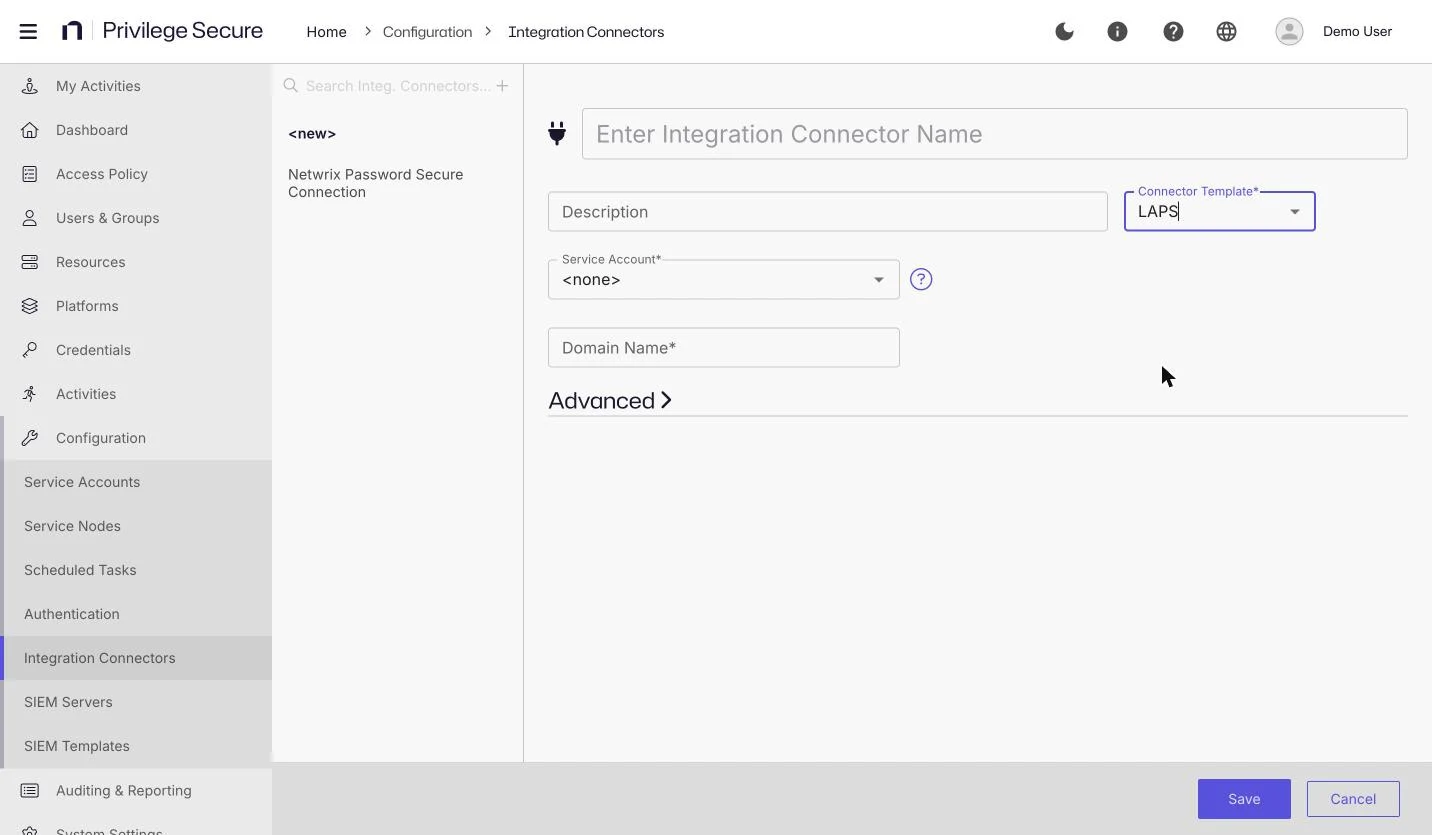
Example: To read passwords from the domain example.com with the service account LAPS Reader:
| Field | Value |
|---|---|
| Service Account | LAPS Reader |
| Domain Name | example.com |
Use the connector in an activity
-
Create or edit an activity. See Create an activity.
-
For Login Account, select Vault.
-
For Vault Connector, select the LAPS connector.
-
Set the Login Account Template to the local account name, such as
Administrator.warningA new Vault activity fills Login Account Template with
%targetdomain%\%samaccountname%. Replace it with the literal local account name, such asAdministrator. The LAPS connector doesn't expand template tokens. -
Click Save.
At check-out, Privilege Secure looks up the target computer by its NetBIOS name in the domain and reads its LAPS password. The session signs in with the computer's NetBIOS name as the domain and the account name from the activity's login account setting as the user name.
At check-in, Privilege Secure sets the password expiration time to 0 and runs gpupdate /force on the computer, so LAPS rotates the password.
Troubleshooting
If the computer has no LAPS password, the check-out fails with the following message:
LAPS password is not set for NetBiosName: <computer> - not a LAPS enabled host.
Confirm that the computer has LAPS enabled and that the connector's service account can read its password attribute.
Limits
- The LAPS connector works only in an activity. The Vault Connector list on a service account doesn't offer it, so it can't supply a service account, such as the account for a host scan.
- The connector reads and resets passwords with the
Get-ADComputerandSet-ADComputercmdlets from the Active Directory PowerShell module. The Action Service loads that module on the service node, so install it there.