Netwrix Password Secure integration
The Password Secure connector lets Netwrix Privilege Secure check out passwords that are stored in Netwrix Password Secure. Activities sign in with accounts whose passwords Password Secure holds, so the passwords don't have to be copied into Privilege Secure. For how vault connectors work in general, see Third-party vault connectors.
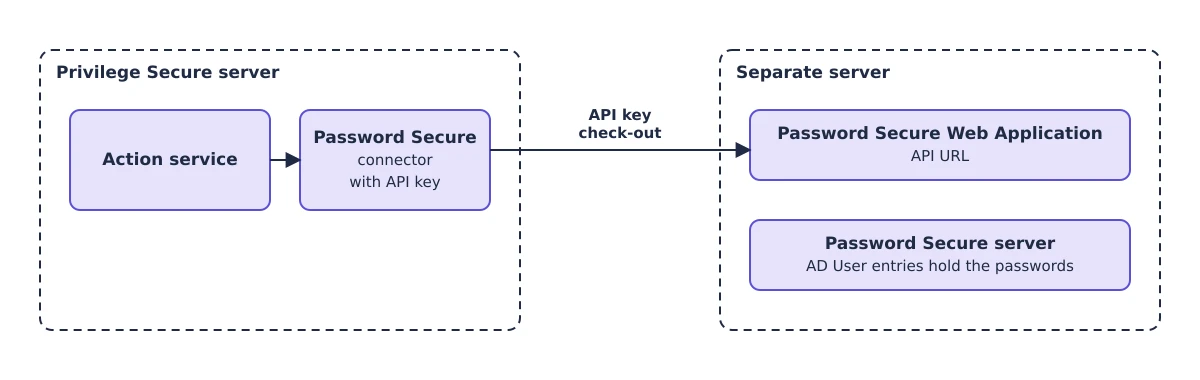
The Password Secure connector template is controlled by the password_secure feature flag. The flag is on by default, so the template appears in the Connector Template list.
Prerequisites
- A working Password Secure server and Password Secure Web Application. Install them on a separate server from Privilege Secure. See the Password Secure installation and Web Application documentation.
- A Password Secure API key with read access to passwords. See Generate an API key.
- In Password Secure, an entry for each account to check out, created with the AD User template. The Domain and Username fields of the entry must match the account that the activity uses.
- The Password Secure API URL reachable from the Privilege Secure server.
Generate an API key
Privilege Secure uses an API key to sign in to Password Secure.
- Sign in to Password Secure as an administrator.
- Select Tools > API Keys.
- Click Create a new API key.
- Complete the form:
- Name:
NPS Integration - Expires: A validity period, such as one year.
- Access Rights: Read
- Access Scopes: Password
- Name:
- Click Next, and copy the API token to a safe location.
Password Secure shows the token once. If you lose it, generate a new key.
Create the AD user entry
Skip this step if the account already exists as an AD User entry. In production, use existing entries.
- In Password Secure, select Passwords > New Item.
- For Item Type, select AD User.
- Enter a Description, the Domain, the Username, and the Password.
- Save the entry.
Example: To check out the account EXAMPLE\svc-backup, create an AD User entry with the domain EXAMPLE and the username svc-backup.
Add the API key as a service account
- In the Privilege Secure Console, select Configuration > Service Accounts.
- Click + above the list.
- Enter a Name, such as
NPS Password. - Enter any identifier for Username, such as
NPS. - For Password, paste the Password Secure API key.
- Click Save.
See Service accounts for the other fields.
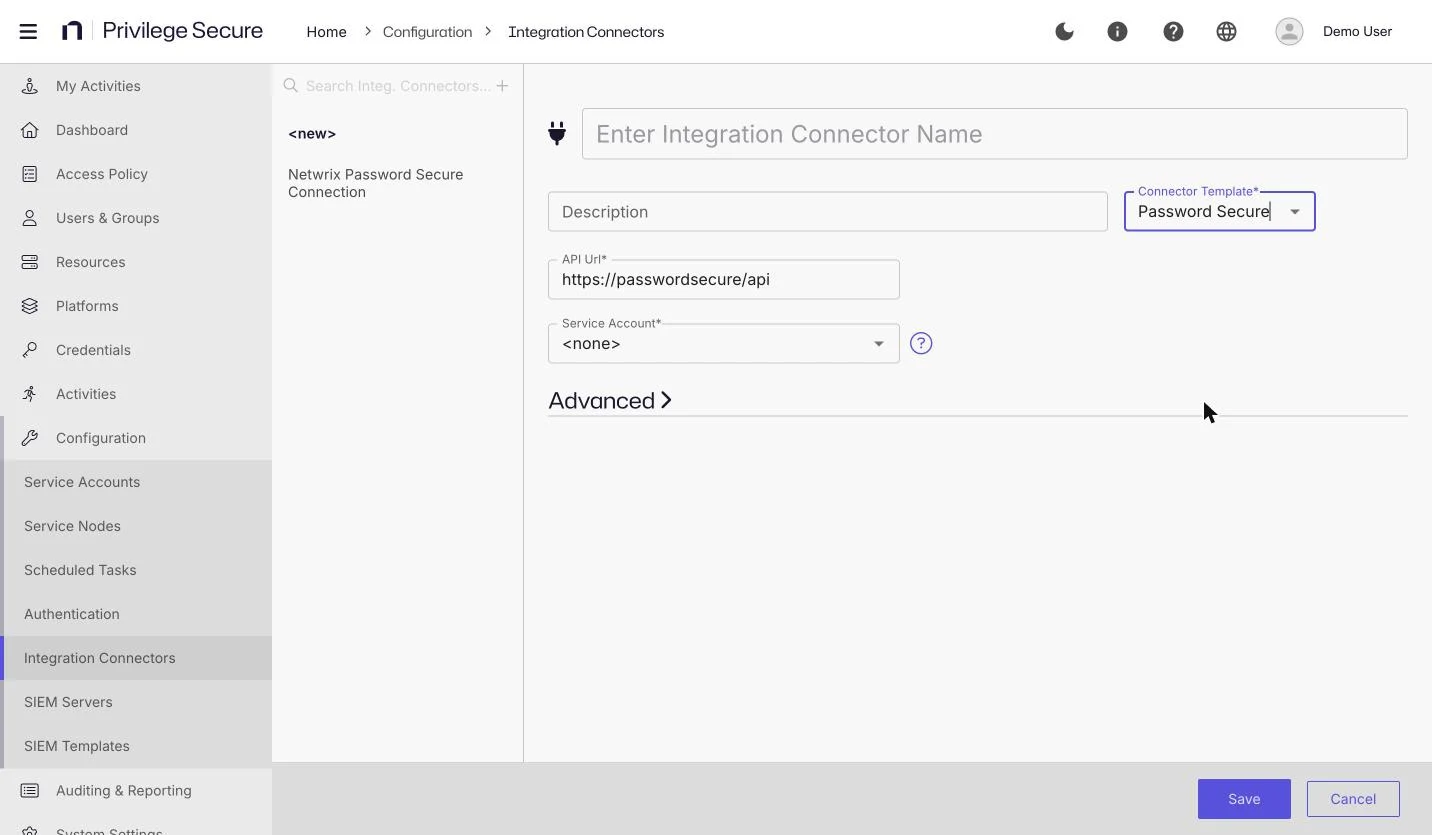
Add the Password Secure connector
- Select Configuration > Integration Connectors.
- Click + above the list.
- Enter a name, such as
NPS Password, and an optional description. - For Connector Template, select Password Secure.
- Complete the fields in the following table.
- Click Save.
| Field | Description |
|---|---|
| API Url* | The base URL of the Password Secure API, such as https://<password-secure-server>/api. |
| Service Account* | The service account that holds the Password Secure API key. |
| Skip Certificate Check | Under Advanced. When selected, Privilege Secure doesn't validate the Password Secure server certificate. The option is cleared by default. Leave it cleared in production. |
An asterisk (*) marks a required field.
When you select the Password Secure template, the form fills API Url with https://passwordsecure/api. Replace it with the address of your Password Secure Web Application.
Use the connector in an activity
- Create an activity. See Create an activity.
- Enter a Name and Description, and select the Platform.
- For Login Account, select Vault.
- For Activity Type, select Interactive.
- For Vault Connector, select the Password Secure connector.
- Click Save.
Then add the activity to a resource-based access policy, with the users and resources that can use it. See Create a resource-based access policy.
How Privilege Secure finds the password
For each session, Privilege Secure looks up the account in Password Secure by its domain and user name.
- The user name comes from the activity's login account name. If the name has no domain, Privilege Secure uses the NetBIOS name of the target host as the domain.
- Both values must match a Password Secure entry exactly. Password Secure's search can return partial matches, so Privilege Secure keeps only the entries whose user name equals the requested user name.
- The check-out fails if Password Secure has no matching entry, or has more than one.
The check-out error messages begin with "NPWS Integration >>", such as "NPWS Integration >> No password was found for the given parameters" and "NPWS Integration >> More than one password was found for the given parameters".
Release 26.07.3 identifies the user name field of a Password Secure entry by its type instead of its label. Earlier releases could fail the check-out when the label wasn't Username, for example in a localized template or after someone renamed the field. If check-out fails to find an account that exists in Password Secure, upgrade to 26.07.3.
Update the Password Secure SDK files
Privilege Secure includes the Password Secure SDK files that it uses to communicate with Password Secure. The included files work with Password Secure 9.2.0 and later. To use a newer Password Secure release, replace the files in the psrapi folder of the Action Service Worker installation, by default C:\Program Files\Stealthbits\PAM\ActionServiceWorker\psrapi, with the files from the newer SDK. Download the SDK from the Password Secure Customer Information System.