Install the portal
The portal is the web front end that external users open. Install it on a dedicated server in the demilitarized zone (DMZ). It runs nginx as the NPS Rag Portal Windows service and forwards requests to the gateway on port 6550.
Before you begin
- Install the gateway first. See Install the gateway and guacd.
- Check the server against Remote Access Gateway requirements.
- Use a dedicated server. Ports 80 and 443 must be free. Internet Information Services (IIS) binds port 80 for its Default Web Site, so don't install the portal on a server that runs it.
- Allow the portal server to reach the gateway server on port 6550.
- Create a Domain Name System (DNS) name for the portal that users can resolve.
- Sign in as a local administrator and run PowerShell as an administrator.
To check that nothing else listens on ports 80 and 443, run:
Get-NetTCPConnection -State Listen -LocalPort 80,443
The command returns no rows when both ports are free.
The examples use these placeholders. Replace them with your values.
| Placeholder | Meaning |
|---|---|
<gateway-server> | Fully qualified domain name (FQDN) of the gateway server |
<portal-server> | DNS name of the portal |
Run the portal installer
-
Copy
NPS.RagPortal.exeto the portal server. -
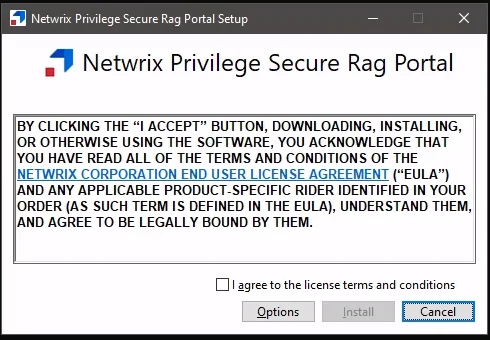
Right-click the installer and select Run as administrator. The setup wizard opens.
-
Select I agree to the license terms and conditions and click Install.
-
When the page shows "Installation Successfully Completed", click Close.

Point the portal at the gateway
-
In PowerShell, go to the portal installation folder:
cd "C:\Program Files\Stealthbits\PAM\NPS.RagPortal" -
Run the script with the name of the gateway server:
.\Configure-Nginx.ps1 <gateway-server>The script creates
nginx.keyandnginx.crtinC:\ProgramData\Stealthbits\PAM\RagPortal. It sets the nginx upstream to<gateway-server>:6550.The script also writes
nginx\conf\nginx.confand restarts the NPS Rag Portal service.
Open the portal ports
Allow inbound connections on the portal ports. For example, to allow HTTPS:
New-NetFirewallRule -DisplayName "RAG Portal HTTPS" -Direction Inbound -Protocol TCP -LocalPort 443 -Action Allow
Create a similar rule for port 80 if users need the redirect to HTTPS. The portal installer creates no Windows Firewall rules.
Verify the portal
-
Confirm the service is running:
Get-Service SbPAMRagPortal -
Confirm nginx listens on both ports:
Get-NetTCPConnection -State Listen -LocalPort 80,443A running service doesn't prove that nginx started. If another service holds port 80, nginx fails and the service still shows Running. See Troubleshoot the Remote Access Gateway.
-
In a browser on another computer, go to
https://<portal-server>. Use the portal's DNS name, notlocalhost. -
If the browser shows a certificate warning, continue to the site. The warning appears because the portal uses a self-signed certificate.
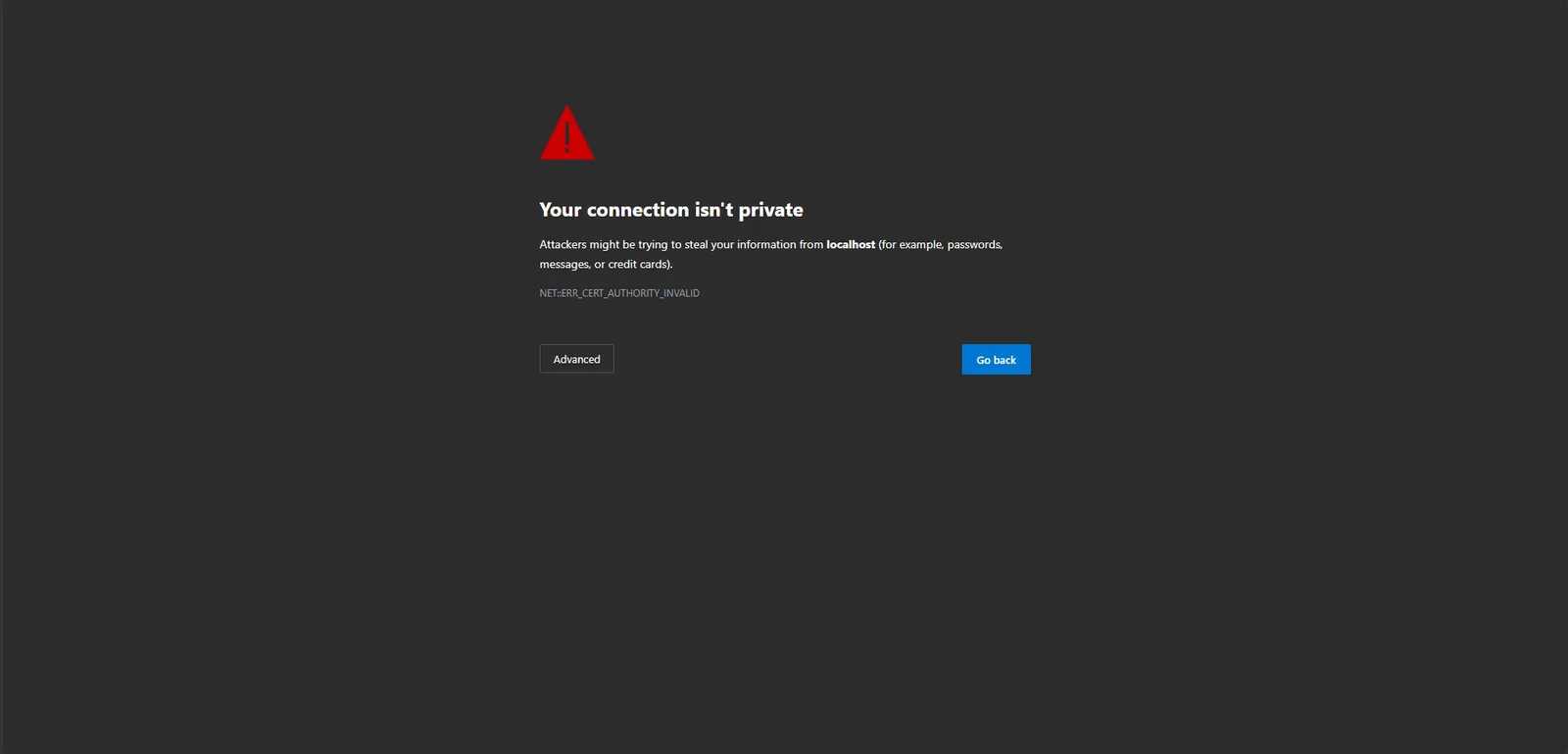
To remove the warning, install a certificate from your certification authority. See Portal and gateway certificates.
The portal sign-in page opens. By default it offers single sign-on (SSO) only. If it shows "The license has expired or the license service is offline", fix the Privilege Secure license. See Activate a license.
To choose which sign-in methods users see, see Configure sign-in for the portal.
Place the portal behind a web application firewall
If a web application firewall (WAF) or load balancer sits in front of the portal, allow the following paths to reach it. Enable WebSocket support on the load balancer. Without it, pages don't refresh and RDP sessions don't render.
| Path | Notes |
|---|---|
/api/v1/* | Includes /api/v1/token/connect, which uses a WebSocket upgrade |
/signinBody | Password sign-in |
/signin2fa | Multi-factor sign-in |
/middlewareHub | Requires a WebSocket upgrade |
/images/* | Portal images |
/oidcSignin/* | OpenID Connect sign-in |
/samlSignin* | SAML sign-in |
/samlSigninCallback | SAML sign-in callback |
/ and its static assets | The portal interface |