Troubleshoot the Remote Access Gateway
Use this page when users can't sign in to the portal, the portal doesn't load, or a session doesn't open. Each entry gives the symptom, the cause, and the fix.
Log files
| Component | Log | Location |
|---|---|---|
| Gateway | PAM-RagGateway*.log | C:\ProgramData\Stealthbits\PAM\Log |
| Portal | PAM-RagPortal*.log | C:\ProgramData\Stealthbits\PAM\Log |
| Portal web server (nginx) | nginx-access.log | C:\ProgramData\Stealthbits\PAM\Log |
| Apache Guacamole daemon (guacd) | Output of docker logs <container> | Inside Windows Subsystem for Linux (WSL) on the gateway server |
The gateway log is empty until the gateway receives its first request. The portal log also holds the nginx error output.
To find the guacd container name, run docker ps inside WSL. For the logs of the other Privilege Secure services, see Log files.
The sign-in page says the license has expired
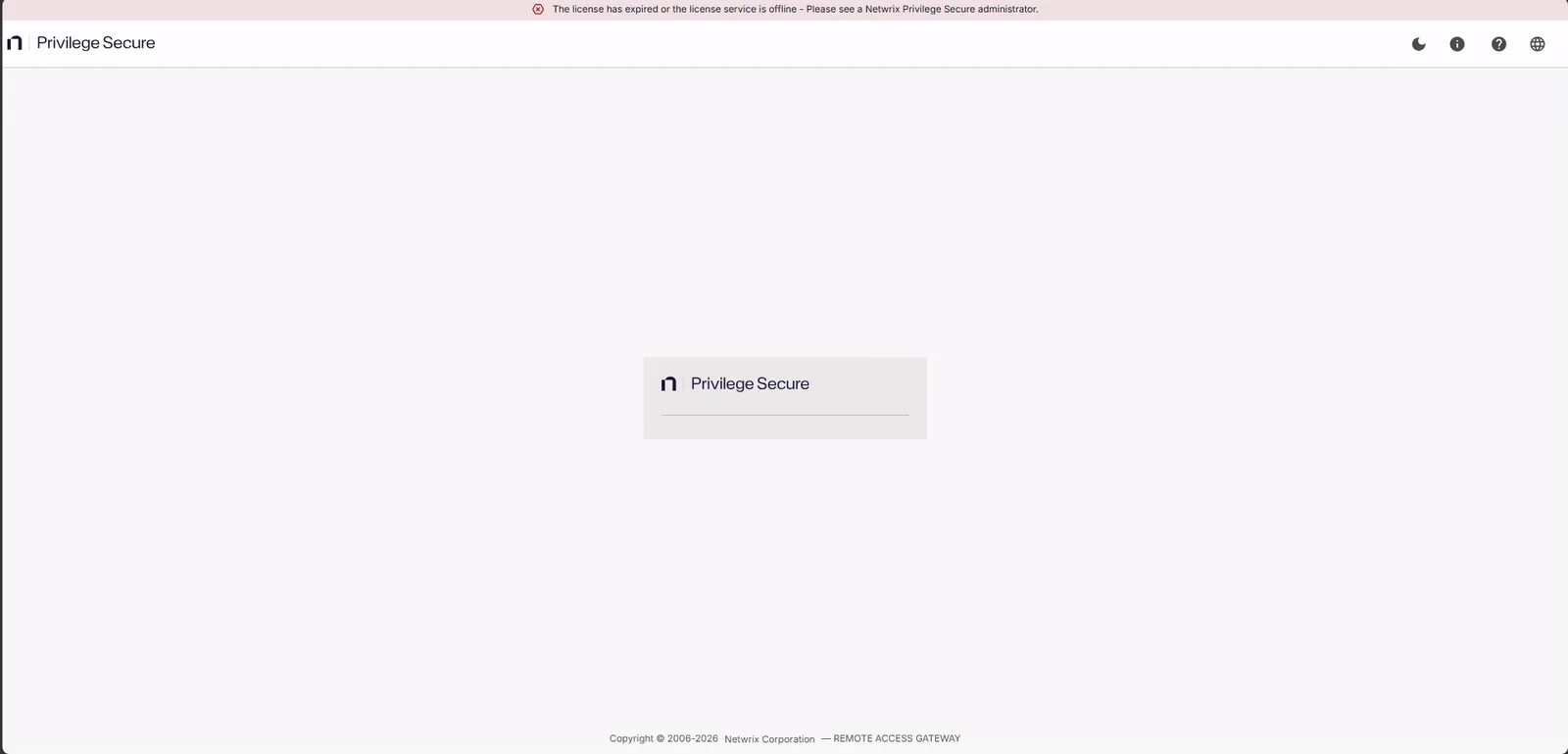
Symptom: The sign-in page shows the banner "The license has expired or the license service is offline".
Cause: The Privilege Secure license is expired, isn't valid, or the license service isn't running. The portal reads the license state from Privilege Secure.
Fix: Correct the license in the Privilege Secure console. See Activate a license.
A user belongs to no access policy
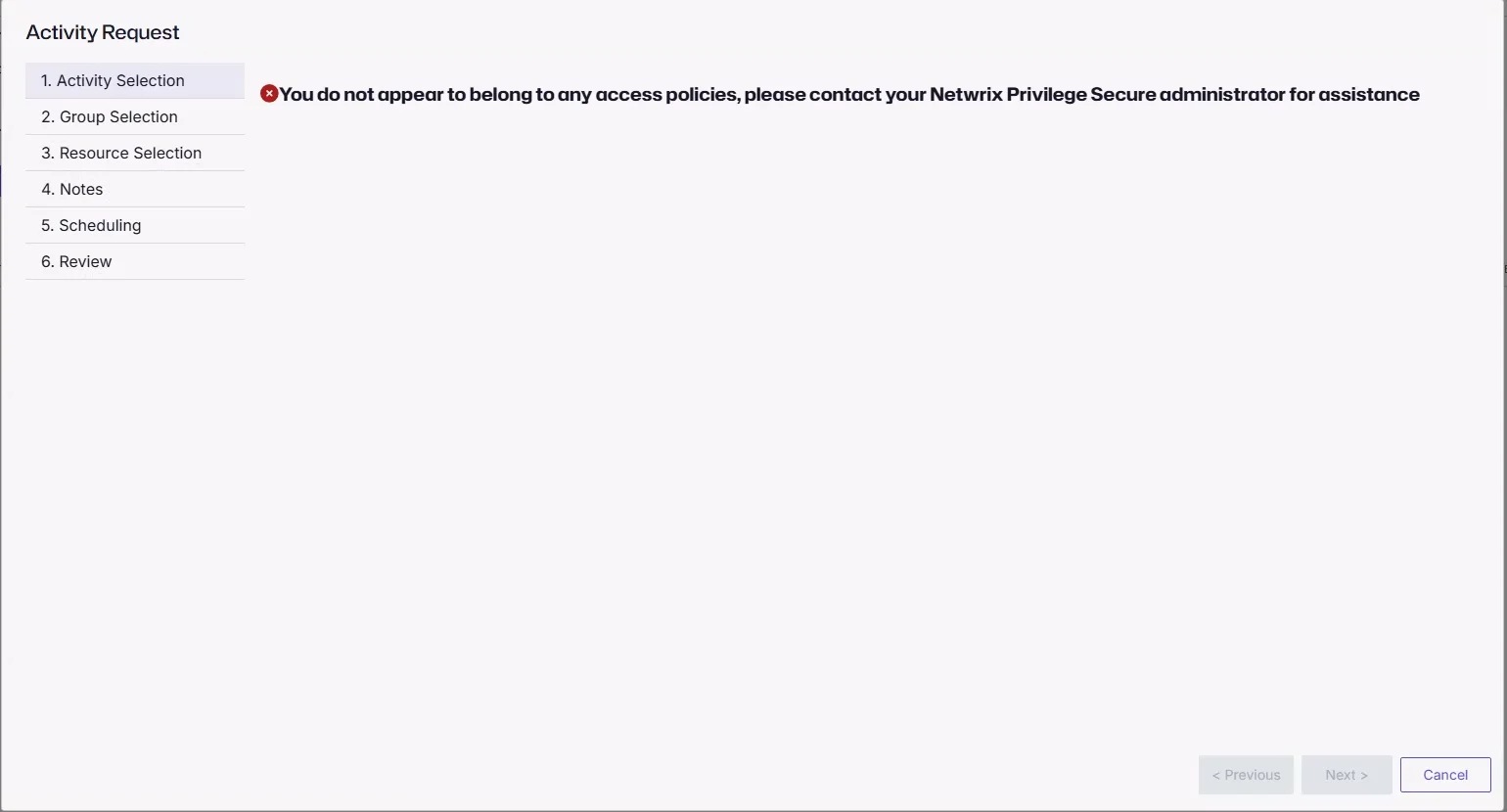
Symptom: The Activity Request wizard shows "You do not appear to belong to any access policies, please contact your Netwrix Privilege Secure administrator for assistance".
Cause: The user isn't a member of any access policy.
Fix: Add the user to an access policy that includes the activity and the resource. See Access policies.
The sign-in page rejects the login method
Symptom: The sign-in page rejects the user with "Cannot use this login method".
Cause: The AllowedLoginMethods setting doesn't allow the method. The default value, 0, allows single sign-on (SSO) only. With value 1, the portal also rejects a username that contains \ or @.
Fix: Ask the user to use an allowed method, or change the setting. See Configure sign-in for the portal.
A connector can't be used through the gateway
Symptom: The identity provider sign-in option isn't listed on the portal sign-in page. If a user reaches the sign-in through a direct link or a callback from the identity provider, the sign-in fails with "This authentication method cannot be used via Remote Access Gateway". The Privilege Secure log and event show the longer message "The authentication method: '<name>' cannot be used via Remote Access Gateway", with the name of the connector.
Cause: The connector doesn't match where the user signs in. A connector with Use Remote Access Gateway selected works only through the portal, and fails on the console. A connector with the checkbox cleared works only on the console, and fails through the portal.
Fix: To offer the identity provider on the portal, edit the connector, or create one for the portal, and select Use Remote Access Gateway. To offer it on both the portal and the console, create one connector for each. See Configure sign-in for the portal.
ERRCONNECT_LOGON_FAILURE after you enter the target password

Symptom: The Live Sessions page shows "ERRCONNECT_LOGON_FAILURE" and "Failed to connect to target server. Logon failed."
Cause: The target rejected the sign-in. Check these causes:
- Wrong password. The password isn't the one for the account that the activity uses on the target.
- Wrong account type. The activity uses the Requester login account, and the user signed in to the portal with a local Privilege Secure user. The target receives that username, and a domain-joined Windows target has no such account. Sign in with a domain user, or ask the administrator to use a different login account on the activity.
Fix: Enter the correct password, or fix the login account. The prompt takes only a password, so you can't enter a different username at connect time.
The portal refuses to connect while the service is running
Symptom: The browser reports that the portal "refused to connect". The NPS Rag Portal service shows Running.
Cause: nginx can't bind port 80, and the service keeps restarting it. Another program, usually the IIS Default Web Site, uses port 80. The portal log shows this line:
bind() to 0.0.0.0:80 failed (10013: An attempt was made to access a socket in a way forbidden by its access permissions)
Fix: Install the portal on a dedicated server with ports 80 and 443 free. See Remote Access Gateway requirements.
The portal returns a 502 error or a blank page
Symptom: The portal loads but returns a 502 error or a blank page.
Cause: The portal can't reach the gateway on port 6550. Check these causes:
- The IIS site NPS Gateway Web Service on the gateway server is stopped.
- A firewall blocks port 6550 between the portal server and the gateway server.
- The nginx upstream still holds the placeholder
nps-gatewayhostbecauseConfigure-Nginx.ps1didn't run.
Fix: Start the IIS site, open port 6550, or run Configure-Nginx.ps1 <gateway-server> on the portal server. See Install the portal.
The gateway runs with default settings
Symptom: Sessions fail. appsettings.json doesn't exist in C:\ProgramData\Stealthbits\PAM\RagGateway, or NPS.Uri points to localhost and Guacd.ServerThumbprint holds "Guacd:ServerThumbprint not set!". For the file location, see Gateway settings reference.
Cause: Configure-Gateway.ps1 didn't finish. The script exits without applying your values when it can't reach Privilege Secure or guacd on port 4822. If it can't reach Privilege Secure, appsettings.json might not exist. If it can't reach guacd, the file holds only the defaults.
Fix: Confirm that the gateway server can reach the Privilege Secure URL. Start guacd, and confirm that it listens on port 4822. Then run Configure-Gateway.ps1 again. See Install the gateway and guacd.
A session closes or stays blank as soon as it opens
Symptom: A session closes, or the page stays blank, right after it opens. The guacd log might show "wrong security type?", or the gateway log might show "One time use token ... not found or revoked".
Cause: One of these causes applies:
- The RDP Proxy (host:port) or SSH Proxy (host:port) value on the connection profile of the access policy can't be reached from guacd, or is set to
localhost. From inside the guacd container,localhostis the container, not the Privilege Secure server. - The one-time token for the session expired or was revoked.
Fix: Set the proxy host to an address that guacd can reach, and then start the session again from the dashboard.
The gateway reports a certificate thumbprint mismatch
Symptom: The gateway log shows "Certificate thumbprint mismatch" when a session starts.
Cause: The guacd certificate changed after the gateway stored its thumbprint.
Fix: Run Configure-Gateway.ps1 again so that it stores the new thumbprint. See Portal and gateway certificates.
Sessions fail after the server restarts
Symptom: Users sign in to the portal and request sessions, but the sessions don't open after the gateway server restarts.
Cause: WSL stopped, so guacd is down. WSL doesn't start by itself after a restart, and it stops when it is idle.
Fix:
- On the gateway server, run
wsl -l -v. If the distribution shows Stopped, start it. - Run
Test-NetConnection <guacd-host> -Port 4822and confirm thatTcpTestSucceededisTrue.
If the address of the WSL instance changed, run wsl hostname -I to get the current address. Then run Configure-Gateway.ps1 again with that address as the -NPSGuacdHost value.
If WSL doesn't start by itself, see Start WSL automatically.
Colors look wrong in an RDP session
Symptom: Colors in an RDP session look wrong, such as red and blue swapped.
Cause: A guacd version that doesn't match the portal can cause this. Release 26.07.3 requires guacd 1.6.0. For RDP sessions, the portal swaps the red and blue channels in the browser to match how guacd 1.6.0 draws them.
Fix: In WSL, run docker ps and confirm that the guacd image is exactly guacamole/guacd:1.6.0. If it isn't, upgrade guacd. See Upgrade the Remote Access Gateway.