Connect to a session in the browser
In the Remote Access Gateway portal, you request a session for an activity and connect to the target system in your browser. The session opens on the Live Sessions page, with no VPN or client software.
Before you begin
- Sign in to the portal. See Sign in to the portal.
- Belong to at least one access policy that includes the activity and the resource. If you belong to none, the Activity Request wizard shows an error. See Troubleshoot the Remote Access Gateway.
- If the target asks for a password when the session opens, know the password of the account that the activity uses on the target.
Dashboard
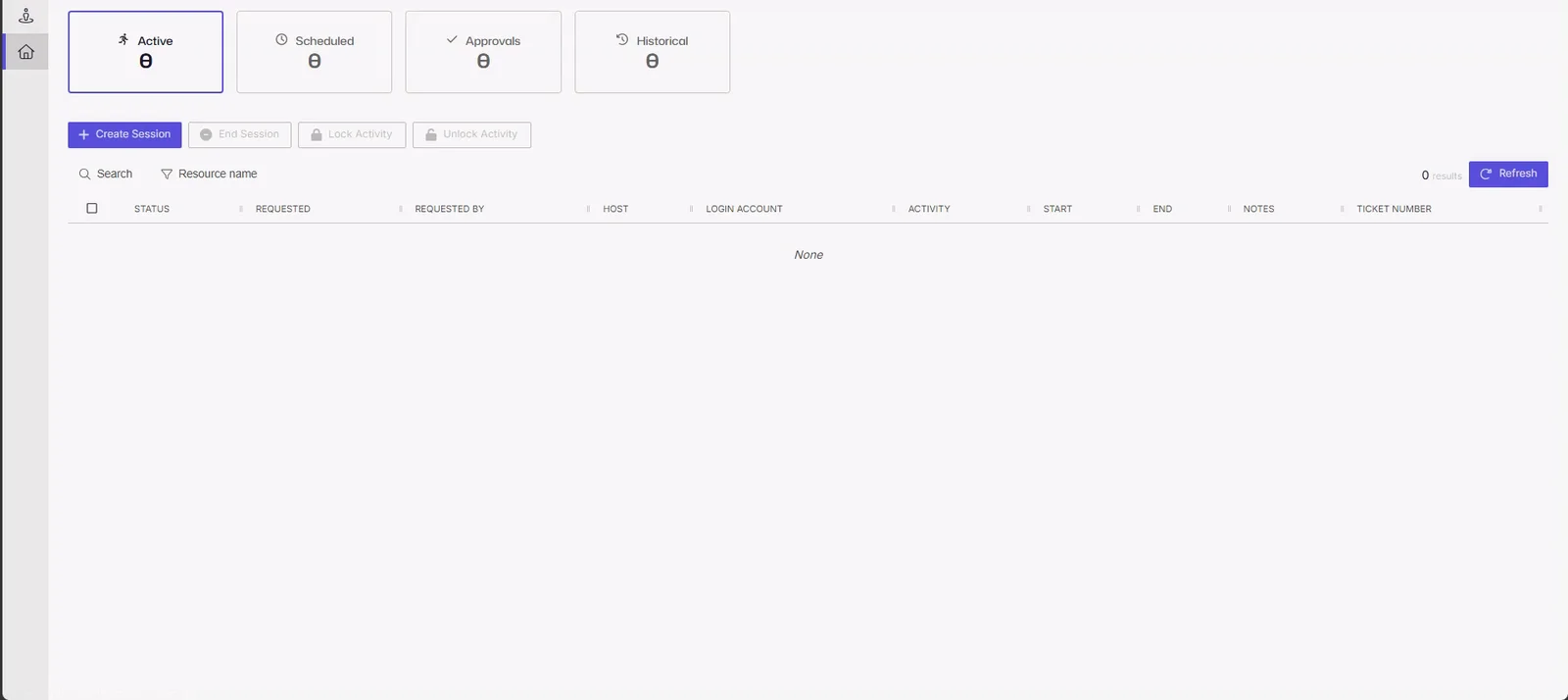
After you sign in, the portal opens the dashboard. It shows four tiles:
| Tile | Shows |
|---|---|
| Active | Your sessions that are provisioning, available, or in progress |
| Scheduled | Your sessions with a later start time |
| Approvals | Your session requests that wait for an approver to decide |
| Historical | Your sessions that have completed, been canceled, or failed, and requests that were denied |
Every user who signs in sees all four tiles. Each tile shows a count of your own sessions. The portal doesn't have the Approve and Deny buttons. Approvers decide requests in the console. See Approve or deny session requests.
The Active tile also has the Create Session, End Session, Lock Activity, and Unlock Activity buttons, and a table of sessions. You can't connect to a locked session.
- End Session ends the selected sessions. It stays unavailable until you select a row.
- Lock Activity and Unlock Activity require the Lock Session permission from the Auditors permission group, or the Admin View Read Only role with Lock Session. Without it, the buttons are unavailable and a tooltip names the missing permission.
Request a session
-
On the dashboard, click Create Session. The Activity Request wizard opens.
-
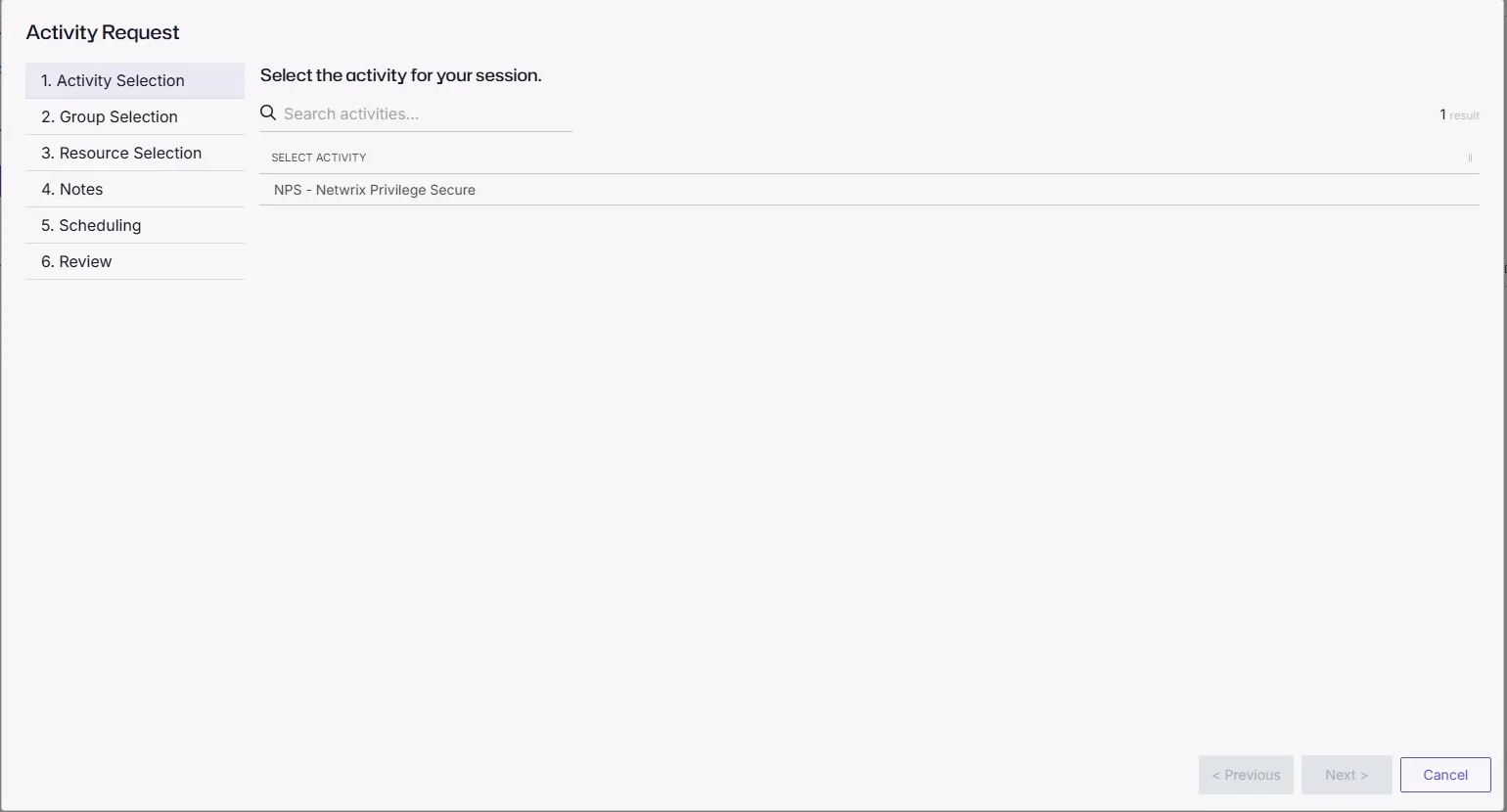
On the Activity Selection step, search for and select an activity. Click Next >.
-
If the Group Selection step appears, select the groups or roles. Click Next >.
The portal shows this step only when the selected activity assigns users to groups or roles. For other activities, the wizard skips it.
-
On the Resource Selection step, select one or more resources. Click Next >.
-
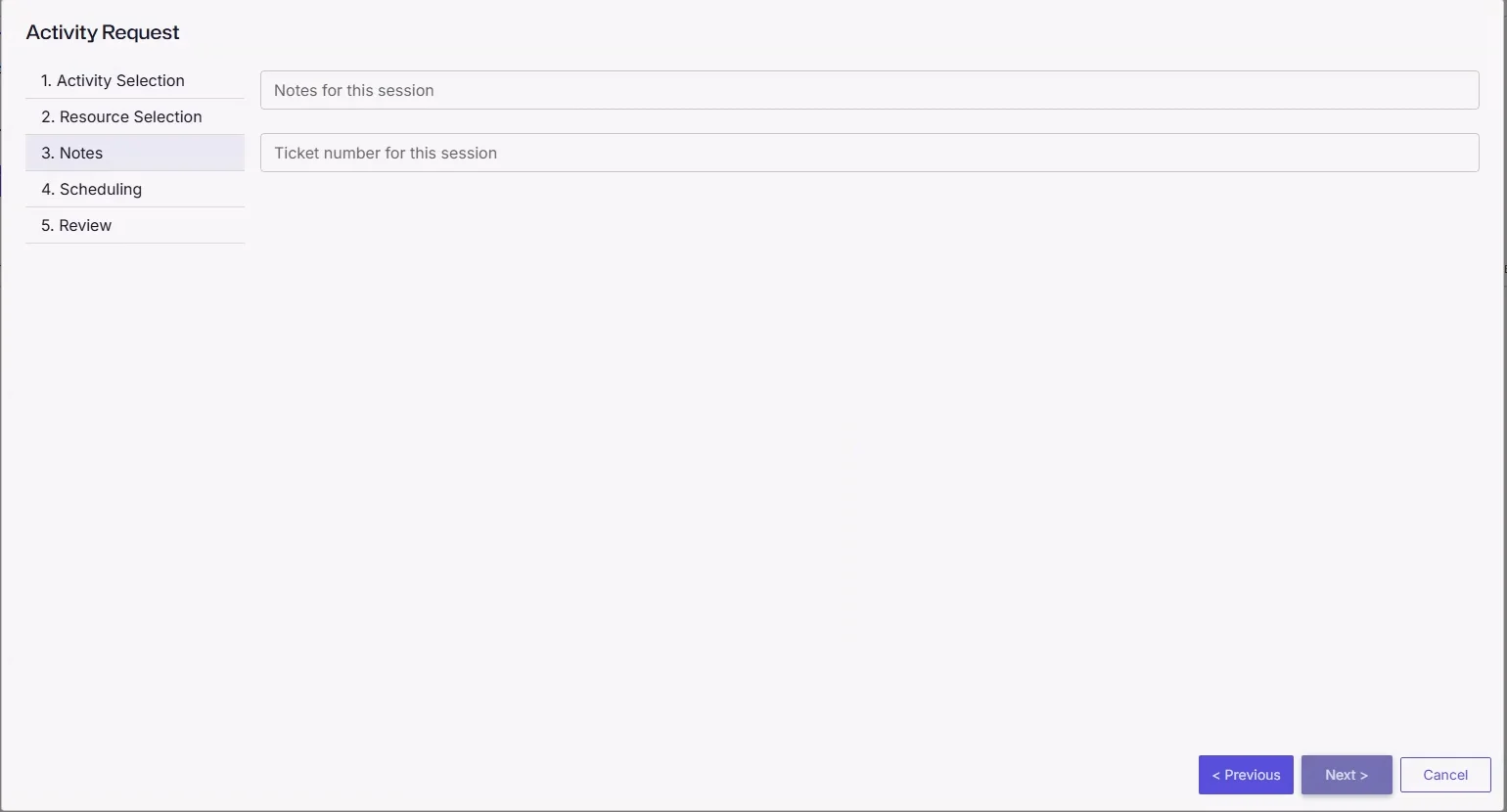
On the Notes step, enter notes and a ticket number. Click Next >.
-
On the Scheduling step, select Now, or select Choose a time and set a start time. Click Next >.
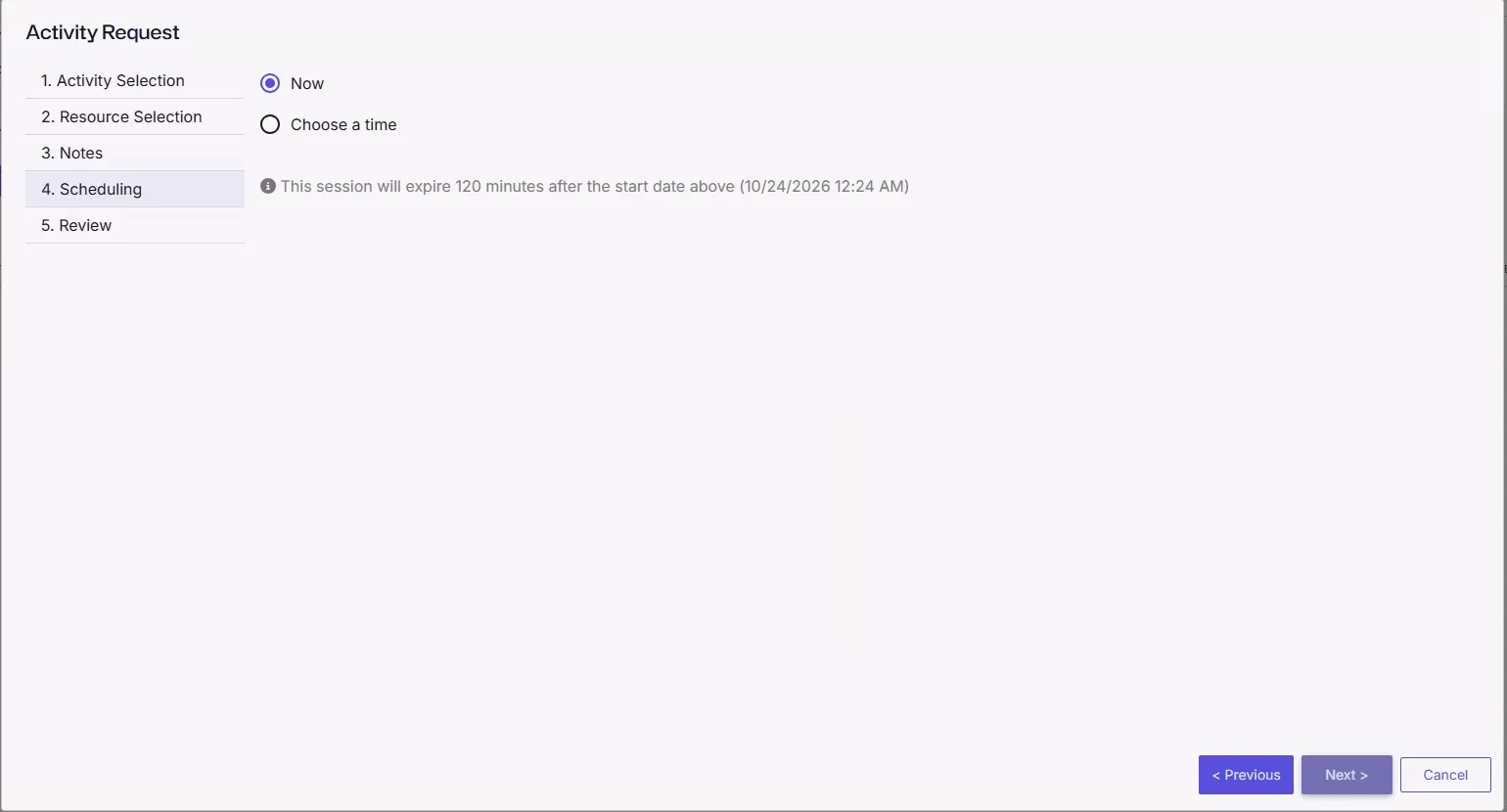
The wizard shows that the session expires after the Max Duration (minutes) of the connection profile in the access policy. The default is 120. See Connection profiles.
-
On the Review step, check the summary. Click Finish to submit the request.
The wizard has five steps when the portal skips Group Selection, and six when it shows that step.
The new session appears in the session table. If the access policy requires approval, the Status column shows Waiting for approval until an approver decides. When the session is ready, the status changes to Available.
For the fields on each step, see Request a session.
Open the session
-
In the session table, find the row with the Available status.
-
Click the monitor icon. The Live Sessions page opens.
The row also has icons to copy the account name and, when the connection profile lets users see passwords, to copy or view the password.
-
At the prompt from the target system, enter the password of the target account.
The prompt asks for a password only. The account name comes from the activity's login account. If the target rejects the sign-in, see Troubleshoot the Remote Access Gateway.
For an SSH target, the monitor icon opens a terminal in the browser on the Live Sessions page.
Use the Live Sessions page
The page shows the target desktop. A toolbar at the top has these controls:
| Control | What it does |
|---|---|
| Resolution | Sets the size of the remote display. Choose Dynamic, 1280x720, 1920x1080, 2560x1440, or 3840x2160. |
| Ctrl+Alt+Delete | Sends the Ctrl+Alt+Delete key combination to the target. |
| Close | Closes the session window. |
Close disconnects your browser from the target. It doesn't end the activity session. To end the session, use End Session on the dashboard. The Ctrl+Alt+Delete button appears only for RDP sessions, not for SSH sessions.
The page also shows:
- A banner with the target name and the time left, in the form
<resource> [Remaining: <time>]. - A blue REC indicator in the top right corner. It shows that Privilege Secure is recording the session.

Clipboard
The session copies plain text between the target and your browser. Text that you copy on the target goes to your browser clipboard. To send text from your browser clipboard to the target, click the session display. Your browser might ask for permission to read the clipboard. If it doesn't support clipboard reading, the toolbar shows "This browser does not support reading from the clipboard."
Switch between sessions
While a browser session is open, the left navigation shows Live Sessions. When more than one session is open, select the session name at the top of the page and choose another session from the list. Each entry has the form <account>@<resource>. A second session to the same resource, even with a different account, shows a number after the name, such as (1).