Databases
A database resource lets Netwrix Privilege Secure for Access Management (Privilege Secure) manage logins and roles on a Microsoft SQL Server or Oracle database. Add the database, choose a service account that can administer it, and run a scan to discover its users, databases, and roles.
Prerequisites
- A service account that can sign in to the database and manage its logins. See Service accounts.
- The instance name, the address of the server, and the port the database listens on.
- (Optional) A domain resource, if the database authenticates Active Directory users. See Active Directory domains.
Add a database
- Select Resources in the left navigation.
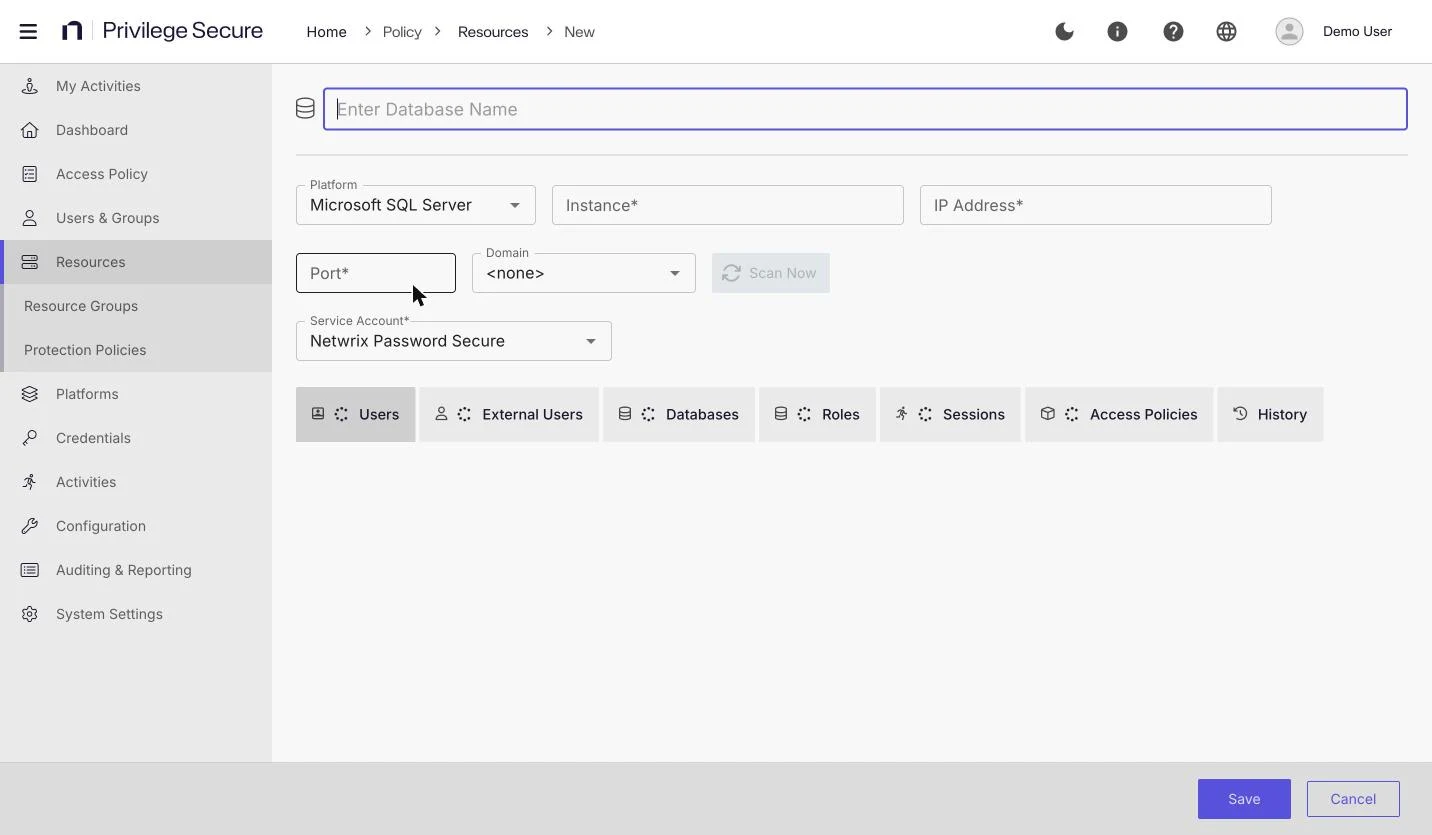
- Select Add and select New Database.
- Enter a unique name in Enter Database Name.
- Select Microsoft SQL Server or Oracle in the Platform list. Microsoft SQL Server is the default.
- Enter the Instance. This field is required. A default SQL Server instance appears as
default. - Enter the IP Address. This field is required. The field also accepts a host name.
- Enter the Port. This field is required and is blank on a new form. SQL Server listens on port 1433 unless you changed it.
- (Optional) Select an Active Directory domain in the Domain list. The list shows
<none>by default. Privilege Secure uses the domain as the default domain for database activities. - Select the SQL Server or Oracle service account in the Service Account list. The list defaults to the internal Netwrix Password Secure account. Replace it with the account that can sign in to the database.
- Select Save. Scan Now becomes available after the save.
- Select Scan Now to discover the database users, databases, and roles.
For example, to add a default SQL Server instance, enter the name Finance SQL, leave Platform as Microsoft SQL Server, enter default as the Instance, enter sql01.example.com as the IP Address, enter 1433 as the Port, and select the SQL service account.
For Oracle, enter the Instance as <host>/<service-name>, for example ora01.example.com/orclpdb. Privilege Secure connects to the address in IP Address when you enter one, on the port you enter, and uses the service name after the slash. The default Oracle listener port is 1521, which the Port field shows as a placeholder for Oracle. If the Port value is missing or isn't a valid port, Privilege Secure connects on 1521. Privilege Secure connects to Oracle with SYSDBA privileges.
Platform-specific behavior
- SQL Server: activities create Windows authentication logins for Active Directory accounts. They create SQL logins only for local database accounts.
- Oracle: Privilege Secure reads the common user prefix from the database. It is
C##unless the database defines another prefix. Active Directory users without managed credentials can't be provisioned on Oracle. Oracle accounts use password authentication.
When Privilege Secure creates or changes an Oracle account, it adds the prefix to the account name unless the name already starts with it. For example, with the default prefix, the user jsmith becomes C##jsmith. If the database defines an empty prefix, Privilege Secure adds nothing. If Privilege Secure can't read the prefix, it uses C##.
Scan a database
Select Scan Now on the database page to scan the database. Cancel appears while a scan runs and stops it.
Scan Resource on the Resources list scans servers only. It doesn't scan a database, so use Scan Now on the database page.
Change a database setting
- Select Resources in the left navigation.
- Select the name of the database.
- Change the field.
- Select Save. Select Cancel to discard the change.
Review the database tabs
The database page has these tabs.
| Tab | Shows |
|---|---|
| Users | Database login accounts. |
| External Users | Accounts that sign in to the database through Windows authentication rather than a database login: domain users and domain groups, and local computer accounts and local groups on the database server. The tab shows each account's type and its Samaccountname, and has a Search External Users box. |
| Databases | The databases that the scan discovered. |
| Roles | The roles on the database and at the server level, and who holds them. |
| Sessions | Earlier sessions that used this database as a target. |
| Access Policies | The access policies that include this database. |
| History | Events for this database. |
The Users tab has the buttons Manage, Unmanage, Rotate, Verify, View History, and Password Reset Options. Its columns are Name, Password Last Set, Age, Managed, Rotate Start | End, Keep Enabled, Status, and Last Checked.
The Databases tab has a Search box and these columns: Database Name, Members, and Status. Status shows whether the database is online. Before the first scan, it shows Offline.
For session details, see Session logs.
Remove a database
See Remove resources.