Active Directory domains
A domain resource connects Netwrix Privilege Secure for Access Management (Privilege Secure) to an Active Directory domain. After you add a domain, Privilege Secure synchronizes its users, groups, and computers. You can then give domain users and groups access to Privilege Secure, manage domain accounts, and onboard domain computers as resources.
For how synchronization reads the directory, see How Active Directory synchronization works.
Prerequisites
- A service account for the domain with the Active Directory platform. See Service accounts for the permissions it needs.
- Network access from the application server to a domain controller.
Add a domain
-
Select Resources in the left navigation.
-
Select Add and select New Domain.
-
Enter the fully qualified domain name in the first field, for example
corp.example.com. -
In Service Account, select the Active Directory service account for the domain.
warningService Account defaults to the internal Netwrix Password Secure account. Replace it with your Active Directory service account before you test or save.
-
Select Use TLS to connect to the domain over a Transport Layer Security (TLS) connection.
-
Select Test to check the connection.
-
Select Save. The Save button is available after the test succeeds.
The new domain opens on its details page. The page is empty until the first synchronization finishes. To start it right away, select Sync.
Schedule synchronization
Set how often Privilege Secure synchronizes the domain in the schedule row on the domain's details page.
| Setting | Description |
|---|---|
| Frequency | Never, Hourly, Daily, or Weekly. The choice adds more fields. |
| Every | For Hourly, the interval between synchronizations, from 1 hour to 24 hours. |
| At | For Daily and Weekly, the start time. |
| On | For Weekly, the day of the week, from Sunday to Saturday. |
| Last Synchronized | The date and time of the last synchronization, or Never. This value is read-only. |
Select Save after you change a setting. Select Cancel to discard the change.
Run a synchronization
The Sync button is a split button. Select the main part of the button to start a normal synchronization. Open the menu on the button to see Full Sync.
- Use Sync for routine updates. After the first synchronization, it reads only the objects that changed.
- Full Sync is in the button menu. It starts a synchronization that reads every object again instead of only the objects that changed.
While a synchronization runs, the Sync button shows that it's busy, and a Cancel button appears next to it so you can stop the run. A progress message shows the current step, for example "Processing users (imported 1,200)..." or "Waiting for action service...". The message appears only while the run is in progress.
Track progress on the History tab. A completed run ends with an entry such as "Domain corp.example.com sync complete."
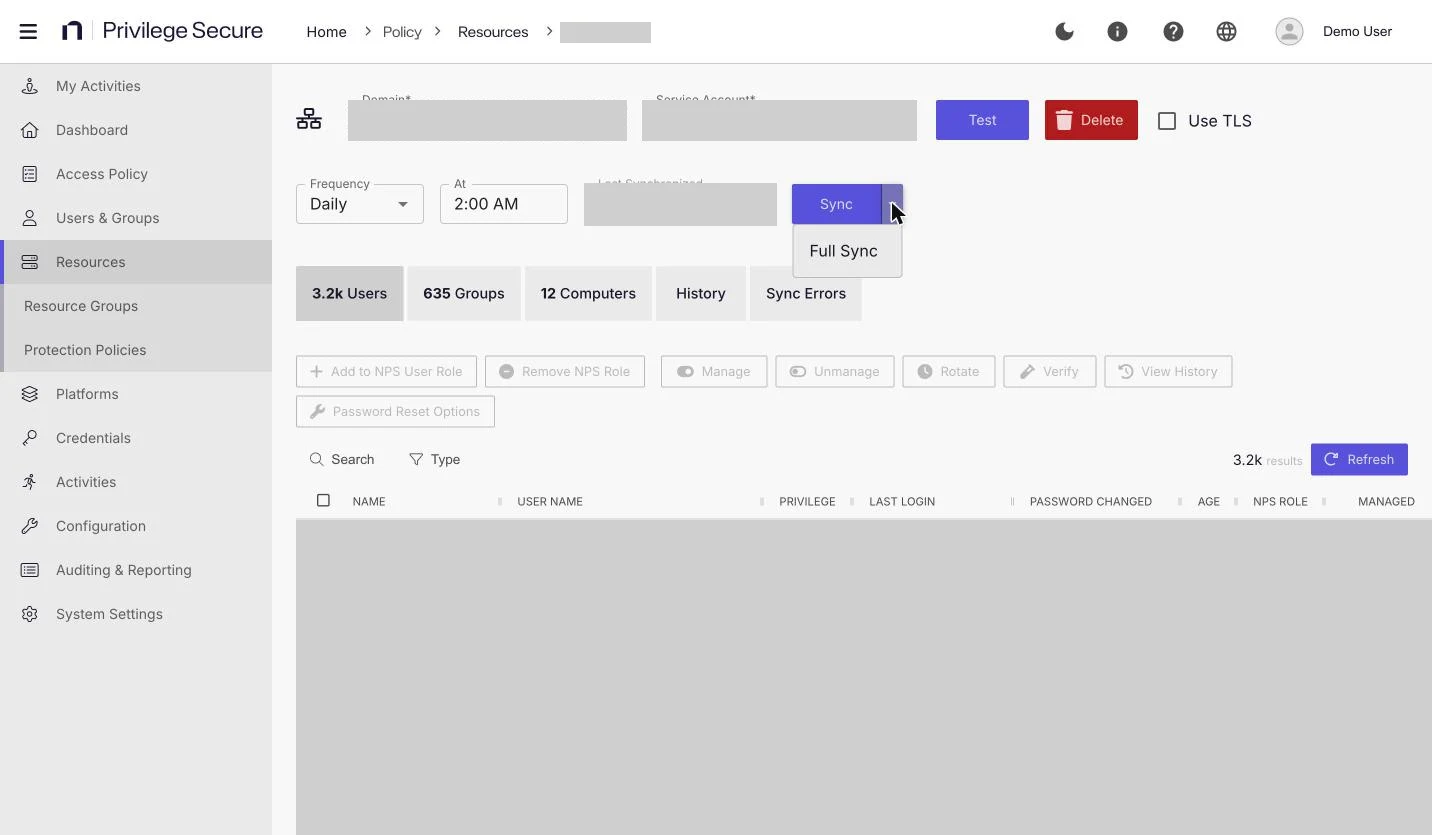
Domain details
The details page header shows the domain name, the Service Account list, the Use TLS option, and these buttons:
| Button | Action |
|---|---|
| Test | Checks the connection to the domain with the current settings. |
| Delete | Removes the domain from Privilege Secure. A confirmation window opens. |
| Sync | Synchronizes the domain. The menu holds Full Sync. |
A domain has five tabs: Users, Groups, Computers, History, and Sync Errors. A domain has no Sessions or Access Policies tab.
Delete removes the domain from Privilege Secure only. It deletes the domain resource, the computer resources onboarded from the domain, the domain's managed account credentials, and the recurring synchronization job. It makes no change in Active Directory. Delete is blocked while resource groups still depend on the domain.
Users tab
The Users tab lists the domain's user accounts. Use Search and the Type filter to find accounts.
| Button | Action |
|---|---|
| Add to NPS User Role | Gives the selected account access to Privilege Secure with the User role. |
| Remove NPS Role | Removes the selected account's access to the console. |
| Manage | Sets the selected account to be managed by Privilege Secure. |
| Unmanage | Stops Privilege Secure from managing the selected account. |
| Rotate | Queues a credential rotation for the selected account. |
| Verify | Checks that the account's credential matches the one Privilege Secure stores. |
| View History | Opens the password history for the account. |
| Password Reset Options | Sets when the password rotates, such as Rotate on Session Start and Rotate on Session End. |
The Type filter has these values:
| Value | Shows |
|---|---|
| All | Every account. |
| User | Accounts that have the User role in Privilege Secure. |
| Admin | Accounts that have the Admin role. |
| Managed | Accounts that Privilege Secure manages automatically. |
| Not Onboarded | Accounts that have no role and aren't managed. |
Manage is available when at least one selected account has no Privilege Secure role, isn't already managed, and has no dependents.
The table includes these columns, among others: Name, User Name, Privilege, Last Login, Password Changed, Age, NPS Role, Managed, Rotate Start | End, Keep Enabled, Dependents, and Status. Status shows the result of the last credential verification. For managed accounts, see Credentials.
To give a domain user console access without leaving this page, select the user and select Add to NPS User Role. You can also add users from the Users & Groups page. See Add users and groups.
Groups tab
The Groups tab lists the domain's groups. The Type filter narrows the list, and Search finds a group by name.
- Add to NPS User Role gives the selected group access to Privilege Secure. Members of the group sign in with the group's role.
- Remove NPS Role removes that access.
The table shows Name, NPS Role (Not Enrolled until you add the group), Group Name (Pre-Windows 2000), and Description.
The Type filter has these values: All, Not Enrolled, Can Log In, and Admin.
Computers tab
The Computers tab lists the domain's computer objects. The table shows Name, NPS Managed, Operating System, DC, DNS Host Name, Distinguished Name, and Service Account.
To onboard computers as resources:
- Open the Computers tab.
- Select one or more computers.
- Select Add as NPS Managed Resource.
- In the Enroll Hosts in Management window, check the list of selected computers. In Use Service Account, select the service account Privilege Secure uses to connect to the computers. Okay stays unavailable until a service account is available to select.
- Select Okay.
The computers appear on the Resources page as hosts. To stop managing a computer, select it and select Remove as NPS Managed Resource.
If Privilege Secure can't add the selected computers, the console shows the error message that the server returns.
History tab
The History tab lists synchronization events for the domain. Filter by status (Information, Warning, Error), event type (such as AD Sync), and service type. The table shows Occurred, Status, Event Type, Service Type, and Message.
Sync Errors tab
The Sync Errors tab lists the errors from synchronization. The table shows Time and Message. The tab shows None when no errors are logged.
Troubleshoot a synchronization that shows Failed
If the Sync AD scheduled task shows Failed while the domain still synchronizes, see Active Directory sync and scan problems.