Platforms
A platform sets the defaults for every resource of one type, such as Windows servers or SQL Server databases. A platform holds the built-in account to discover, the password complexity policy, and the schedules for rotation, scanning, verification, and protection. Each resource uses the settings of its platform.
Select Platforms in the left navigation to open the list. Each platform is one form with no tabs.
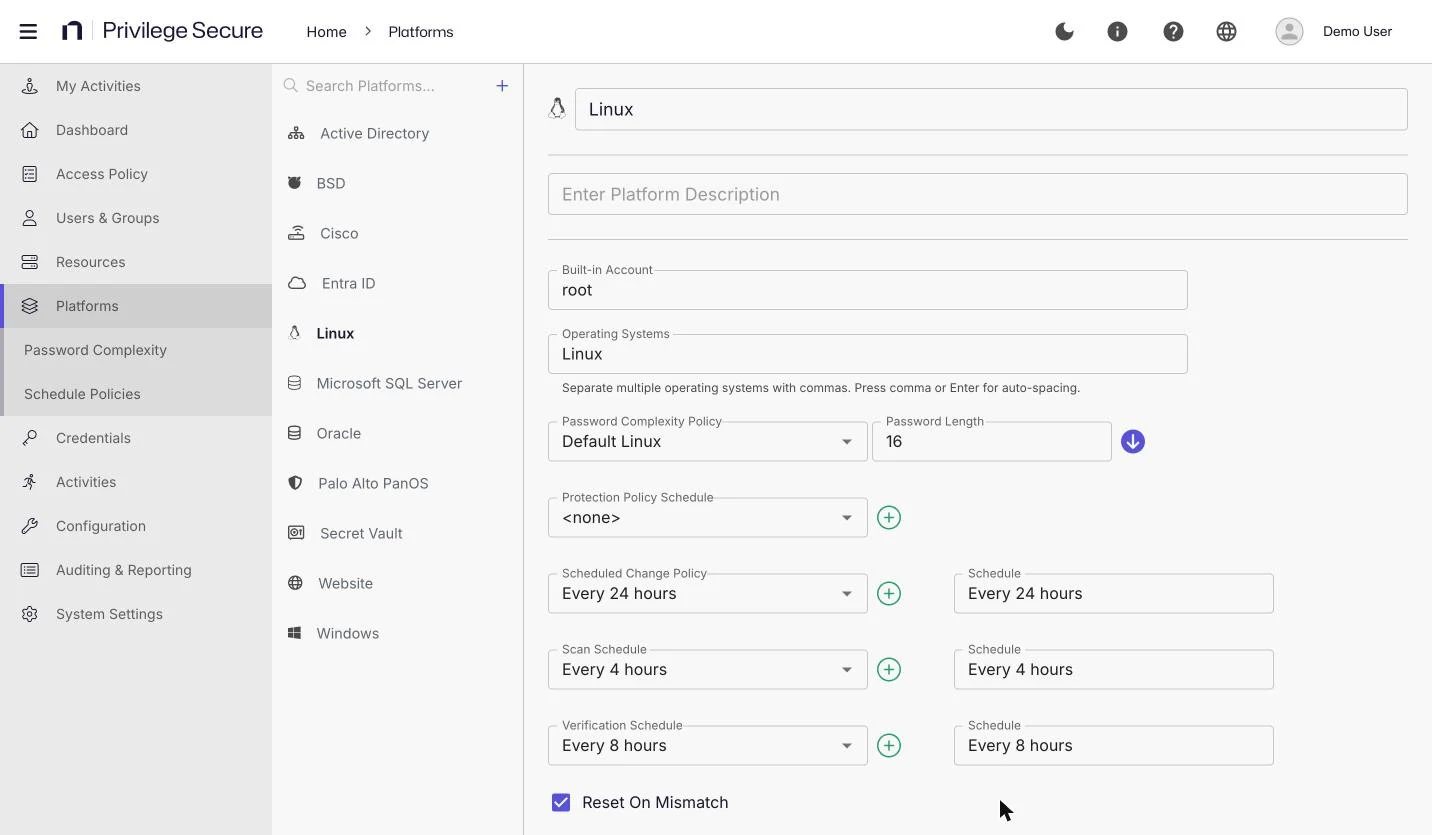
Built-in platforms
Netwrix Privilege Secure for Access Management (Privilege Secure) includes 11 platforms.
| Platform | Used for |
|---|---|
| Active Directory | Active Directory domains. |
| BSD | BSD servers. |
| Cisco | Cisco network devices. |
| Entra ID | Microsoft Entra ID tenants. |
| Linux | Linux servers. |
| Microsoft SQL Server | SQL Server databases. |
| Oracle | Oracle databases. |
| Palo Alto PanOS | Palo Alto Networks PAN-OS devices. |
| Secret Vault | Secret vaults. |
| Website | Websites. |
| Windows | Windows servers. |
To move a resource to another platform, select the resource on the Resources page and select Change Platform. The dialog lists these 11 platforms.
When a resource has no platform set, Scan Resource identifies it. The scan tries to connect over Windows Remote Management (WinRM) first, then over SSH, and records the platform that it finds. The server page has no separate control for identification.
Platform settings
The settings that appear depend on the platform.
| Setting | Description |
|---|---|
| Name | The name of the platform. |
| Description | The purpose of the platform. |
| Built-in Account | The built-in administrator account on resources of this platform. It tells Privilege Secure which accounts to discover and onboard. |
| Operating Systems | The operating system names that belong to this platform. Separate names with commas. Press comma or Enter to add a name. |
| Password Complexity Policy | The policy that sets the rules for generated passwords. See Password complexity policies. |
| Password Length | The number of characters that the selected policy requires. Select the arrow next to it to show the rules of the policy. |
| Protection Policy Schedule | How often protection policies run on resources of this platform. See Protection policies. |
| Scheduled Change Policy | How often Privilege Secure rotates the passwords of managed accounts. |
| Scan Schedule | How often Privilege Secure scans resources of this platform for users, groups, services, and scheduled tasks. |
| Verification Schedule | How often Privilege Secure checks that the stored password of each managed account still works. |
| Reset On Mismatch | When selected, Privilege Secure rotates the password if verification finds that the stored password doesn't match the account. |
Each schedule setting is a list of schedule policies with a green plus (+) button to create one. A read-only Schedule box shows the selected schedule. See Schedule policies.
When Privilege Secure identifies an SSH device, it compares the device's version output with the names in Operating Systems on each platform. A platform whose name appears in the output becomes the resource's platform.
Settings by platform
| Platform | Settings shown |
|---|---|
| Windows, Linux, BSD, Palo Alto PanOS | All settings, including Protection Policy Schedule. |
| Cisco, Entra ID, Microsoft SQL Server, Oracle | All settings except Protection Policy Schedule. |
| Active Directory | All settings except Protection Policy Schedule and Scan Schedule. |
| Secret Vault, Website | Name, Description, and Operating Systems only. |
On the Windows platform, Built-in Account is a list with Administrator and Well-known SID. A well-known security identifier (SID) identifies the built-in administrator by the pattern S-1-5-21*-500. You can type another account name in the list.
On a new installation, Reset On Mismatch is selected on Windows, Linux, Active Directory, and Entra ID, and cleared on BSD, Palo Alto PanOS, Microsoft SQL Server, and Oracle. An upgraded installation can keep earlier values.
On a new installation, the Default password complexity policy applies to every platform except BSD, Cisco, Linux, and Palo Alto PanOS, which use the policy with their name.
Create a platform from an existing platform
Create a copy of a platform when some resources need a different built-in account.
- Select Platforms.
- Select the platform to copy, then select the copy icon.
- In Name, replace the name that Privilege Secure gave the copy, for example
Windows - alternate administrator. - In Built-in Account, enter the account name that the resources use.
- Change other settings if needed.
- Save the change.
You can delete only a copied platform. Hover over it, select the trash icon, and confirm.
The copy is created at once. Privilege Secure names it after the source platform with Copy added, for example Windows Copy, and then Windows Copy (2). The copy keeps the source platform's password complexity policy and schedules. You can copy every platform except Active Directory and the unspecified platform.
The plus (+) button above the list opens a blank platform form. Enter the settings and select Save to create the platform.
Change platform settings
- Select Platforms, then select the platform.
- Change the settings.
- Save the change.
The platform form shows the new values, and resources of the platform use them. For example, after you select a different Password Complexity Policy, Password Length shows that policy's length.
Save and Cancel appear after you change a setting. A new platform shows them as well.