Password complexity policies
A password complexity policy sets the rules for the passwords that Netwrix Privilege Secure for Access Management (Privilege Secure) generates for managed accounts. Each platform uses one policy. When Privilege Secure can't determine the policy for a platform, it uses the Default policy.
The target resource enforces its own password rules too. If a domain or local password policy conflicts with the policy in Privilege Secure, Privilege Secure can't create the managed account and the session fails. Confirm that the policy meets the password rules of your targets.
Privilege Secure uses the platform's policy whenever it generates a password for a managed account, including the replacement password when it rotates an account.
Built-in policies
The console includes five policies. The Default policy can't be deleted.
| Policy | Length | Must start with | Must end with | Max consecutive characters | Included characters |
|---|---|---|---|---|---|
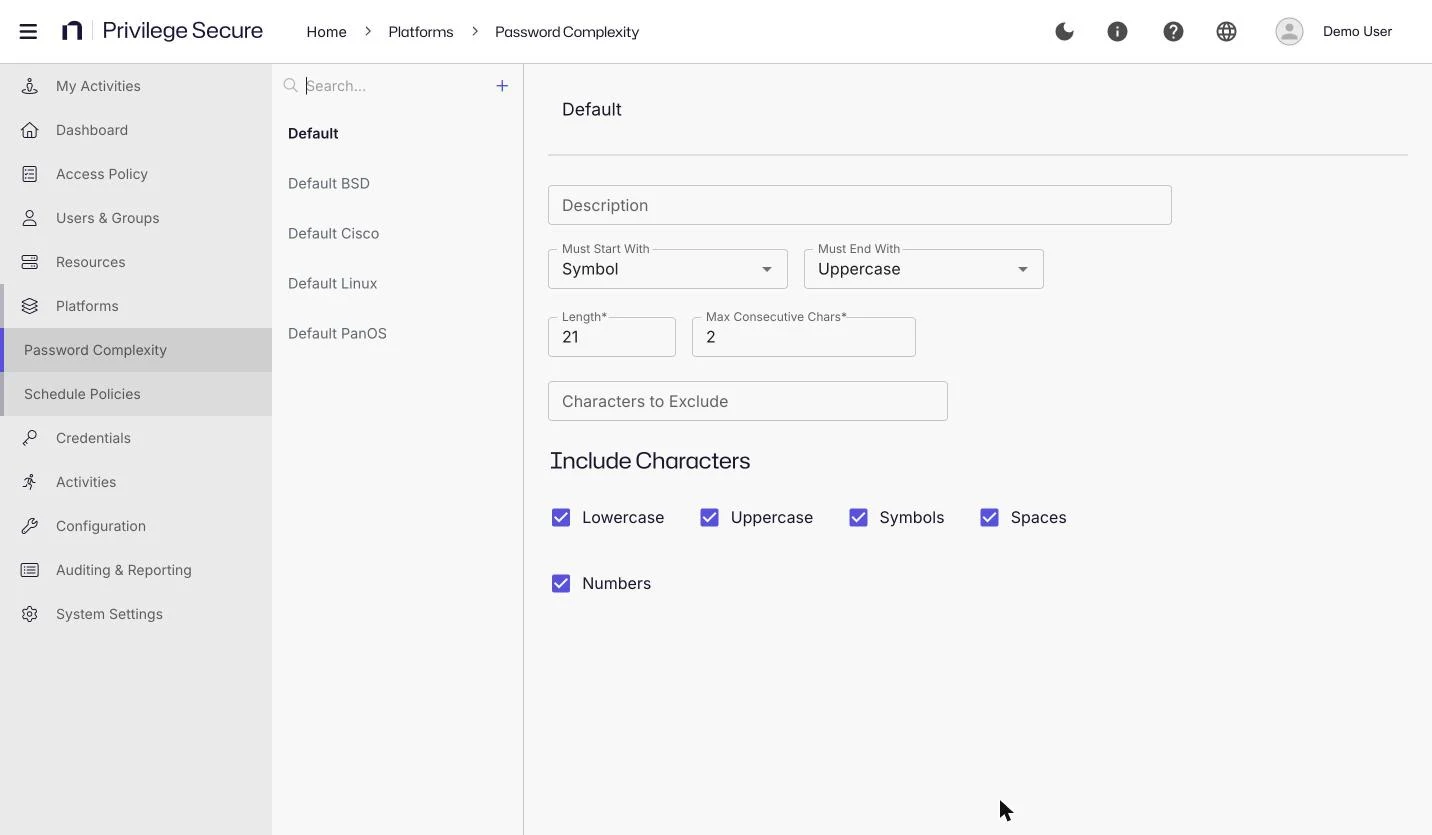
| Default | 21 | Symbol | Uppercase | 2 | Lowercase, Uppercase, Symbols, Spaces, Numbers |
| Default BSD | 16 | Lowercase | Symbol | 2 | Lowercase, Uppercase, Symbols, Numbers |
| Default Cisco | 16 | Lowercase | Symbol | 2 | Lowercase, Uppercase, Symbols, Numbers |
| Default Linux | 16 | Lowercase | Symbol | 2 | Lowercase, Uppercase, Symbols, Numbers |
| Default PanOS | 16 | Lowercase | Symbol | 2 | Lowercase, Uppercase, Symbols, Numbers |
The Default policy excludes no characters. The other four policies describe themselves as "Exclude unsafe special characters and spaces" for their platform. The Default BSD, Default Linux, Default Cisco, and Default PanOS policies exclude these characters from the password:
- Default Linux:
' " \ $ ` ! & | ; < > ( ) { } [ ] / @ : # - Default BSD:
' " \ $ ` ! & | ; < > ( ) { } [ ] / @ : # - Default Cisco:
' " \ $ ` | ; < > & ! @ ? / : # * - Default PanOS:
< > & " ' \ ` $ | ; ! ( ) { } [ ] # : / @ ? , . + =
The BSD, Cisco, Linux, and PanOS platforms each use the policy with their name. The other platforms use the Default policy.
Password complexity settings
Select Platforms > Password Complexity to open the list of policies. Selecting a policy shows these settings.
| Setting | Description |
|---|---|
| Name | The name of the policy. |
| Description | The purpose of the policy. |
| Must Start With | The type of character that the password starts with. |
| Must End With | The type of character that the password ends with. |
| Length | The number of characters in the password. The field is required. |
| Max Consecutive Chars | The most times that the same character can appear in a row. The field is required. |
| Characters to Exclude | Characters that never appear in the password. |
| Include Characters | The kinds of characters that the password uses: Lowercase, Uppercase, Symbols, Spaces, and Numbers. |
The Must Start With and Must End With lists offer None, Lowercase, Uppercase, Numeric, Symbol, and Space. None sets no rule for that position.
Create a password complexity policy
- Select Platforms > Password Complexity.
- Select the plus (+) button above the list of policies.
- In Name, enter a unique name, for example
Strict 24. - Optional: In Description, enter the purpose of the policy.
- Set Must Start With and Must End With.
- In Length, enter
24. - In Max Consecutive Chars, enter
2. - Optional: In Characters to Exclude, enter the characters that your targets don't accept.
- Under Include Characters, select the kinds of characters to include.
- Select Save.
The new policy appears in the list.
To start from an existing policy, hover over it and select the copy icon. To delete a policy, hover over it, select the trash icon, and confirm. Use the search box above the list to find a policy.
Assign a policy to a platform
A new policy has no effect until a platform uses it.
- Select Platforms, then select the platform.
- In Password Complexity Policy, select the policy, for example
Strict 24. - Check that Password Length shows
24. - Save the change.
Save and Cancel appear after you change a setting. Select Save to keep the change.
Select the arrow next to Password Length to show the rules of the selected policy. See Platforms.