Schedule policies
A schedule policy in Netwrix Privilege Secure for Access Management (Privilege Secure) defines how often a recurring task runs. You create a policy once and select it wherever a schedule is needed. Changing a policy changes the schedule of every task that uses it.
Select a schedule policy in these places:
- Platforms: Each platform has schedules for its resources, such as the scheduled change policy (password rotation), the scan schedule, and the verification schedule. See Platforms.
- Protection policies: A protection policy runs on the Protection Policy Schedule of each resource's platform. See Protection policies.
- Credential policy overrides: An override sets scan, protect, rotate, and verify schedules for specific credentials or resources. See Credential policy overrides.
- Report subscriptions: A subscription emails a report on a schedule. The Subscription Schedule list of a report subscription shows every schedule policy, including the ones you create. See Reports.
The schedules mean the following:
- Rotation changes the password of a managed account.
- Verification checks that the password of a managed account matches the password Privilege Secure set.
- Host scan collects the local users, groups, services, and scheduled tasks of a host.
Open the Schedule Policies page
- In the left navigation, select Platforms.
- Select Schedule Policies.
The page lists every schedule policy. Each policy is named after its recurrence, such as Every 4 hours. Use Search to filter the list.
Frequency types
The Schedule Policy Editor offers four frequencies under Select Frequency. The fields change with the frequency you select.
| Frequency | Fields |
|---|---|
| Every x Hours | The number of hours between runs, from 1 to 24. The default is 1. |
| Every x Days | The number of days between runs, from 1 to 512, and the time of day. |
| Weekly | The Day of Week and the time of day. The list offers one day, Monday through Sunday. |
| Monthly | The Day of Month and the time of day. The list offers the 1st through the 28th, and Last for the last day of the month. |
To run a task on several days of the week, create one weekly policy for each day.
The time of day is in the time zone of the Privilege Secure server. The editor shows a Server Time label next to the Time field.
Create a schedule policy
- Open the Schedule Policies page.
- Select the + button above the policy list. The Schedule Policy Editor opens.
- Under Select Frequency, select Every x Hours, Every x Days, Weekly, or Monthly.
- Enter the values the editor shows for that frequency.
- Select Save. Save is unavailable until you fill in the required fields.
The new policy appears in the list and in the schedule dropdown lists on platforms, credential policy overrides, and report subscriptions.
For example, to verify passwords every 2 hours, select Every x Hours, enter 2, and select Save. The policy appears as Every 2 hours.
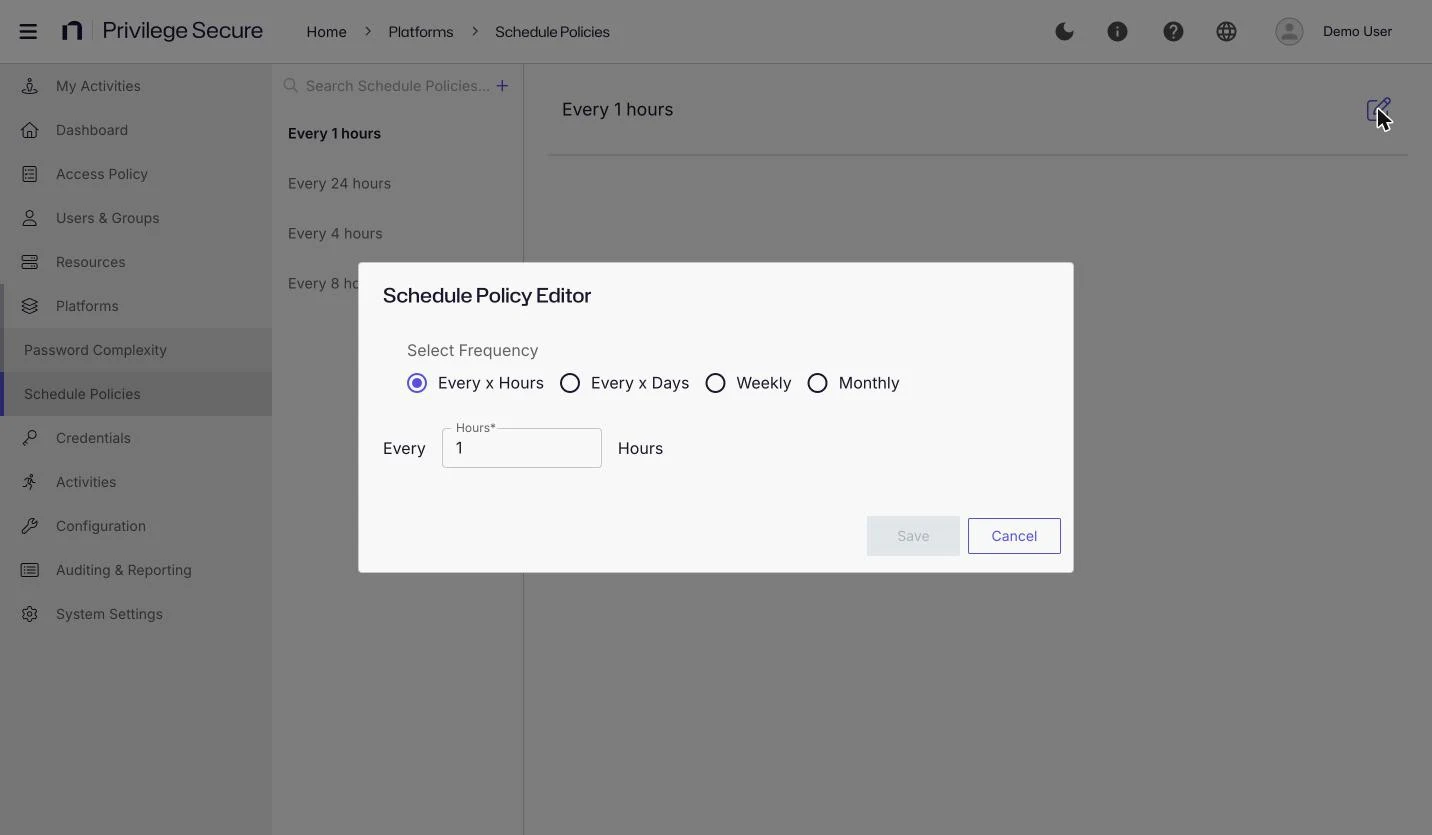
Edit a schedule policy
- Open the Schedule Policies page.
- Select the policy in the list.
- Select the Edit (pencil) icon in the details pane. The Schedule Policy Editor opens.
- Change the frequency or its values.
- Select Save.
Tasks that use the policy run on the new schedule.
Delete a schedule policy
- Open the Schedule Policies page.
- Hover over the policy in the list.
- Select the trash can icon, and then confirm the deletion.
A policy that a platform uses as its rotation, protection, or verification schedule, or that a credential policy override uses, can't be deleted. The deletion fails and the console shows an Unable to delete message with the error. Select a different policy in those places first, and then delete the policy. A policy that a platform uses only as its scan schedule, or that a single resource or account uses as a verification override, can be deleted. Privilege Secure clears the schedule in those places.