Protection policies
A protection policy keeps unauthorized members out of local groups on your resources. You list the groups to protect and the accounts allowed in each group. When the policy runs, Netwrix Privilege Secure for Access Management (Privilege Secure) removes every member that isn't on the list from the local group on the resource.
A protection policy removes group members. Any member of a protected group that isn't listed on the Allowed Members tab loses that membership the next time the policy runs. List every account that must keep its membership before you add resources to the policy.
How a protection policy works
A protection policy has three parts.
| Part | What it holds |
|---|---|
| Resources | The resources whose local groups the policy checks. |
| Allowed members | The groups to protect, and the members each group may contain. |
| Schedule | The tasks that run the policy on each resource. |
The policy runs on the Protection Policy Schedule of the platform that each resource uses. To change how often it runs, change that schedule on the platform. See Platforms and Schedule policies.
To run the policies that apply to a resource when a session ends, instead of waiting for the schedule, add the Invoke Protection Policy action to the Post-Session group of an activity. See Action types.
The scheduled run of a protection policy happens only on resources whose platform has a Protection Policy Schedule. The Invoke Protection Policy post-session action doesn't depend on that schedule. It applies the policy at the end of a session on any resource whose platform is based on Windows. On other platforms, the action records an error in the action log and doesn't change group membership. The console doesn't show the field for the Website, Secret Vault, Entra ID, Active Directory, Cisco, Microsoft SQL Server, and Oracle platforms, or for custom platforms based on Website, Secret Vault, Entra ID, or Active Directory. See Platforms.
Sessions and protected groups
An activity can add a user to a group for the length of a session. A protection policy doesn't remove those users while the session runs.
The Leave Existing Members in Group setting on a connection profile controls what happens to a user who was already in the group before the session. When the setting is on, that user stays in the group. See Connection profiles.
Create a protection policy
- Select Resources > Protection Policies.
- Select the plus (+) button above the list of policies.
- In Name, enter a name for the policy.
- Optional: In Description, enter the purpose of the policy.
- Select Save.
A new policy shows only Name and Description until you save it. After you save, the Resources, Allowed Members, and Schedule tabs appear.
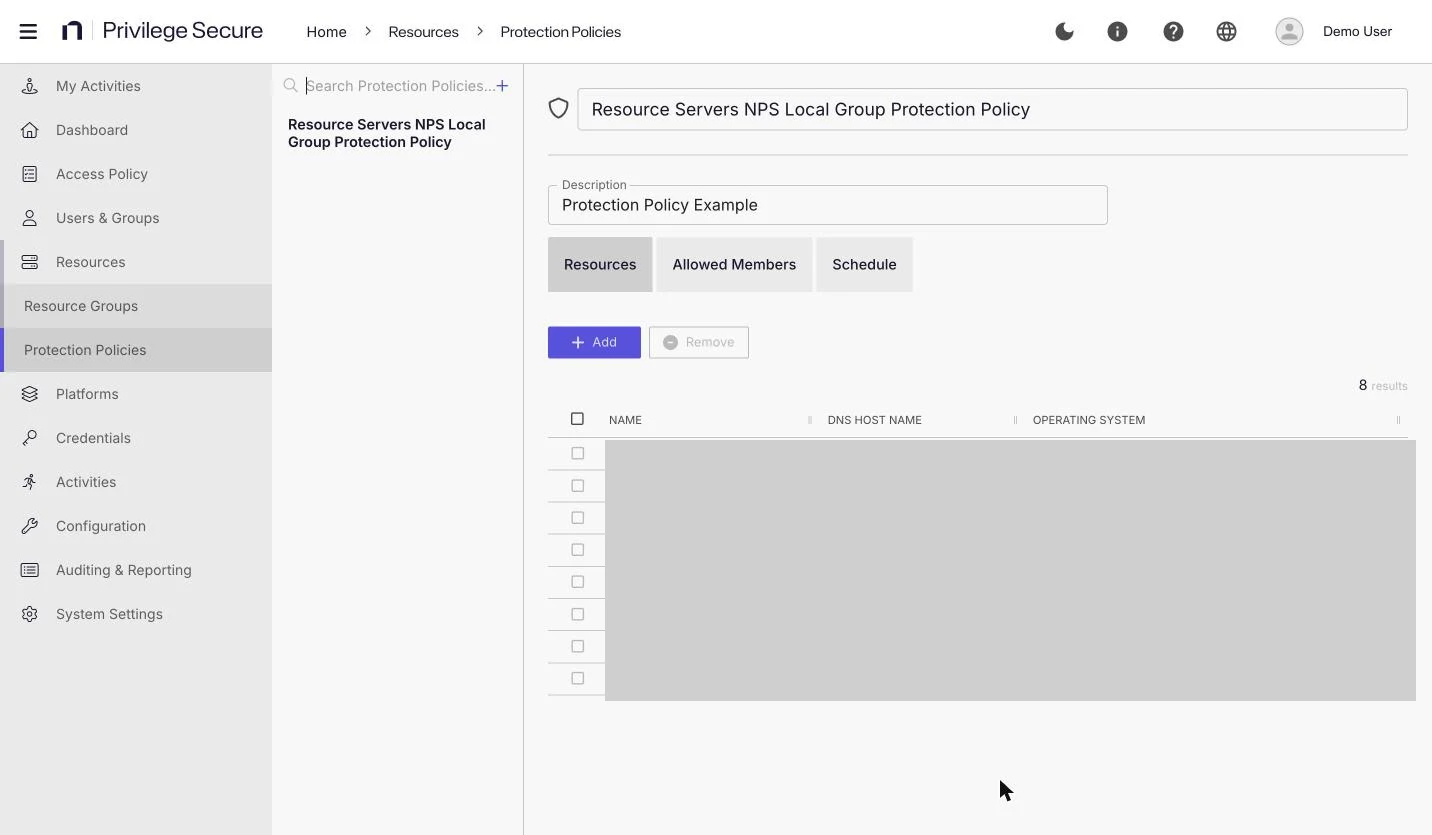
Use the search box above the list to find a policy. Hover over a policy to show the copy icon, which creates a new policy from the selected one, and the trash icon, which deletes the policy after you confirm.
Add a protected group
A protected group must already exist on the resource. Privilege Secure can't create it.
- Select Resources > Protection Policies, then select the policy.
- Select the Allowed Members tab.
- Select Add Group. The Add Protected Group and Member window opens.
- In Group Name, enter the name of the local group, for example
Administrators. - In Group Member, enter the account that may stay in the group, for example
<domain>\<account>. - Select Save.
The group appears in the Group Name column, and the member appears in the Allowed Member(s) column. Privilege Secure treats a member name without a domain as an account that is local to the resource.
Edit the allowed members of a group
- Select Resources > Protection Policies, then select the policy.
- Select the Allowed Members tab.
- Select Edit Members. The Edit Protected Group Members window opens and lists the allowed members under Group Members.
- To remove a member from the allowed list, select the trash icon next to the member and confirm.
- To allow another member, enter the account in New Group Member and select Add.
Removing a member from the allowed list doesn't remove the account from the group right away. The policy removes it the next time it runs.
Add resources to a protection policy
- Select Resources > Protection Policies, then select the policy.
- Select the Resources tab.
- Select Add.
- In the Available Resources table, select each resource to add. The resource moves to the Resources to Add table. Select a resource in that table to move it back.
- Select Add.
The Resources tab lists each resource with its Name, DNS Host Name, and Operating System. To remove a resource from the policy, select it and select Remove.
The Add Resources window lists individual resources only. The console doesn't offer resource groups here.
View the schedule of a protection policy
- Select Resources > Protection Policies, then select the policy.
- Select the Schedule tab.
The tab shows the scheduled tasks for the resources in the policy. It has these columns.
| Column | Description |
|---|---|
| Task Name | The name of the scheduled task. |
| Last Run Time | When the task last ran. |
| Next Run Time | When the task runs next. |
| Recurrence | How often the task runs. |
| Last Status | The result of the last run. |
| Status | The current state of the task. |
To read the log of a task, select the task and select View Logs.