Resource groups
A resource group collects resources so that you can manage their common settings together. A group can also map to an Active Directory organizational unit (OU) or container (CN), so that the computers in it join the group automatically. Groups also assign preferred Host Scan and Action services to their resources.
Default resource groups
Netwrix Privilege Secure for Access Management (Privilege Secure) includes default groups for several platforms, and a resource joins the default group of its platform. You set the platform when you onboard the resource, and you can change it later on the resource.
Default groups include Cisco, Linux, Website, and Windows.
A fresh install has four default groups. Creating a platform, or saving changes to a built-in platform, adds a group for it. You can't delete a default group or a group that a platform created.
Create a resource group
- Select Resources > Resource Groups in the left navigation.
- Select the plus (+) button above the group list.
- Enter a Name.
- (Optional) Enter Notification Emails (comma-delimited list). Privilege Secure sends events for the group's resources to these addresses.
- Select an option in Manage Local Administrator Accounts. This field is required.
- Off (do not manage accounts) is the default. Privilege Secure manages no local Administrator accounts on the group's resources.
- On (manage all accounts) manages the local Administrator accounts on all resources in the group.
- Per individual resource lets you set the option on each resource.
- Select Save.
The managed account corresponds to the Built-in Account field on the resource's platform. See Platforms.
For example, enter the name Branch servers, enter ops@example.com as the notification email, and leave Manage Local Administrator Accounts set to Off (do not manage accounts).
The four default groups start with Manage Local Administrator Accounts set to Off (do not manage accounts).
Map a group to an OU or CN
Mapping adds the computers in an Active Directory OU or CN to the group.
Prerequisites
- An Active Directory domain resource. See Active Directory domains.
- (For auto-onboarding) A least-privilege Active Directory service account that can scan the computers. See Service accounts.
Steps
- Open the group or create a new one.
- Select Map to OU or CN. This turns on Sync Now, Distinguished Name, Include Child OUs, and Auto-Onboard.
- Enter the Distinguished Name of the OU or CN. The format is
OU=Name,DC=domain,DC=comorCN=Name,DC=domain,DC=com. - (Optional) Select Include Child OUs to include the OUs below the one you entered.
- (Optional) Select Auto-Onboard to have Privilege Secure manage the computers it finds. See the next section.
- Select Save.
- Select Sync Now to map the OU to the group immediately.
For example, enter OU=Servers,DC=example,DC=com as the Distinguished Name and select Include Child OUs.
The mapping runs again after every manual or scheduled domain sync, for all groups of that domain, so it follows the schedule you set on the domain. See Active Directory domains. Sync Now starts a domain sync and then maps every OU-mapped group of that domain. When it runs, members that are no longer in the OU are removed from the group.
Sync Now is unavailable until you save the group, and while you edit it. When you select it, the Confirm Resource Group - OU sync window explains that a domain sync runs first, followed by an OU sync for all domain resource groups. Select Sync Now in that window to continue.
Auto-onboard computers
When you select Auto-Onboard, two more fields appear.
- Select a Default Platform. The default is (Auto-detect), which detects the platform of each computer.
- Select a Default Service Account. The default is (None). Choose a least-privilege Active Directory service account so that Privilege Secure can scan the computers it onboards.
- Select Save.
Auto-Onboard manages every computer in the OU that Privilege Secure doesn't already manage. It then schedules a host scan for each new resource with the service account of the domain. When Default Service Account is (None), Privilege Secure assigns no service account to the new resources. With (Auto-detect), Privilege Secure picks the platform from the operating system name of the computer. It recognizes Windows, Linux (including Red Hat, CentOS, and Ubuntu), and Cisco. A computer with any other or no operating system name gets the Unspecified platform until a scan identifies it.
Prefer service nodes for a group
By default, Host Scan and Action services take the next available job. A resource group can name preferred services. This is called affinity. A common use is a group per site, with the closest service nodes assigned to it.
- Open the resource group.
- Select the Host Scan Services or Action Services tab.
- Select Add. The Add Host Scan Services or Add Action Services window opens.
- Select the services to prefer, and confirm.
When you add more than one service, any of them can take a job for the group on a next-available basis. Jobs for the group's resources run only on the services you add. If none of them is available, the jobs wait in the queue; Privilege Secure doesn't hand them to another service. Add each service type separately: a group with preferred Host Scan services but no preferred Action services still uses any Action service.
For example, add the Host Scan service on the <east-service-node> node to the East region group. Scans of the group's resources run only on that node.
Both tabs have Add and Remove buttons. Their columns are Service Name, Status, Description, Version, and Added. See Service nodes.
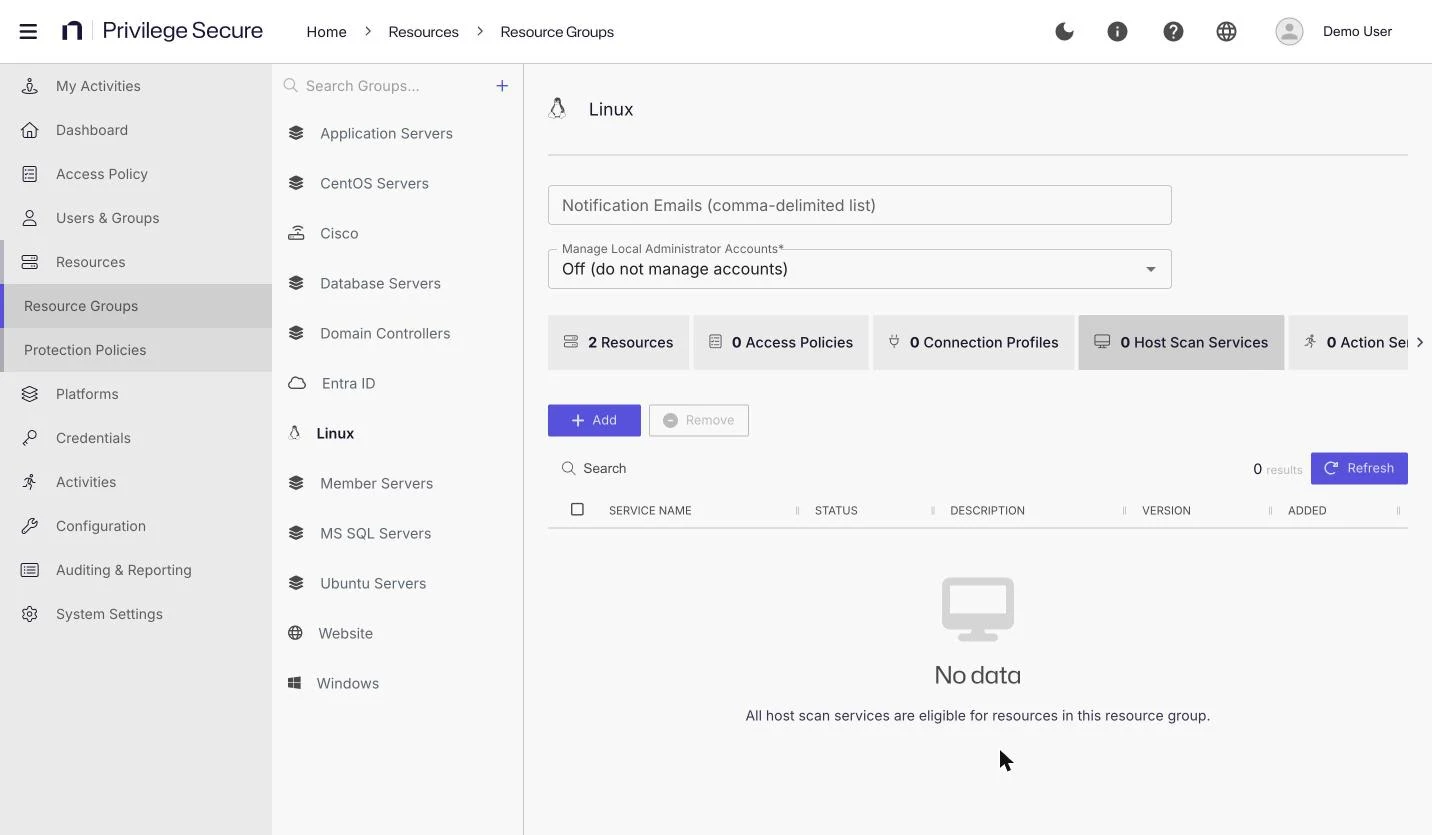
Resource group tabs
A saved group has these tabs. The Host Scan Services and Action Services tabs appear only when your license includes the resource group affinity feature.
| Tab | Shows |
|---|---|
| Resources | The resources in the group. |
| Access Policies | The access policies that include the group. |
| Connection Profiles | The connection profiles that include the group. The default profile appears here. |
| Host Scan Services | The Host Scan services preferred for the group. |
| Action Services | The Action services preferred for the group. |
Resources tab
The toolbar has Manage, Unmanage, Add, Remove, Change Platform, Change Service Account, and Rotate. A search box filters the table.
- Add adds resources to the group.
- Remove takes the selected resources out of the group. It doesn't remove them from Privilege Secure.
- Manage and Unmanage set whether Privilege Secure manages the local Administrator account on the selected resources (the Managed column). They are available only when Manage Local Administrator Accounts is Per individual resource.
- Change Platform and Change Service Account update the selected hosts.
The table has these columns: Managed, Local Admin, Resource, Operating System, Platform, DNS Host Name, IP Address, Service Account, and Last Scanned.
Copy or delete a group
Point to a group in the list to show the copy and delete icons. The copy icon duplicates the group. The trash icon deletes it after you confirm.
Deleting a group doesn't delete its resources. They stay in Privilege Secure and leave the group. If Manage Local Administrator Accounts is On (manage all accounts), Privilege Secure stops managing the local Administrator accounts on the group's resources before it deletes the group. The trash can icon is unavailable for the default groups and for groups that a platform created.