Secret vaults
A secret vault stores accounts and files that you manage by hand, and gives Netwrix Privilege Secure for Access Management (Privilege Secure) users controlled access to them. Use a vault for credentials that Privilege Secure doesn't manage on the target, such as a local account on an appliance.
Prerequisites
- The account or file that you want to store.
Create a secret vault
- Select Resources in the left navigation.
- Select Add and select New Secret Vault.
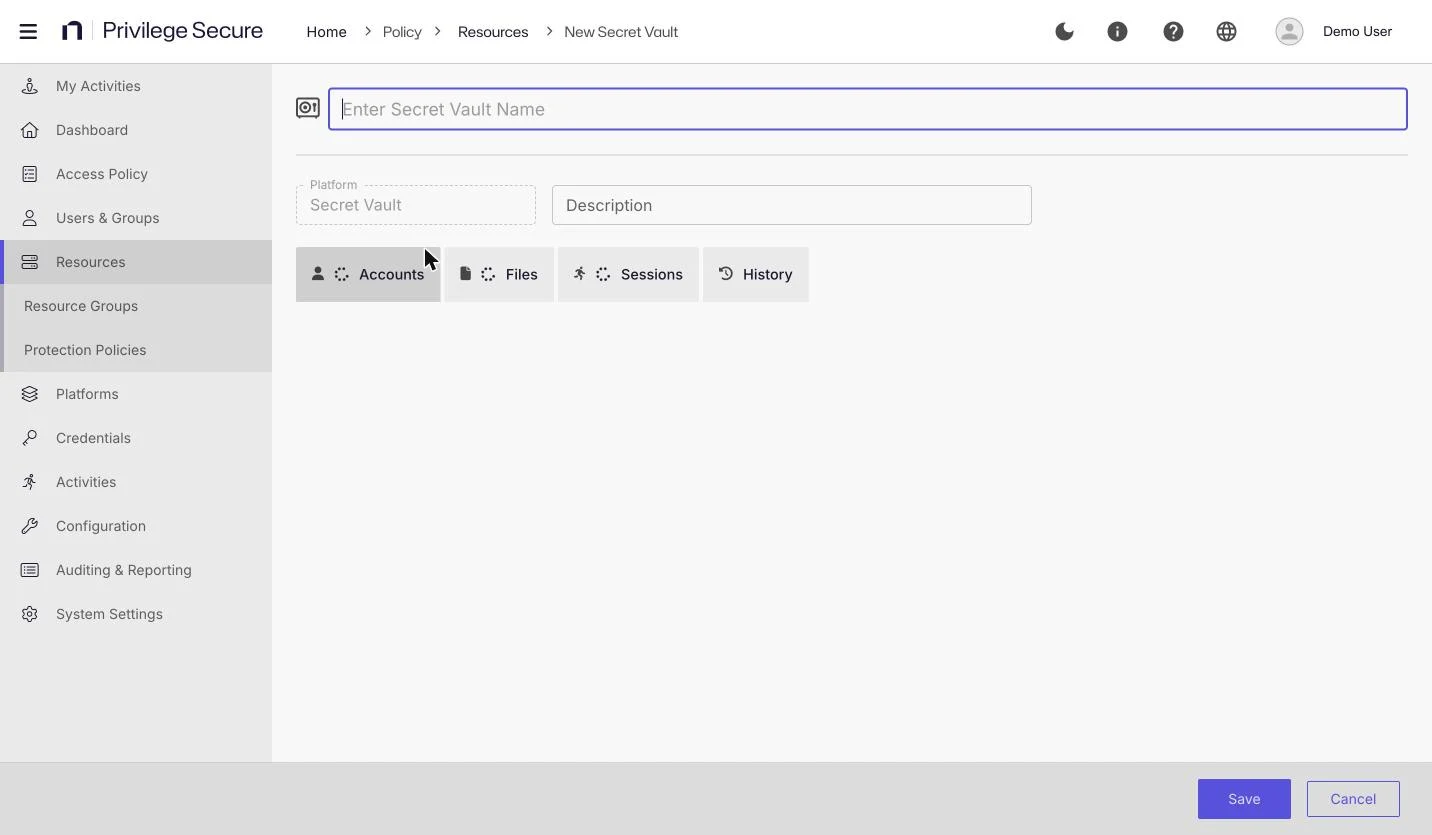
- Enter a name in Enter Secret Vault Name.
- (Optional) Enter a Description of the vault.
- Select Save.
The Platform field shows Secret Vault and can't be changed.
For example, enter the name Network appliance accounts and the description Local accounts for devices that don't accept domain accounts.
Add an account to a vault
- Open the vault and select the Accounts tab.
- Select Add.
- In the Add a Managed Account window, enter the Resource Name, the Username, and the Password.
- (Optional) Enter a Comment.
- Select Okay.
For example, enter the resource name edge-fw01, the username admin, and the account password as the secret.
To change an account, select exactly one row and select Edit. In the Edit a Managed Account window, Change Password (optional) keeps the stored password when you leave it blank. Use Delete to remove it. A confirmation window appears before the removal. Search filters the table and Refresh reloads it.
The table has these columns: Resource, Username, Comment, and Created.
Add an encrypted file to a vault
- Open the vault and select the Files tab.
- Select Add.
- In the Add Encrypted File window, drag the file onto the window, or select the window and browse for the file.
- (Optional) Enter a comment.
- Select Save.
The file limits are:
- The maximum file size is 10 MB by default. The allowed range is 1 MB to 20 MB.
- A malware scan runs on the uploaded file. The scan is on by default.
For example, upload router-backup-key.pem with the comment Key for the branch router.
Use Edit to change the file details and Delete to remove the file. In the Action column, select an icon to download the file or its checksum.
The table has these columns: File, Action, File Type, Size, Comment, and Created.
Administrators set the maximum size and the malware scan under System Settings > Encrypted Files. See System settings.
If the scan finds malware, Privilege Secure doesn't store the file and the console shows Failed to upload file. Please try again. The same message appears if the scan can't run. Privilege Secure records the reason, such as a file that contains malware, as an error event in the audit log.
Give users access to a vault
To give users access, create an access policy of type Credential Based. The policy lists the vault accounts and files that its users can check out. See Create a credential-based access policy and Release files with File Release.
Update a stored secret by hand when the password changes on the device. By default, credentials in a secret vault don't change their password when a user checks them out or releases them. Privilege Secure sets both options off for every account you add to a vault, and the Add a Managed Account window has no setting to change them.
You can record SSH sessions that use accounts stored only in a secret vault.
Review the vault tabs
| Tab | Shows |
|---|---|
| Accounts | The accounts stored in the vault. |
| Files | The encrypted files stored in the vault. |
| Sessions | Earlier sessions that used the vault. Select a row and select View Logs to open the session log. |
| History | Events for the vault, with a Status, Time, User, Access Policy, Event Message, and Session ID for each. |
For session logs, see Session logs.
Remove a vault
See Remove resources.