Track your sessions
The Dashboard lists every session you request. Use it to see where a session stands, end it, open its logs, or start the same session again.
To open it, select Dashboard in the left navigation, and then select a tile:
- Active lists sessions that are being prepared, waiting, or in use.
- Scheduled lists sessions that start later.
- Approvals lists requests that wait for your decision, if an approval workflow names you as an approver. Your own requests that wait for approval stay on the Active tile with the status Waiting for approval. See Approve or deny session requests.
- Historical lists sessions that have ended.
Each tile shows a count. Select Refresh on any table to reload it.
The Dashboard also has Users, Resources, and Credentials tiles. The Users and Resources tiles are for administrators. The Credentials tile also appears for users whose custom role grants the Credentials permission. See Dashboard.
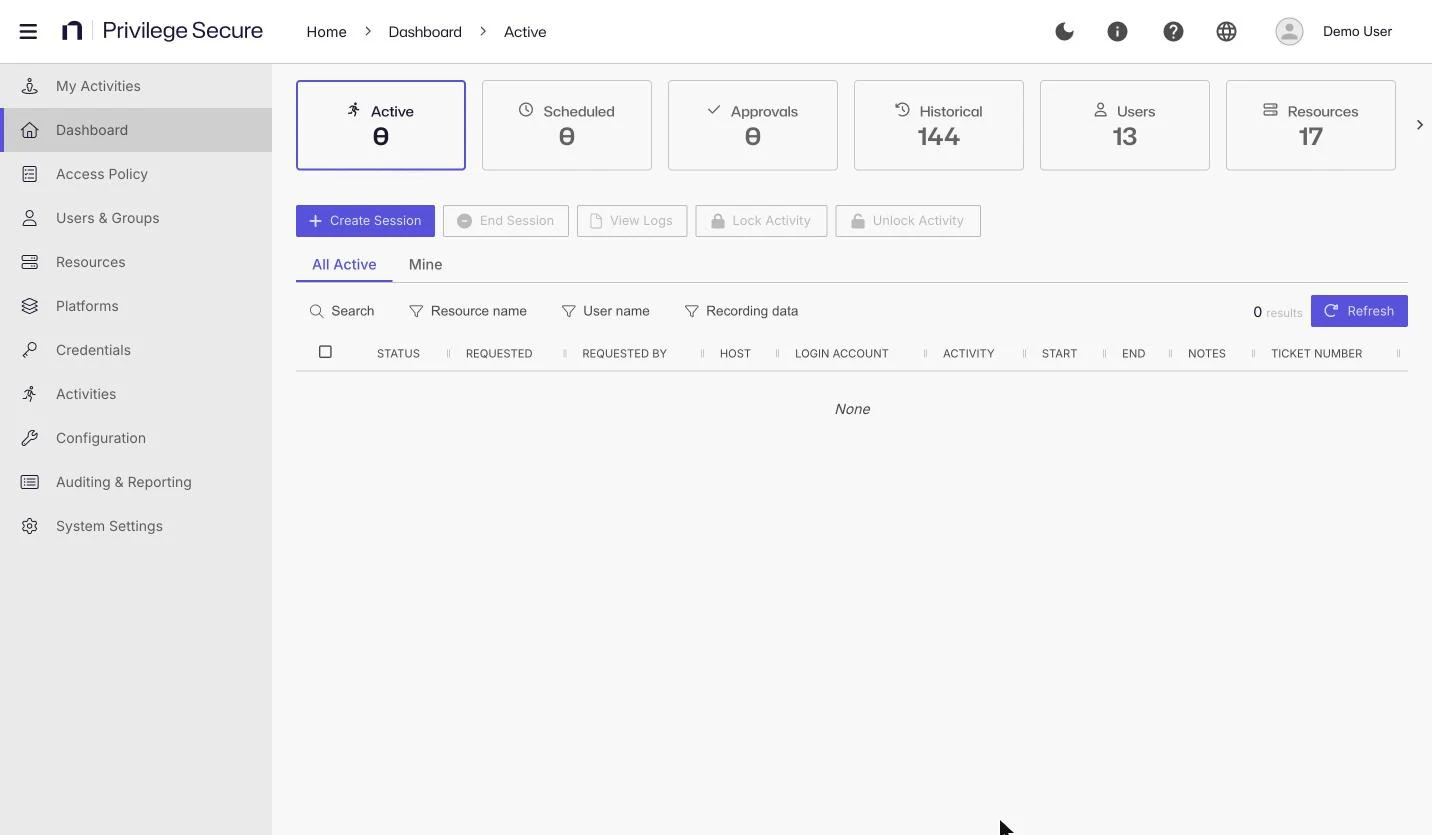
To request a new session, select Create Session on the Active or Scheduled tile. See Request a session.
Check the status of an active or scheduled session
The Active and Scheduled tables show these columns:
| Column | Shows |
|---|---|
| Status | The state of the session. See Statuses. |
| Requested | When the session was created. |
| Requested By | The user who requested the session. |
| Host | The resource the activity runs on. |
| Login Account | The account used to sign in to the resource. |
| Activity | The name of the activity. |
| Start | When the activity's actions run. This isn't the time you sign in to the resource. |
| End | When the session ends. This is the start time plus the maximum session duration set in the connection profile. |
| Notes | The notes entered with the request. |
| Ticket Number | The ticket number entered with the request. |
The Active tile lists your own sessions. Administrators and auditors with the Live Session Viewer permission also see an All Active tab and a Mine tab. The Scheduled tile has no tabs.
Use Search to filter the table. On the Active tile, you can also filter by Resource name. Administrators and auditors also see User name and Recording data filters.
Statuses
| Status | Meaning |
|---|---|
| Provisioning | Privilege Secure is assigning permissions to the login account before the session. |
| Pending | The scheduled start time is still in the future. Scheduled tile only. |
| Waiting for approval | An approver must approve the request before the session can begin. |
| Approval denied | An approver denied the request. |
| Approval failed | The approval workflow couldn't complete. |
| Available | The session is ready. Connect to it. See Connect to a session. |
| Failed | The provisioning stage hit an error. |
| Logged In | You are signed in to the resource, either directly or through the proxy. Privilege Secure detects a direct sign-in by polling the resource at regular intervals, so the status can lag. |
| Deprovisioning | Privilege Secure is removing the permissions after the session ends, expires, or is canceled by you or an administrator. |
| Locked | An administrator locked the session. |
End a session
To end one or more sessions, select them on the Active or Scheduled tile and select End Session. See Connect to a session for the full procedure and the permission that auditors need.
Open the logs of an active session
- On the Active tile, select the checkbox for a session.
- Select View Logs.
The Session Logs window shows the action log for the session. See View session logs.
Review past sessions
The Historical tile lists sessions that have ended, with their final status.
The Historical tile lists your own sessions. Administrators also see an All Historical tab and a Mine tab. The Export as CSV button creates a CSV file of the table and downloads it to your browser's default download folder.
You can filter the table with these controls: Search, Resource name, and Start date. Administrators also see User name and User type on the All Historical tab. Administrators and auditors also see Recording data.
The table has these columns:
| Column | Shows |
|---|---|
| Actions | The expand icon, the logs icon, and on your own sessions the quick launch icon. See Row actions. |
| Requested | When the session was created. |
| Status | The final state of the session. |
| Session User | The user who requested the session. |
| Host | The resource the activity ran on. |
| Login Account | The account used to sign in to the resource. |
| Activity | The name of the activity. |
| Start | When the activity's actions began running. |
| Duration | How long the activity ran, until it reached its scheduled end or someone canceled it. |
| Notes | The notes entered with the request. |
| Ticket Number | The ticket number entered with the request. |
A historical session has one of these statuses:
| Status | Meaning |
|---|---|
| Completed | The activity reached its scheduled end, or the requester ended it early. |
| Cancelled | An administrator canceled the activity before its scheduled end. |
| Failed | The provisioning stage hit an error. |
For the full list of Historical filters and recordings, see Review historical sessions.
Row actions
- Expand icon: Shows a one-line summary of a completed session, such as
RDP Session completed at <time>.A failed session has no summary. - Logs icon: Opens the session logs for that session.
- Quick launch (rocket icon): Appears only on your own sessions.
Relaunch a past session
Relaunch a session to run the same activity on the same resource with the same connection profile.
- On the Historical tile, find the session.
- Select the rocket (quick launch) icon in the Actions column.
The icon appears only on your own sessions. It isn't shown for Credential Release or File Release sessions. If the connection profile requires notes or a ticket, the console asks for them first. On success, the console shows "Started session <activity>". If you no longer have access to the activity, the console shows "You no longer have access to execute the activity: <activity> targetting <resource>".