Navigate the console
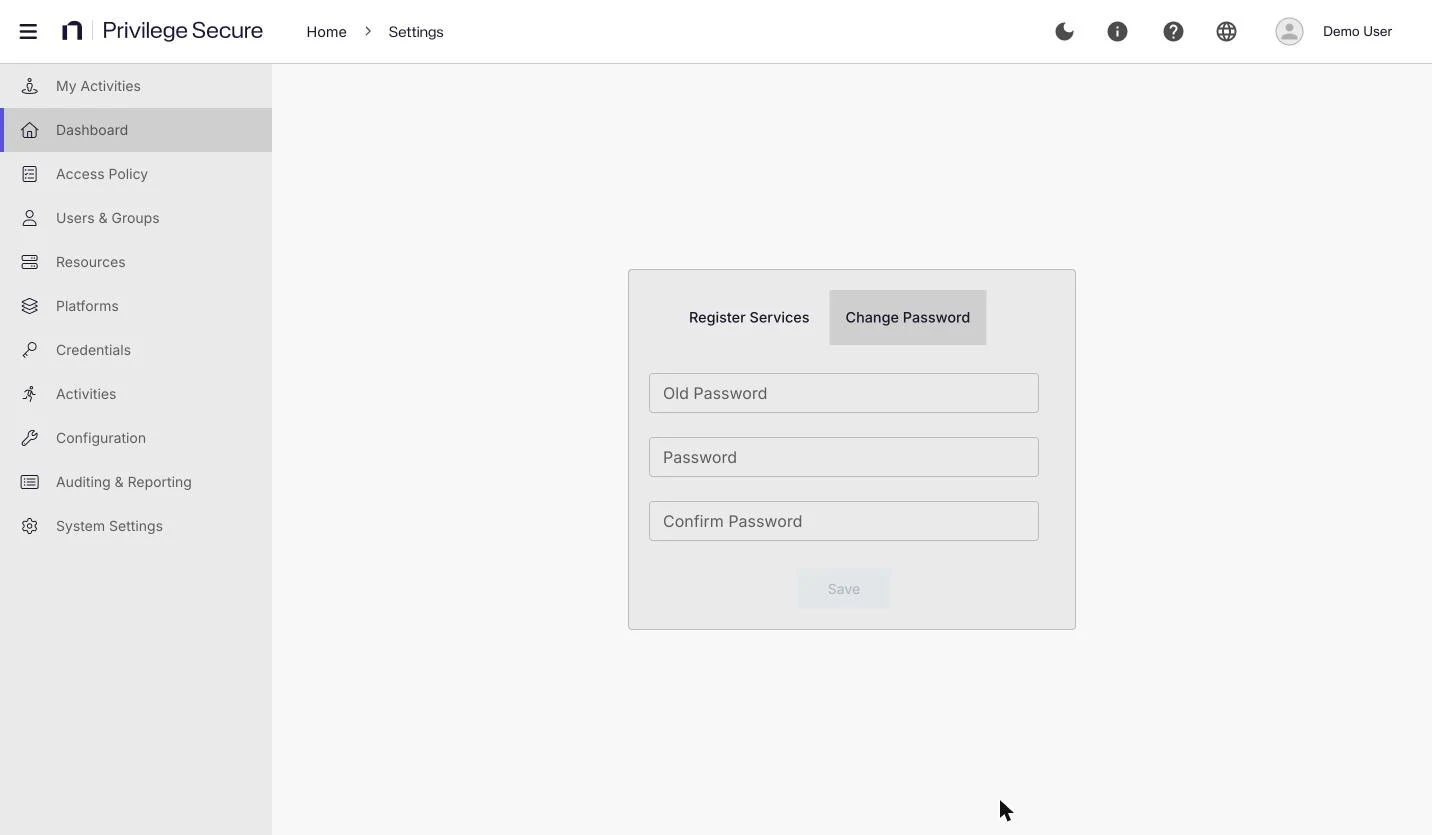
The Privilege Secure console has a header across the top and a navigation menu down the left side. This page describes both, and shows how to change the language, the theme, and your password.
Header
The header contains these controls, from left to right:
| Control | What it does |
|---|---|
| Menu button | Collapses the navigation menu to icons, or expands it again. |
| Logo | Returns to the Dashboard. |
| Breadcrumb | Shows where you are, for example Home > My Activities. Each crumb is a link. |
| Dark mode toggle | Switches between the light and dark theme. |
| About third party components (i) | Opens a dialog with the license texts of the third-party components. It doesn't show the product version. |
| Help (?) | Opens the Privilege Secure documentation in a new tab. |
| Language globe | Opens the language menu. |
| User Options | Opens your user menu. |
The Help link opens the documentation home page for the product, not a specific version. Select the version that matches your console on that page. The version number appears in the User Options menu.
User Options menu
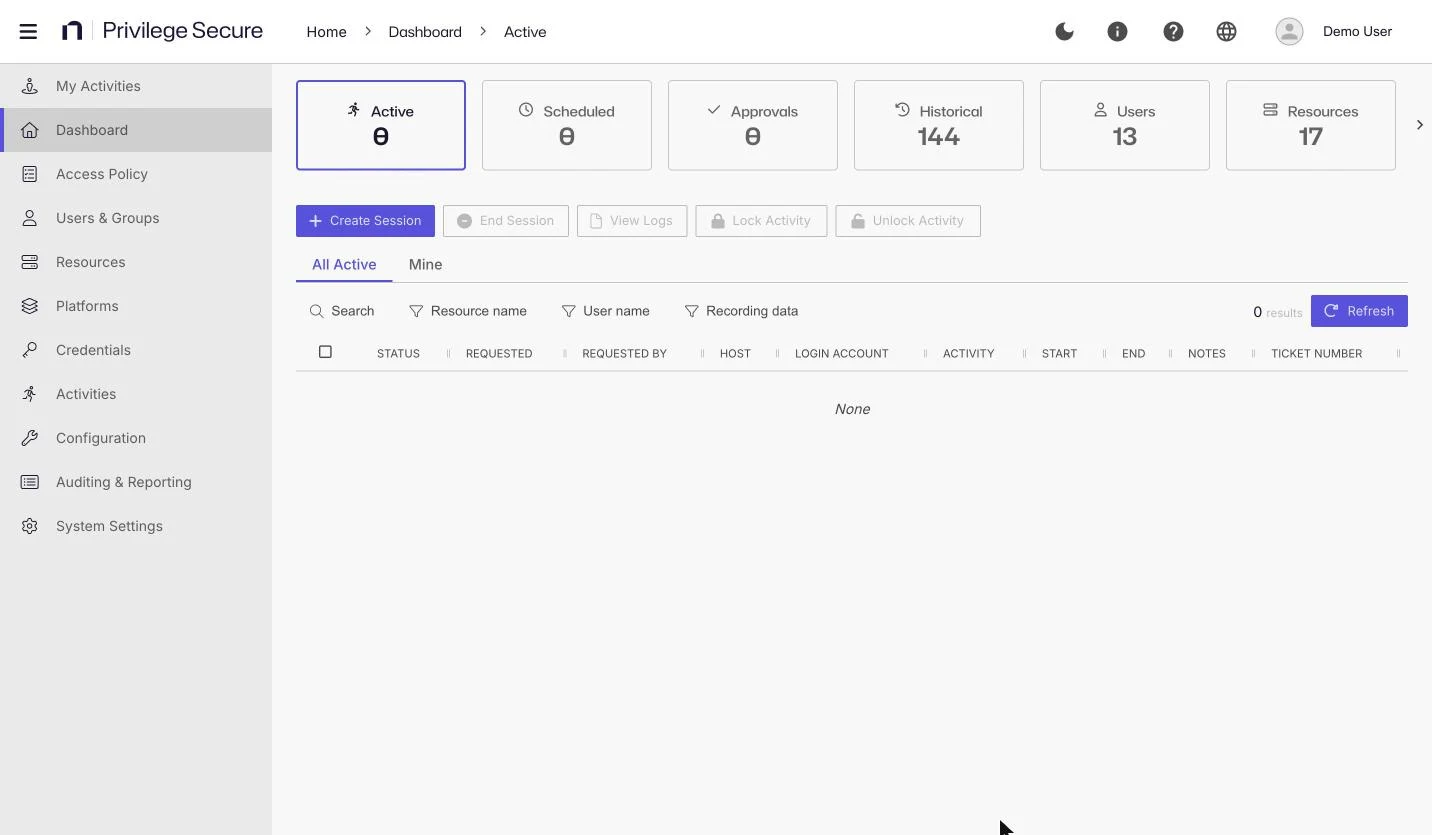
Click your name in the header to open User Options. The menu contains:
- Product Tour: starts the guided tour of the console.
- Settings: opens the Settings page. See Change your password. The entry shows only for administrators and local console users. It is hidden for domain users who aren't administrators.
- Logout: signs you out and returns to the sign-in page.
- About: opens the About page, which shows the license type, expiry date, customer information, and licensed user count (credits). Administrators upload a license file on this page. See Activate a license.
Below the entries, the menu shows the copyright line and the console version, for example "Version 26.07.00003".
Change the language
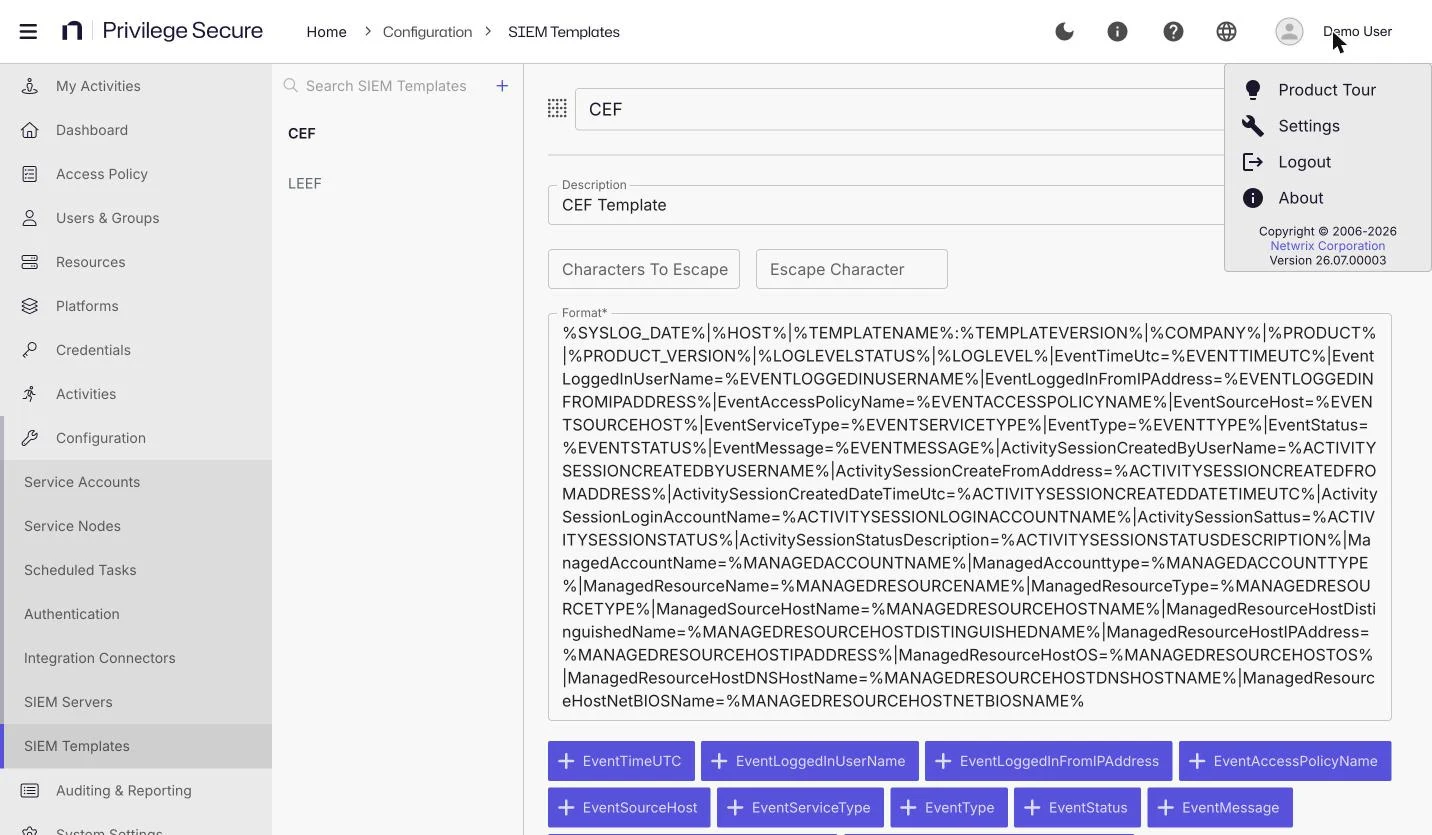
The console is available in seven languages. The language menu lists each language by its own name:
- English
- French (Français)
- German (Deutsch)
- Korean (한국어)
- Italian (Italiano)
- Spanish (Español)
- Traditional Chinese (繁體中文)
To change the language:
- Click the language globe in the header.
- Select a language. A check mark shows the current language.
The console switches to that language right away. For example, selecting Deutsch changes the menu labels to German.
The language selector is also on the sign-in page, so you can choose a language before you sign in. The console stores your choice in the browser, not in your user account. If you sign in from another browser or computer, choose the language again. English is the default.
Some text stays in English in every language. This includes the field labels and tab names on a resource's detail page, the ServiceNow end-session dialog, and the tabs of a report's detail view. The documentation is available in English only.
Event messages that the server generates stay in English too. Emails and SIEM messages are also in English. This is because the server has no language setting and the console doesn't send its language to the server.
In reports, the save, copy, and delete dialogs and alerts follow the console language. The filter and chart controls, report names, data source names, column names, and the report data stay in English.
Switch between the light and dark theme
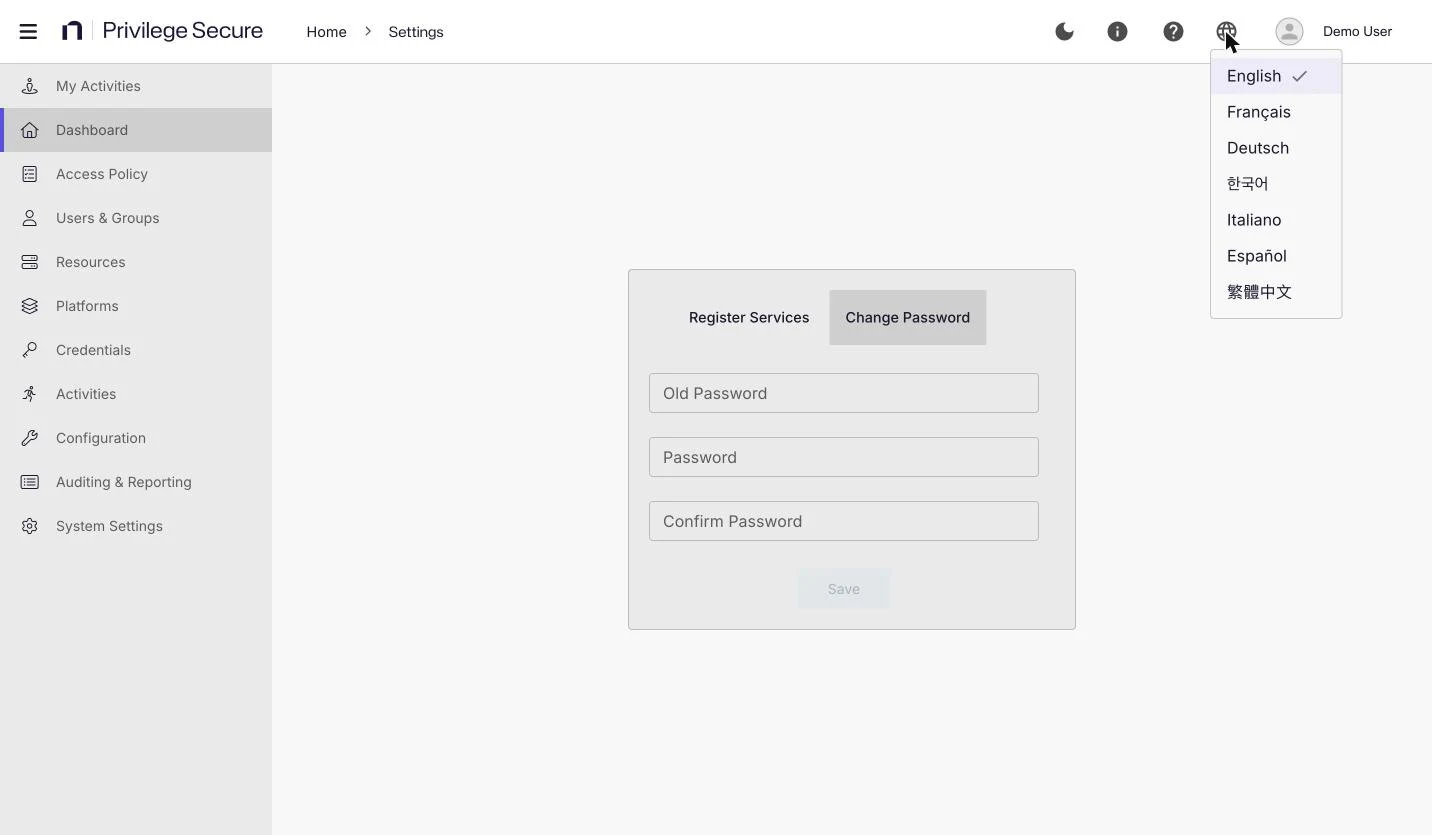
Click the dark mode toggle in the header. The toggle's accessible name is "Switch to Dark Mode". Click it again to return to the light theme.
Navigation menu
The navigation menu lists the areas of the console that you can use. Some items have sub-pages. When you open an item, or one of its sub-pages, its sub-pages appear below it in the menu. When the menu is collapsed, only the item icons show. The sub-pages you see depend on your role and your license. Click the menu button in the header to collapse or expand the menu.
| Item | Sub-pages | Purpose |
|---|---|---|
| My Activities | None | Request access with an activity. See My Activities. |
| Dashboard | None | Track and manage sessions. See Track your sessions. |
| Access Policy | Connection Profiles, Activity Token Complexity, Command Restriction | Define who can run which activities on which resources. |
| Users & Groups | Role Management, User and Group Collections | Manage users, groups, and roles. |
| Resources | Resource Groups, Protection Policies | Manage the systems that users access. |
| Platforms | Password Complexity, Schedule Policies | Manage platform settings for resources. |
| Credentials | Credential Groups, Credential Policy Overrides | Manage credentials and their rotation. |
| Activities | Activity Groups | Define activities. |
| Configuration | Service Accounts, Service Nodes, Scheduled Tasks, Authentication, Integration Connectors, SIEM Servers, SIEM Templates | Configure the product. |
| Auditing & Reporting | Access Certification, Activity Log, DB Change History, Events, Log Files, Reporting | Review access, audit activity, and run reports. |
| System Settings | Action Service Settings, Database | Change product-wide settings. |
The Dashboard page has the tiles Active, Scheduled, Approvals, Historical, Users, Resources, and Credentials. They aren't menu items. Each tile shows a count.
Most users see only part of this menu. Everyone sees My Activities and Dashboard. Administrators see all items. Other users see additional items based on their role:
- Reviewers see Auditing & Reporting > Access Certification. See Review an access certification.
- Auditors see Activity Log, DB Change History, Events, Log Files, and Reporting under Auditing & Reporting. See Review sessions as an auditor.
- Users with the Admin View Read Only role see the same menu as administrators, but can't make changes.
- Users with a custom role that targets Access Policies see Access Policy, without the Connection Profiles, Activity Token Complexity, and Command Restriction sub-items, which only administrators see. Users with a custom role that targets Credentials see the Credentials tile.
- A user who has no other role sees My Activities and Dashboard, plus Live Sessions when it is available to them.
The Command Restriction item requires a license feature. The Users, Resources, and Credentials tiles on the Dashboard repeat the pages of the same names for administrators.
A Live Sessions item appears only while you have browser sessions open through the Remote Access Gateway portal. See Browser sessions.
Banners
The console shows a banner at the top of the page when something needs attention:
- A license banner appears when the license has expired or is offline, expires soon, or is a trial license. The banner shows the date where one applies.
- "Action Service is not running or registered." appears when the Action Service is down. Tell your administrator.
- A read-only banner appears when you are in read-only mode and says "You are in read-only mode. Changes are not permitted."
Take the Product Tour
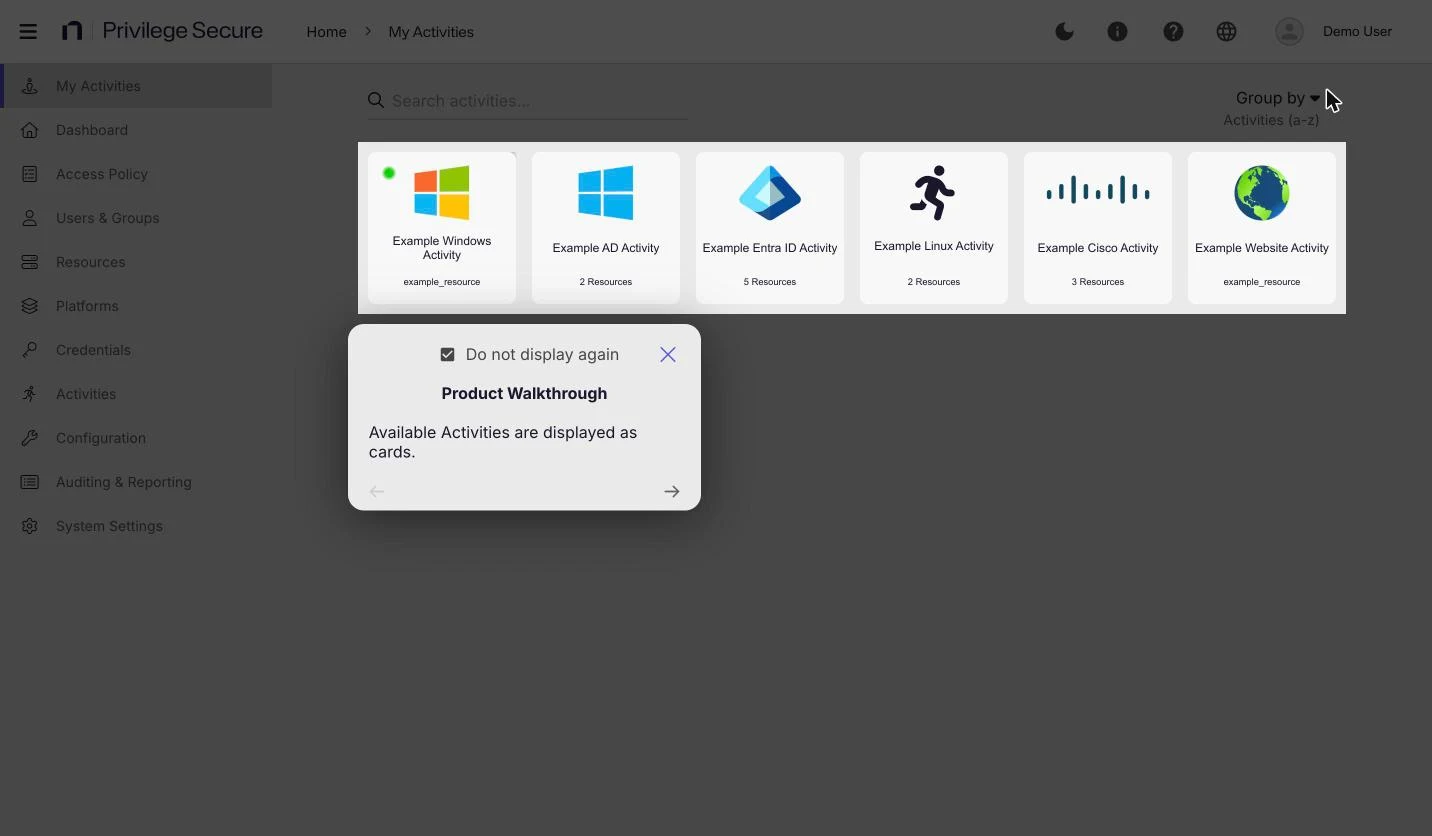
New users see a product tour the first time they sign in. The tour walks through the parts of the console that apply to your role.
- To stop the tour, click the X on the tour card.
- To start the tour again, open User Options and click Product Tour.
The tour doesn't show again at your next sign-in unless you clear the "don't display again" checkbox.
Change your password
If you sign in with a local console account, change your password on the Settings page.
- Click your name in the header, and then click Settings.
- Click the Change Password tab.
- Enter your current password in Old Password.
- Enter the new password in Password and again in Confirm Password.
- Click Save.
Save is available after you fill in all three fields. The new password must meet the password rules your administrator sets in the password options: a minimum length, if one is set, and, if required, an uppercase letter, a lowercase letter, a digit, and a non-alphanumeric character. While you type, the form shows which rule isn't met yet, for example "Need 3 more characters" or "Passwords are not the same." No confirmation message appears. After a successful change, the console signs you out and opens the sign-in page. Sign in again with the new password.
Domain users don't change their password in the console. The Change Password tab shows only for local console accounts. Change a domain password the way your organization changes any Windows sign-in password.
The Register Services tab appears only for administrators. Administrators use it to register services again. Use it only when Netwrix Support asks you to. If you aren't an administrator, the Settings page shows only the Change Password tab.