Request a session
A session is a time-limited period of access to a resource, granted through an activity. You request one in the Activity Request dialog. When the request is approved, or needs no approval, Privilege Secure prepares the resource and the session becomes available to connect to.
Before you begin
You need membership in at least one access policy that includes the activity and the resource. An administrator sets this up. If you belong to no access policy, the dialog shows this message and you can't continue:
"You do not appear to belong to any access policies, please contact your Netwrix Privilege Secure administrator for assistance"
Ask your administrator to add you to an access policy. For the administrator steps, see Access policies.
If your license has expired, or Privilege Secure can't reach the license service, you can't create sessions, even if you can still sign in.
Request a session
- Click Dashboard in the left navigation, then click the Active or Scheduled tile.
- Click Create Session. The Activity Request dialog opens.
- On the Activity Selection step, search for and select an activity. Click Next >.
- If the Group Selection step appears, select the groups or roles to assign. Click Next >. The step appears only for an activity that assigns users to groups or roles. For any other activity, the dialog skips it.
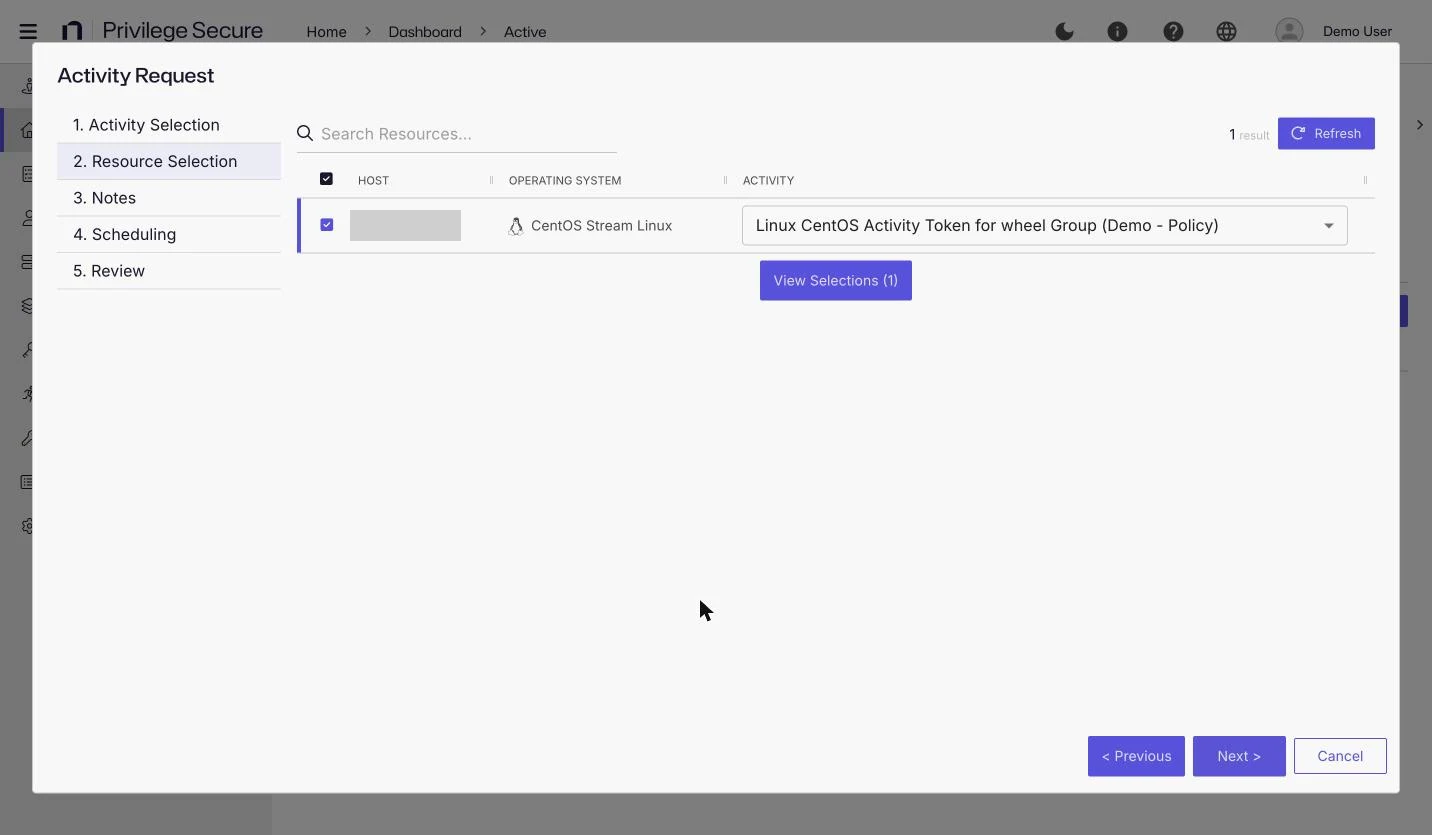
- On the Resource Selection step, select one or more resources in the table. Each selected resource has its own Activity list, so choose the activity to run on each one. Click View Selections to review your choices. Click Next >.
- On the Notes step, enter notes and a ticket number. Complete any custom fields. Click Next >.
- On the Scheduling step, choose Now or choose a date and time. Click Next >.
- On the Review step, check the summary. Click Finish to submit the request.
Use < Previous to go back a step. Click Cancel to close the dialog without a request.
Example: To get local administrator rights on a server for a patch window, select the activity Add Requester to Local Administrators, select the server <server-name>, enter the notes Monthly patching, enter the ticket number INC0012345, and choose Now.
You can also start a session from My Activities. See My Activities.
Notes and ticket number
The connection profile of your access policy decides what the Notes step asks for:
- Notes and Ticket Number are required or optional. When a required field is empty, the step shows "Note required" or "Ticket required".
- Custom fields appear with the label that the administrator set. A custom field can be required, and it holds an integer, a string, or a choice from a list. The Notes step shows the custom fields.
If the profile uses a ServiceNow connector, the ticket number box takes the connector's label, and Privilege Secure checks the ticket before it accepts the request. See Use ServiceNow tickets with sessions.
Scheduling
On the Scheduling step, Now starts the session as soon as it is ready. To start later, choose a date and time. The step shows how long the session lasts, in the text "This session will expire N minutes after the start date". The session ends when the connection profile's Max Duration (minutes) passes. The default is 120 minutes.
A session with a future start time appears on the Scheduled tile with the status Pending until it starts. A session set to Now appears on the Active tile.
What happens after you submit
The new session appears in the grid of the tile you started from. Follow its Status column:
- Waiting for approval appears when the connection profile requires approval. You can't connect until an approver approves the request. For how approvers handle requests, see Approve or deny session requests.
- Provisioning appears while Privilege Secure assigns permissions to the login account.
- Available appears when the session is ready. See Connect to a session.
If an approver denies the request, the status changes to Approval denied.
For all status values, see Manage active and scheduled sessions. To follow your own sessions, see Track your sessions.
Request errors
| Message | What to do |
|---|---|
"Unable to find policy for activity: <activity>, with resource: <resource>. Contact the NPS Administrator to request access." | No access policy of yours includes that activity and resource together. Ask your administrator for access. |
| "This account is locked from creating sessions on this resource." | An administrator blocked your account from creating sessions on this resource. Contact your administrator. |
| "This account is locked and cannot create a new session." | An administrator locked your account. Contact your administrator. |
| "Account is locked from creating sessions. Contact the NPS Administrator." | An administrator locked your account. Contact your administrator. |
Request a session from outside the network
If your organization runs the Remote Access Gateway, you can request and open browser sessions from outside the network. See Connect to a session in the browser.